
Skip to content
  • Categories
  • Recent
  • Tags
  • Popular
  • Users
  • Groups
  • Search
  • Get Qt Extensions
  • Unsolved
Collapse
Brand Logo
  1. Home
  2. Qt Development
  3. Mobile and Embedded
  4. RoundButton not taking correct height setting
Forum Updated to NodeBB v4.3 + New Features

RoundButton not taking correct height setting

Scheduled Pinned Locked Moved Solved Mobile and Embedded
16 Posts 2 Posters 1.4k Views 1 Watching
  • Oldest to Newest
  • Newest to Oldest
  • Most Votes
Reply
  • Reply as topic
Log in to reply
This topic has been deleted. Only users with topic management privileges can see it.
  • mzimmersM Offline
    mzimmersM Offline
    mzimmers
    wrote on last edited by
    #1

    Hi all -

    Minimal code:

    import QtQuick
    import QtQuick.Controls
    
    ApplicationWindow {
        id: mainWindow
    
        visible: true
        width: 800
        height: 480
    
        menuBar: Rectangle {
            id: navBar
            height: 56
            width: mainWindow.width
            color: 'lightgray'
    
            RoundButton {
                id: testButton
                text: testButton.height
                anchors.centerIn: parent
                height: navBar.height / 2
                radius: height / 2
            }
        }
    }
    

    Can someone explain to me why the height of the RoundButton is correct on Windows:
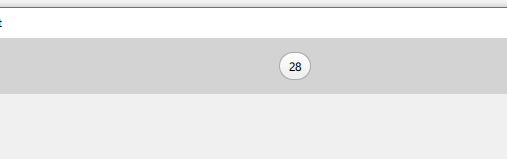
    windows.PNG

    But not on Android:

    android.PNG

    I realize there are style differences at play between the platforms, but...shouldn't a height setting be correctly observed regardless?

    Qt 6.4.2. Android emulator, but verified on some cheap Galaxy tablet.

    Thanks...

    mzimmersM 1 Reply Last reply
    0
    • mzimmersM mzimmers

      Hi all -

      Minimal code:

      import QtQuick
      import QtQuick.Controls
      
      ApplicationWindow {
          id: mainWindow
      
          visible: true
          width: 800
          height: 480
      
          menuBar: Rectangle {
              id: navBar
              height: 56
              width: mainWindow.width
              color: 'lightgray'
      
              RoundButton {
                  id: testButton
                  text: testButton.height
                  anchors.centerIn: parent
                  height: navBar.height / 2
                  radius: height / 2
              }
          }
      }
      

      Can someone explain to me why the height of the RoundButton is correct on Windows:

      windows.PNG

      But not on Android:

      android.PNG

      I realize there are style differences at play between the platforms, but...shouldn't a height setting be correctly observed regardless?

      Qt 6.4.2. Android emulator, but verified on some cheap Galaxy tablet.

      Thanks...

      mzimmersM Offline
      mzimmersM Offline
      mzimmers
      wrote on last edited by
      #2

      I found the problem - it was specific to the Material style. Fixed by making the following customizations to RoundButton (deleted irrelevant code):

      RoundButton {
          id: roundButton
          height: implicitBackgroundHeight
          background: Rectangle {
              id: buttonBackground
              height: roundButton.height
          }
      }
      
      1 Reply Last reply
      0
      • JoeCFDJ Offline
        JoeCFDJ Offline
        JoeCFD
        wrote on last edited by
        #3

        background code seems not to do anything.

            background: Rectangle {
                id: buttonBackground
                height: roundButton.height
            }
        
        1 Reply Last reply
        0
        • mzimmersM Offline
          mzimmersM Offline
          mzimmers
          wrote on last edited by mzimmers
          #4

          I cut out all the other stuff for brevity. Here's the complete custom button, if you're interested:

          // implements a round button that can support an icon and up to two lines of text. (not complete yet)
          import QtQuick
          import QtQuick.Controls
          import QtQuick.Layouts
          import Qt5Compat.GraphicalEffects
          
          import QtQuick.Controls.Material
          import QtQuick.Controls.Fusion
          
          import colors.stylesheet
          
          RoundButton {
              id: roundButton
          
              property string buttonTitle: "this should not appear"
              property string buttonDescr: ""
              property int fontSize: 16
              property color textColor: Colors.primaryText
              property color buttonColor: Colors.primaryPurple
              property color borderColor: Colors.primaryText
              property int borderWidth: 2
              property url buttonIcon: ""
          
              height: implicitHeight//implicitBackgroundHeight
              width: implicitWidth
              radius: height / 2
              leftPadding: 8
              rightPadding: leftPadding
              topPadding: 4
              bottomPadding: 4
          
              display: AbstractButton.TextBesideIcon
              icon {
                  color: roundButton.textColor
                  source: roundButton.buttonIcon
                  height: roundButton.height * 3 / 4
              }
              text: roundButton.buttonTitle
          
              // note: this line below is an semi-documented feature,
              // https://doc.qt.io/qt-6/qml-qtquick-palette.html
              // but the alternative is to use contentItem, which
              // doesn't support an icon, so it needs a RowLayout, etc.
              // for now, this is the lesser of 2 evils.
              palette.buttonText: roundButton.textColor
          
              font {
                  pixelSize: roundButton.fontSize
                  weight: Font.Bold
              }
          
              background: Rectangle {
                  id: buttonBackground
                  height: roundButton.height
                  width: roundButton.width
                  anchors.centerIn: parent
                  radius: height / 2
                  color: pressed ? Colors.purplePressed : roundButton.buttonColor
                  border.color: borderColor
                  border.width: borderWidth
              }
          }
          
          1 Reply Last reply
          1
          • JoeCFDJ Offline
            JoeCFDJ Offline
            JoeCFD
            wrote on last edited by
            #5

            I see thanks.

            1 Reply Last reply
            0
            • mzimmersM Offline
              mzimmersM Offline
              mzimmers
              wrote on last edited by
              #6

              Well, I thought I had this figured out, but evidently not. Can someone tell me what is going on here?

              This code:

              import QtQuick
              import QtQuick.Controls
              import QtQuick.Layouts
              
              ApplicationWindow {
                  id: mainWindow
                  width: 1024
                  height: 768
                  visible: true
              
                  ColumnLayout {
                      Rectangle {
                          id: r1
                          height: 60
                          width: mainWindow.width
                          color: 'red'
              
                          RowLayout {
                              id: rowLayout
                              height: r1.height
                              width: r1.width
              
                              Button {
                                  id: b1
                                  height: r1.height / 2
                                  text: b1.height
                              }
                          }
                      }
                      Rectangle {
                          id: r2
                          height: 60
                          width: mainWindow.width
                          color: 'blue'
                          Layout.alignment: Qt.AlignHCenter | Qt.AlignVCenter
                          Button {
                              id: b2
                              height: r2.height / 2
                              text: b2.height
                          }
                      }
                      Button {
                          id: b3
                          height: r2.height / 2 // just borrowing the height from r2.
                          text: b3.height
                      }
                  }
              }
              

              yields this:
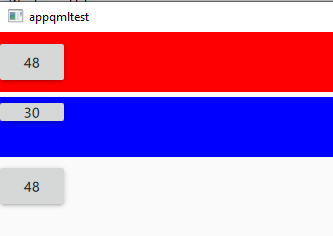
              buttons.PNG

              All buttons should be 30 pixels high (half the height of the rectangles). Buttons 1 and 3 appear as the correct height, but give a bad height value. Button 2 has the correct value, but doesn't appear correctly (not the right height).

              Can someone tell me WHAT is going on here?

              Thanks...

              1 Reply Last reply
              0
              • JoeCFDJ Offline
                JoeCFDJ Offline
                JoeCFD
                wrote on last edited by JoeCFD
                #7

                @mzimmers said in RoundButton not taking correct height setting:

                height: r1.height

                change
                height: r1.height
                to
                implicitHeight: r1.height
                will do it.

                Setting the implicit size is useful for defining components that have a preferred size based on their content.

                mzimmersM 1 Reply Last reply
                0
                • JoeCFDJ JoeCFD

                  @mzimmers said in RoundButton not taking correct height setting:

                  height: r1.height

                  change
                  height: r1.height
                  to
                  implicitHeight: r1.height
                  will do it.

                  Setting the implicit size is useful for defining components that have a preferred size based on their content.

                  mzimmersM Offline
                  mzimmersM Offline
                  mzimmers
                  wrote on last edited by
                  #8

                  @JoeCFD said in RoundButton not taking correct height setting:

                  change
                  height: r1.height
                  to
                  implicitHeight: r1.height
                  will do it.

                  I assume that change was for the RowLayout, as that's the only place with that exact line of code. It didn't change anything. If I make that change to b1 as well, b1 then looks like b2, which isn't what I want.

                  Setting the implicit size is useful for defining components that have a preferred size based on their content.

                  But in this case, I want to dictate the size (height) of the button. I want it to be exactly half the height of the rectangle in which it's being placed. That's why I'm not sure implicit sizes are appropriate here.

                  JoeCFDJ 1 Reply Last reply
                  0
                  • mzimmersM mzimmers

                    @JoeCFD said in RoundButton not taking correct height setting:

                    change
                    height: r1.height
                    to
                    implicitHeight: r1.height
                    will do it.

                    I assume that change was for the RowLayout, as that's the only place with that exact line of code. It didn't change anything. If I make that change to b1 as well, b1 then looks like b2, which isn't what I want.

                    Setting the implicit size is useful for defining components that have a preferred size based on their content.

                    But in this case, I want to dictate the size (height) of the button. I want it to be exactly half the height of the rectangle in which it's being placed. That's why I'm not sure implicit sizes are appropriate here.

                    JoeCFDJ Offline
                    JoeCFDJ Offline
                    JoeCFD
                    wrote on last edited by JoeCFD
                    #9

                    @mzimmers change all of them. I tested the change. They are all 30

                    import QtQuick 2.15
                    import QtQuick.Controls 2.15
                    import QtQuick.Layouts 1.15
                    
                    ApplicationWindow {
                        id: mainWindow
                        width: 1024
                        height: 768
                        visible: true
                    
                        ColumnLayout {
                            Rectangle {
                                id: r1
                                height: 60
                                width: mainWindow.width
                                color: 'red'
                    
                                RowLayout {
                                    id: rowLayout
                    
                                    Button {
                                        id: b1
                                        implicitHeight : r1.height / 2
                                        text: b1.height
                                    }
                                }
                            }
                    
                            Rectangle {
                                id: r2
                                height: 60
                                width: mainWindow.width
                                color: 'blue'
                                Layout.alignment: Qt.AlignHCenter | Qt.AlignVCenter
                                Button {
                                    id: b2
                                    implicitHeight: r2.height / 2
                                    text: b2.height
                                }
                            }
                    
                            Button {
                                id: b3
                                implicitHeight: r2.height / 2 // just borrowing the height from r2.
                                text: b3.height
                            }
                        }
                    }
                    
                    mzimmersM 1 Reply Last reply
                    0
                    • JoeCFDJ JoeCFD

                      @mzimmers change all of them. I tested the change. They are all 30

                      import QtQuick 2.15
                      import QtQuick.Controls 2.15
                      import QtQuick.Layouts 1.15
                      
                      ApplicationWindow {
                          id: mainWindow
                          width: 1024
                          height: 768
                          visible: true
                      
                          ColumnLayout {
                              Rectangle {
                                  id: r1
                                  height: 60
                                  width: mainWindow.width
                                  color: 'red'
                      
                                  RowLayout {
                                      id: rowLayout
                      
                                      Button {
                                          id: b1
                                          implicitHeight : r1.height / 2
                                          text: b1.height
                                      }
                                  }
                              }
                      
                              Rectangle {
                                  id: r2
                                  height: 60
                                  width: mainWindow.width
                                  color: 'blue'
                                  Layout.alignment: Qt.AlignHCenter | Qt.AlignVCenter
                                  Button {
                                      id: b2
                                      implicitHeight: r2.height / 2
                                      text: b2.height
                                  }
                              }
                      
                              Button {
                                  id: b3
                                  implicitHeight: r2.height / 2 // just borrowing the height from r2.
                                  text: b3.height
                              }
                          }
                      }
                      
                      mzimmersM Offline
                      mzimmersM Offline
                      mzimmers
                      wrote on last edited by
                      #10

                      @JoeCFD they say 30, but they are not half the height of the rectangles I'm placing them in:
                      buttons.PNG

                      That is what I'm trying to fix (plus another problem I'll bring up later).

                      Thanks...

                      JoeCFDJ 1 Reply Last reply
                      0
                      • mzimmersM mzimmers

                        @JoeCFD they say 30, but they are not half the height of the rectangles I'm placing them in:
                        buttons.PNG

                        That is what I'm trying to fix (plus another problem I'll bring up later).

                        Thanks...

                        JoeCFDJ Offline
                        JoeCFDJ Offline
                        JoeCFD
                        wrote on last edited by JoeCFD
                        #11

                        @mzimmers what do you mean?
                        r1 height is 60
                        b1 height is 60 / 2 = 30
                        my display of the button has the half height.

                        mzimmersM 1 Reply Last reply
                        0
                        • JoeCFDJ JoeCFD

                          @mzimmers what do you mean?
                          r1 height is 60
                          b1 height is 60 / 2 = 30
                          my display of the button has the half height.

                          mzimmersM Offline
                          mzimmersM Offline
                          mzimmers
                          wrote on last edited by mzimmers
                          #12

                          @JoeCFD look at my picture. The buttons don't look anywhere near half the height of the rectangles. From eyeballing it, it looks more like 1/3 the height.

                          EDIT:

                          Using a background seems to fix it (sort of). Let me play with this and I'll report back.

                          JoeCFDJ 1 Reply Last reply
                          0
                          • mzimmersM mzimmers

                            @JoeCFD look at my picture. The buttons don't look anywhere near half the height of the rectangles. From eyeballing it, it looks more like 1/3 the height.

                            EDIT:

                            Using a background seems to fix it (sort of). Let me play with this and I'll report back.

                            JoeCFDJ Offline
                            JoeCFDJ Offline
                            JoeCFD
                            wrote on last edited by
                            #13

                            @mzimmers display.png

                            mzimmersM 1 Reply Last reply
                            0
                            • JoeCFDJ JoeCFD

                              @mzimmers display.png

                              mzimmersM Offline
                              mzimmersM Offline
                              mzimmers
                              wrote on last edited by
                              #14

                              @JoeCFD interesting. I wonder why yours doesn't look like mine. What's your platform and style?

                              JoeCFDJ 1 Reply Last reply
                              0
                              • mzimmersM mzimmers

                                @JoeCFD interesting. I wonder why yours doesn't look like mine. What's your platform and style?

                                JoeCFDJ Offline
                                JoeCFDJ Offline
                                JoeCFD
                                wrote on last edited by JoeCFD
                                #15

                                @mzimmers Qt 5.15.2 on Ubuntu 18. Maybe try also
                                implicitHeight: 60

                                mzimmersM 1 Reply Last reply
                                0
                                • JoeCFDJ JoeCFD

                                  @mzimmers Qt 5.15.2 on Ubuntu 18. Maybe try also
                                  implicitHeight: 60

                                  mzimmersM Offline
                                  mzimmersM Offline
                                  mzimmers
                                  wrote on last edited by mzimmers
                                  #16

                                  @JoeCFD interesting...the problem appears to be specific to the Material style. Applying a background makes it better (though it still doesn't look quite right).

                                  EDIT: I also discovered that the Material style isn't displaying the icon correctly. I'm going to close this topic and open a new one.

                                  1 Reply Last reply
                                  0

                                  • Login

                                  • Login or register to search.
                                  • First post
                                    Last post
                                  0
                                  • Categories
                                  • Recent
                                  • Tags
                                  • Popular
                                  • Users
                                  • Groups
                                  • Search
                                  • Get Qt Extensions
                                  • Unsolved