Skip to content
  • Categories
  • Recent
  • Tags
  • Popular
  • Users
  • Groups
  • Search
  • Get Qt
  • Unsolved
Collapse
qtws26_logo

The Qt Event of the Year: Qt World Summit 2026

Save Your Spot >
Brand Logo
  1. Home
  2. Qt Development
  3. Mobile and Embedded
  4. RoundButton not taking correct height setting
Qt 6.12 LTS is out! See what's new in the release blog

RoundButton not taking correct height setting

Scheduled Pinned Locked Moved Solved Mobile and Embedded
16 Posts 2 Posters 2.5k Views 1 Watching
  • Oldest to Newest
  • Newest to Oldest
  • Most Votes
Reply
  • Reply as topic
Log in to reply
This topic has been deleted. Only users with topic management privileges can see it.
  • JoeCFDJ Offline
    JoeCFDJ Offline
    JoeCFD
    wrote on last edited by
    #3

    background code seems not to do anything.

        background: Rectangle {
            id: buttonBackground
            height: roundButton.height
        }
    
    1 Reply Last reply
    0
    • mzimmersM Offline
      mzimmersM Offline
      mzimmers
      wrote on last edited by mzimmers
      #4

      I cut out all the other stuff for brevity. Here's the complete custom button, if you're interested:

      // implements a round button that can support an icon and up to two lines of text. (not complete yet)
      import QtQuick
      import QtQuick.Controls
      import QtQuick.Layouts
      import Qt5Compat.GraphicalEffects
      
      import QtQuick.Controls.Material
      import QtQuick.Controls.Fusion
      
      import colors.stylesheet
      
      RoundButton {
          id: roundButton
      
          property string buttonTitle: "this should not appear"
          property string buttonDescr: ""
          property int fontSize: 16
          property color textColor: Colors.primaryText
          property color buttonColor: Colors.primaryPurple
          property color borderColor: Colors.primaryText
          property int borderWidth: 2
          property url buttonIcon: ""
      
          height: implicitHeight//implicitBackgroundHeight
          width: implicitWidth
          radius: height / 2
          leftPadding: 8
          rightPadding: leftPadding
          topPadding: 4
          bottomPadding: 4
      
          display: AbstractButton.TextBesideIcon
          icon {
              color: roundButton.textColor
              source: roundButton.buttonIcon
              height: roundButton.height * 3 / 4
          }
          text: roundButton.buttonTitle
      
          // note: this line below is an semi-documented feature,
          // https://doc.qt.io/qt-6/qml-qtquick-palette.html
          // but the alternative is to use contentItem, which
          // doesn't support an icon, so it needs a RowLayout, etc.
          // for now, this is the lesser of 2 evils.
          palette.buttonText: roundButton.textColor
      
          font {
              pixelSize: roundButton.fontSize
              weight: Font.Bold
          }
      
          background: Rectangle {
              id: buttonBackground
              height: roundButton.height
              width: roundButton.width
              anchors.centerIn: parent
              radius: height / 2
              color: pressed ? Colors.purplePressed : roundButton.buttonColor
              border.color: borderColor
              border.width: borderWidth
          }
      }
      
      1 Reply Last reply
      1
      • JoeCFDJ Offline
        JoeCFDJ Offline
        JoeCFD
        wrote on last edited by
        #5

        I see thanks.

        1 Reply Last reply
        0
        • mzimmersM Offline
          mzimmersM Offline
          mzimmers
          wrote on last edited by
          #6

          Well, I thought I had this figured out, but evidently not. Can someone tell me what is going on here?

          This code:

          import QtQuick
          import QtQuick.Controls
          import QtQuick.Layouts
          
          ApplicationWindow {
              id: mainWindow
              width: 1024
              height: 768
              visible: true
          
              ColumnLayout {
                  Rectangle {
                      id: r1
                      height: 60
                      width: mainWindow.width
                      color: 'red'
          
                      RowLayout {
                          id: rowLayout
                          height: r1.height
                          width: r1.width
          
                          Button {
                              id: b1
                              height: r1.height / 2
                              text: b1.height
                          }
                      }
                  }
                  Rectangle {
                      id: r2
                      height: 60
                      width: mainWindow.width
                      color: 'blue'
                      Layout.alignment: Qt.AlignHCenter | Qt.AlignVCenter
                      Button {
                          id: b2
                          height: r2.height / 2
                          text: b2.height
                      }
                  }
                  Button {
                      id: b3
                      height: r2.height / 2 // just borrowing the height from r2.
                      text: b3.height
                  }
              }
          }
          

          yields this:
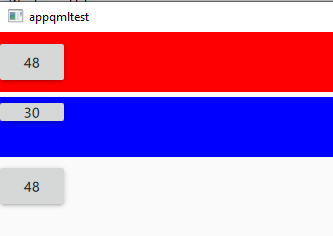
          buttons.PNG

          All buttons should be 30 pixels high (half the height of the rectangles). Buttons 1 and 3 appear as the correct height, but give a bad height value. Button 2 has the correct value, but doesn't appear correctly (not the right height).

          Can someone tell me WHAT is going on here?

          Thanks...

          1 Reply Last reply
          0
          • JoeCFDJ Offline
            JoeCFDJ Offline
            JoeCFD
            wrote on last edited by JoeCFD
            #7

            @mzimmers said in RoundButton not taking correct height setting:

            height: r1.height

            change
            height: r1.height
            to
            implicitHeight: r1.height
            will do it.

            Setting the implicit size is useful for defining components that have a preferred size based on their content.

            mzimmersM 1 Reply Last reply
            0
            • JoeCFDJ JoeCFD

              @mzimmers said in RoundButton not taking correct height setting:

              height: r1.height

              change
              height: r1.height
              to
              implicitHeight: r1.height
              will do it.

              Setting the implicit size is useful for defining components that have a preferred size based on their content.

              mzimmersM Offline
              mzimmersM Offline
              mzimmers
              wrote on last edited by
              #8

              @JoeCFD said in RoundButton not taking correct height setting:

              change
              height: r1.height
              to
              implicitHeight: r1.height
              will do it.

              I assume that change was for the RowLayout, as that's the only place with that exact line of code. It didn't change anything. If I make that change to b1 as well, b1 then looks like b2, which isn't what I want.

              Setting the implicit size is useful for defining components that have a preferred size based on their content.

              But in this case, I want to dictate the size (height) of the button. I want it to be exactly half the height of the rectangle in which it's being placed. That's why I'm not sure implicit sizes are appropriate here.

              JoeCFDJ 1 Reply Last reply
              0
              • mzimmersM mzimmers

                @JoeCFD said in RoundButton not taking correct height setting:

                change
                height: r1.height
                to
                implicitHeight: r1.height
                will do it.

                I assume that change was for the RowLayout, as that's the only place with that exact line of code. It didn't change anything. If I make that change to b1 as well, b1 then looks like b2, which isn't what I want.

                Setting the implicit size is useful for defining components that have a preferred size based on their content.

                But in this case, I want to dictate the size (height) of the button. I want it to be exactly half the height of the rectangle in which it's being placed. That's why I'm not sure implicit sizes are appropriate here.

                JoeCFDJ Offline
                JoeCFDJ Offline
                JoeCFD
                wrote on last edited by JoeCFD
                #9

                @mzimmers change all of them. I tested the change. They are all 30

                import QtQuick 2.15
                import QtQuick.Controls 2.15
                import QtQuick.Layouts 1.15
                
                ApplicationWindow {
                    id: mainWindow
                    width: 1024
                    height: 768
                    visible: true
                
                    ColumnLayout {
                        Rectangle {
                            id: r1
                            height: 60
                            width: mainWindow.width
                            color: 'red'
                
                            RowLayout {
                                id: rowLayout
                
                                Button {
                                    id: b1
                                    implicitHeight : r1.height / 2
                                    text: b1.height
                                }
                            }
                        }
                
                        Rectangle {
                            id: r2
                            height: 60
                            width: mainWindow.width
                            color: 'blue'
                            Layout.alignment: Qt.AlignHCenter | Qt.AlignVCenter
                            Button {
                                id: b2
                                implicitHeight: r2.height / 2
                                text: b2.height
                            }
                        }
                
                        Button {
                            id: b3
                            implicitHeight: r2.height / 2 // just borrowing the height from r2.
                            text: b3.height
                        }
                    }
                }
                
                mzimmersM 1 Reply Last reply
                0
                • JoeCFDJ JoeCFD

                  @mzimmers change all of them. I tested the change. They are all 30

                  import QtQuick 2.15
                  import QtQuick.Controls 2.15
                  import QtQuick.Layouts 1.15
                  
                  ApplicationWindow {
                      id: mainWindow
                      width: 1024
                      height: 768
                      visible: true
                  
                      ColumnLayout {
                          Rectangle {
                              id: r1
                              height: 60
                              width: mainWindow.width
                              color: 'red'
                  
                              RowLayout {
                                  id: rowLayout
                  
                                  Button {
                                      id: b1
                                      implicitHeight : r1.height / 2
                                      text: b1.height
                                  }
                              }
                          }
                  
                          Rectangle {
                              id: r2
                              height: 60
                              width: mainWindow.width
                              color: 'blue'
                              Layout.alignment: Qt.AlignHCenter | Qt.AlignVCenter
                              Button {
                                  id: b2
                                  implicitHeight: r2.height / 2
                                  text: b2.height
                              }
                          }
                  
                          Button {
                              id: b3
                              implicitHeight: r2.height / 2 // just borrowing the height from r2.
                              text: b3.height
                          }
                      }
                  }
                  
                  mzimmersM Offline
                  mzimmersM Offline
                  mzimmers
                  wrote on last edited by
                  #10

                  @JoeCFD they say 30, but they are not half the height of the rectangles I'm placing them in:
                  buttons.PNG

                  That is what I'm trying to fix (plus another problem I'll bring up later).

                  Thanks...

                  JoeCFDJ 1 Reply Last reply
                  0
                  • mzimmersM mzimmers

                    @JoeCFD they say 30, but they are not half the height of the rectangles I'm placing them in:
                    buttons.PNG

                    That is what I'm trying to fix (plus another problem I'll bring up later).

                    Thanks...

                    JoeCFDJ Offline
                    JoeCFDJ Offline
                    JoeCFD
                    wrote on last edited by JoeCFD
                    #11

                    @mzimmers what do you mean?
                    r1 height is 60
                    b1 height is 60 / 2 = 30
                    my display of the button has the half height.

                    mzimmersM 1 Reply Last reply
                    0
                    • JoeCFDJ JoeCFD

                      @mzimmers what do you mean?
                      r1 height is 60
                      b1 height is 60 / 2 = 30
                      my display of the button has the half height.

                      mzimmersM Offline
                      mzimmersM Offline
                      mzimmers
                      wrote on last edited by mzimmers
                      #12

                      @JoeCFD look at my picture. The buttons don't look anywhere near half the height of the rectangles. From eyeballing it, it looks more like 1/3 the height.

                      EDIT:

                      Using a background seems to fix it (sort of). Let me play with this and I'll report back.

                      JoeCFDJ 1 Reply Last reply
                      0
                      • mzimmersM mzimmers

                        @JoeCFD look at my picture. The buttons don't look anywhere near half the height of the rectangles. From eyeballing it, it looks more like 1/3 the height.

                        EDIT:

                        Using a background seems to fix it (sort of). Let me play with this and I'll report back.

                        JoeCFDJ Offline
                        JoeCFDJ Offline
                        JoeCFD
                        wrote on last edited by
                        #13

                        @mzimmers display.png

                        mzimmersM 1 Reply Last reply
                        0
                        • JoeCFDJ JoeCFD

                          @mzimmers display.png

                          mzimmersM Offline
                          mzimmersM Offline
                          mzimmers
                          wrote on last edited by
                          #14

                          @JoeCFD interesting. I wonder why yours doesn't look like mine. What's your platform and style?

                          JoeCFDJ 1 Reply Last reply
                          0
                          • mzimmersM mzimmers

                            @JoeCFD interesting. I wonder why yours doesn't look like mine. What's your platform and style?

                            JoeCFDJ Offline
                            JoeCFDJ Offline
                            JoeCFD
                            wrote on last edited by JoeCFD
                            #15

                            @mzimmers Qt 5.15.2 on Ubuntu 18. Maybe try also
                            implicitHeight: 60

                            mzimmersM 1 Reply Last reply
                            0
                            • JoeCFDJ JoeCFD

                              @mzimmers Qt 5.15.2 on Ubuntu 18. Maybe try also
                              implicitHeight: 60

                              mzimmersM Offline
                              mzimmersM Offline
                              mzimmers
                              wrote on last edited by mzimmers
                              #16

                              @JoeCFD interesting...the problem appears to be specific to the Material style. Applying a background makes it better (though it still doesn't look quite right).

                              EDIT: I also discovered that the Material style isn't displaying the icon correctly. I'm going to close this topic and open a new one.

                              1 Reply Last reply
                              0

                              • Login

                              • Login or register to search.
                              • First post
                                Last post
                              0
                              • Categories
                              • Recent
                              • Tags
                              • Popular
                              • Users
                              • Groups
                              • Search
                              • Get Qt
                              • Unsolved