
Layout issues
-
QWidgets are not fully visible on 800x600,1024x768, 1152x864 screen resolutions.
-
Ok, so pretty standard sizes.
Why are you putting
settingsViewinappSettingsTaband not directly in the QStackedWidget ? That makessettingsViewa "floating" widget insideappSettingsTab.Interested in AI ? www.idiap.ch
Please read the Qt Code of Conduct - https://forum.qt.io/topic/113070/qt-code-of-conduct -
Ok, so pretty standard sizes.
Why are you putting
settingsViewinappSettingsTaband not directly in the QStackedWidget ? That makessettingsViewa "floating" widget insideappSettingsTab.I have app with horizontal tabs (
QTabWidgets), the last tab is settings and it displays two views for a list of different settings menu and settings which controlsQStackedWidget. I will try to combine layouts and post code later. -
I also have layout issue with buttons:
Code:
    QVBoxLayout *firstButtonsColumnLayout = new QVBoxLayout;
    firstButtonsColumnLayout->addStretch(0);
    firstButtonsColumnLayout->setContentsMargins(0, 0, 0, 0);
    firstButtonsColumnLayout->setAlignment(Qt::AlignTop | Qt::AlignLeft);
    firstButtonsColumnLayout->addWidget(registryButton, 0,);
    firstButtonsColumnLayout->addWidget(recycleBinButton, 0);
    firstButtonsColumnLayout->addWidget(deviceManagerButton, 0);
    firstButtonsColumnLayout->addWidget(windowsUpdateButton, 0);
    firstButtonsColumnLayout->addWidget(systemConfigButton, 0);

    QHBoxLayout *testLayout = new QHBoxLayout;
    testLayout->setAlignment(Qt::AlignTop | Qt::AlignLeft);
    testLayout->addLayout(firstButtonsColumnLayout);
    commandsTab->setLayout(testLayout);
The problem is that buttons are not fully visible at small screen resolutions without layouts. So when I have added layout to some of them it displayed bottom not top.
Screenshot:
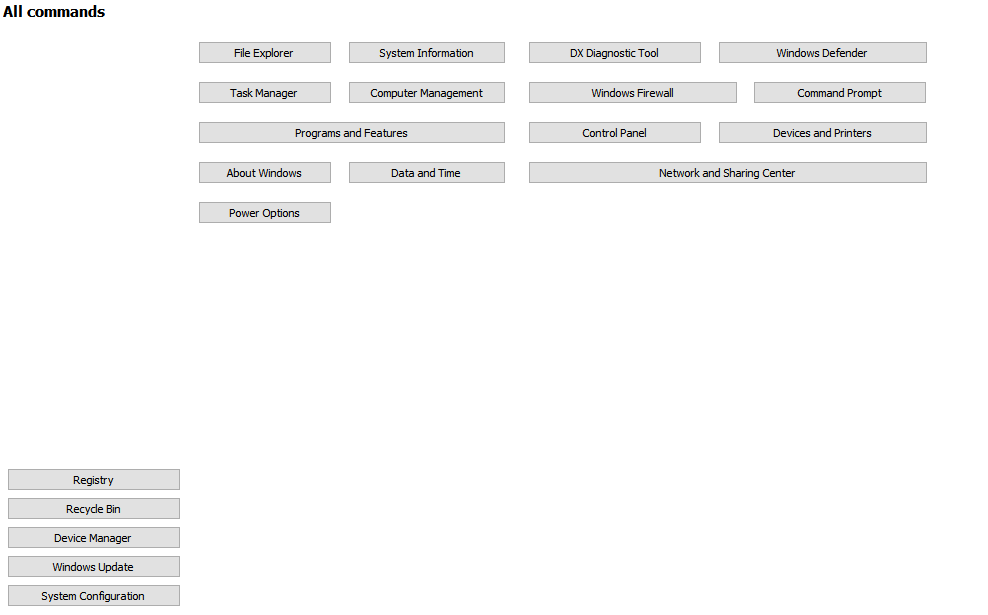
It should look like this with layouts:
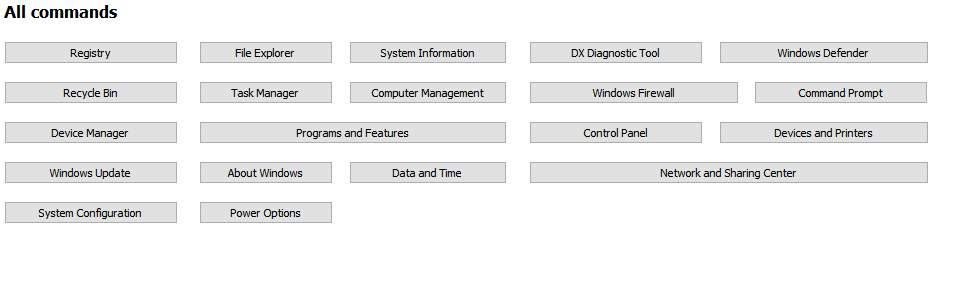
How to fix these layout issues? What layout I should use?
-
Not knowing how you build the rest of the buttons, it's not really possible to guess what is going wrong.
-
I also have layout issue with buttons:
Code:
    QVBoxLayout *firstButtonsColumnLayout = new QVBoxLayout;
    firstButtonsColumnLayout->addStretch(0);
    firstButtonsColumnLayout->setContentsMargins(0, 0, 0, 0);
    firstButtonsColumnLayout->setAlignment(Qt::AlignTop | Qt::AlignLeft);
    firstButtonsColumnLayout->addWidget(registryButton, 0,);
    firstButtonsColumnLayout->addWidget(recycleBinButton, 0);
    firstButtonsColumnLayout->addWidget(deviceManagerButton, 0);
    firstButtonsColumnLayout->addWidget(windowsUpdateButton, 0);
    firstButtonsColumnLayout->addWidget(systemConfigButton, 0);

    QHBoxLayout *testLayout = new QHBoxLayout;
    testLayout->setAlignment(Qt::AlignTop | Qt::AlignLeft);
    testLayout->addLayout(firstButtonsColumnLayout);
    commandsTab->setLayout(testLayout);
The problem is that buttons are not fully visible at small screen resolutions without layouts. So when I have added layout to some of them it displayed bottom not top.
Screenshot:
It should look like this with layouts:
How to fix these layout issues? What layout I should use?
@Cobra91151 Since the project you are doing is big enough not to share the code, it's really hard for us to figure out what is going on.
How about this.. Can you write up a quick/small project that just uses dummy widgets to show the same problem. Something you can share with us so we can see what you are doing wrong?
That way it is minimal code to share, and there is nothing that is proprietary being given to us on the forums here.
I don't see anything wrong, but I can't see the whole picture either. I don't have these issues with layouts and can't duplicate your problem.
-
Ok. I will create small project and post it here later.
Update:
I will upload test project on Mega and post link here. -
Test project is available here - Mega. Thanks.
-
Test project is available here - Mega. Thanks.
@Cobra91151 Ok in looking at your example project, the major problem I see is you are using fixed sizing for everything. When you use fixed sizing you are limiting what the layout can do to help display your widgets. This is why you are having issues with things going off screen.
So questions:
- Why do you want to use fixed sizes?
- How do you want your buttons to look? Is it the second picture you posted with the "All Commands"? I can try to throw together a quick layout for you that has those buttons in it.
My L-GPL'd C++ Logger github.com/ambershark-mike/sharklog
-
Test project is available here - Mega. Thanks.
@Cobra91151
jep @ambershark is right,
aQGridLayoutwhere your buttons are imbedded should solve all the layout issues you have with them.QGridLayouts allow Layoutitems to span more than 1 row or column, therefore it's the best option here, as long as you want those 2 special buttons that are twice as wide as the others.
At the moment you order them in 4 different
QVBoxLayoutsand 1QHBoxLayoutthat combination that does not really support the multi column span mechanic you want.to add a widget to a QGridlayout you can do the following:
QGridLayout* gLay = new QGridlayout();
//add widget the default way at cell (0,0):
gLay->addWidget(myWidget, 0,0);

//add widget that spans 2 columns at (origin) cell (0,1):
gLay->addWidget(myWidget,0,1,1,2)
Be aware of the Qt Code of Conduct, when posting : https://forum.qt.io/topic/113070/qt-code-of-conduct
Q: What's that?
A: It's blue light.
Q: What does it do?
A: It turns blue. -
@Cobra91151 Ok in looking at your example project, the major problem I see is you are using fixed sizing for everything. When you use fixed sizing you are limiting what the layout can do to help display your widgets. This is why you are having issues with things going off screen.
So questions:
- Why do you want to use fixed sizes?
- How do you want your buttons to look? Is it the second picture you posted with the "All Commands"? I can try to throw together a quick layout for you that has those buttons in it.
- To get buttons fix size and position them.
- Yes, like in the second picture.
I have changed code to
setGeometryfunction but it looks not like in the second picture. The question is how to control widgets size and position in layouts, or what layout should I use? -
@Cobra91151
jep @ambershark is right,
aQGridLayoutwhere your buttons are imbedded should solve all the layout issues you have with them.QGridLayouts allow Layoutitems to span more than 1 row or column, therefore it's the best option here, as long as you want those 2 special buttons that are twice as wide as the others.
At the moment you order them in 4 different
QVBoxLayoutsand 1QHBoxLayoutthat combination that does not really support the multi column span mechanic you want.to add a widget to a QGridlayout you can do the following:
QGridLayout* gLay = new QGridlayout(); //add widget the default way at cell (0,0): gLay->addWidget(myWidget, 0,0); //add widget that spans 2 columns at (origin) cell (0,1): gLay->addWidget(myWidget,0,1,1,2) -
@Cobra91151 Here ya go.. This does the buttons with a grid exactly as you want them.. Scales up and down to a minimum just below 800. You could get them smaller if you wanted by changing font and reducing wording on your buttons.
#include <QApplication>
#include <QWidget>
#include <QGridLayout>
#include <QPushButton>

int main(int ac, char **av)
{
	QApplication app(ac, av);

	// create a main window
	QWidget mw;
	mw.resize(800, 600);
	mw.show();

	// create a layout with our buttons
	auto grid = new QGridLayout;

	grid->addWidget(new QPushButton("Registry"), 0, 0);
	grid->addWidget(new QPushButton("File Explorer"), 0, 1);
	grid->addWidget(new QPushButton("System Information"), 0, 2);
	grid->addWidget(new QPushButton("DX Diagnostic Tool"), 0, 3);
	grid->addWidget(new QPushButton("Windows Defender"), 0, 4);

	grid->addWidget(new QPushButton("Recycle Bin"), 1, 0);
	grid->addWidget(new QPushButton("Task Manager"), 1, 1);
	grid->addWidget(new QPushButton("Computer Management"), 1, 2);
	grid->addWidget(new QPushButton("Windows Firewall"), 1, 3);
	grid->addWidget(new QPushButton("Command Prompt"), 1, 4);

	grid->addWidget(new QPushButton("Device Manager"), 2, 0);
	grid->addWidget(new QPushButton("Programs and Features"), 2, 1, 1, 2);
	grid->addWidget(new QPushButton("Control Panel"), 2, 3);
	grid->addWidget(new QPushButton("Devices and Printers"), 2, 4);

	grid->addWidget(new QPushButton("Windows Update"), 3, 0);
	grid->addWidget(new QPushButton("About Windows"), 3, 1);
	grid->addWidget(new QPushButton("Date and Time"), 3, 2);
	grid->addWidget(new QPushButton("Network and Sharing Center"), 3, 3, 1, 2);

	grid->addWidget(new QPushButton("System Configuration"), 4, 0);
	grid->addWidget(new QPushButton("Power Options"), 4, 1);

	// create a vbox to hold our grid so we can add stretches to squish it to look proper
	auto layout = new QVBoxLayout;
	layout->addStretch(1);
	layout->addLayout(grid);
	layout->addStretch(1);

	// set layout on our widget
	mw.setLayout(layout);

	return app.exec();
}
[edit: fixed small typo SGaist]
My L-GPL'd C++ Logger github.com/ambershark-mike/sharklog
-
@Cobra91151 Here ya go.. This does the buttons with a grid exactly as you want them.. Scales up and down to a minimum just below 800. You could get them smaller if you wanted by changing font and reducing wording on your buttons.
#include <QApplication>
#include <QWidget>
#include <QGridLayout>
#include <QPushButton>

int main(int ac, char **av)
{
	QApplication app(ac, av);

	// create a main window
	QWidget mw;
	mw.resize(800, 600);
	mw.show();

	// create a layout with our buttons
	auto grid = new QGridLayout;

	grid->addWidget(new QPushButton("Registry"), 0, 0);
	grid->addWidget(new QPushButton("File Explorer"), 0, 1);
	grid->addWidget(new QPushButton("System Information"), 0, 2);
	grid->addWidget(new QPushButton("DX Diagnostic Tool"), 0, 3);
	grid->addWidget(new QPushButton("Windows Defender"), 0, 4);

	grid->addWidget(new QPushButton("Recycle Bin"), 1, 0);
	grid->addWidget(new QPushButton("Task Manager"), 1, 1);
	grid->addWidget(new QPushButton("Computer Management"), 1, 2);
	grid->addWidget(new QPushButton("Windows Firewall"), 1, 3);
	grid->addWidget(new QPushButton("Command Prompt"), 1, 4);

	grid->addWidget(new QPushButton("Device Manager"), 2, 0);
	grid->addWidget(new QPushButton("Programs and Features"), 2, 1, 1, 2);
	grid->addWidget(new QPushButton("Control Panel"), 2, 3);
	grid->addWidget(new QPushButton("Devices and Printers"), 2, 4);

	grid->addWidget(new QPushButton("Windows Update"), 3, 0);
	grid->addWidget(new QPushButton("About Windows"), 3, 1);
	grid->addWidget(new QPushButton("Date and Time"), 3, 2);
	grid->addWidget(new QPushButton("Network and Sharing Center"), 3, 3, 1, 2);

	grid->addWidget(new QPushButton("System Configuration"), 4, 0);
	grid->addWidget(new QPushButton("Power Options"), 4, 1);

	// create a vbox to hold our grid so we can add stretches to squish it to look proper
	auto layout = new QVBoxLayout;
	layout->addStretch(1);
	layout->addLayout(grid);
	layout->addStretch(1);

	// set layout on our widget
	mw.setLayout(layout);

	return app.exec();
}
[edit: fixed small typo SGaist]
Thanks for the example code. I have fixed buttons layout issue adding
QSizePolicy testSizePolicy(QSizePolicy::Expanding, QSizePolicy::Fixed);. But the problem with adding layouts to different widgets still present andQGridLayoutis not working well with it. For example: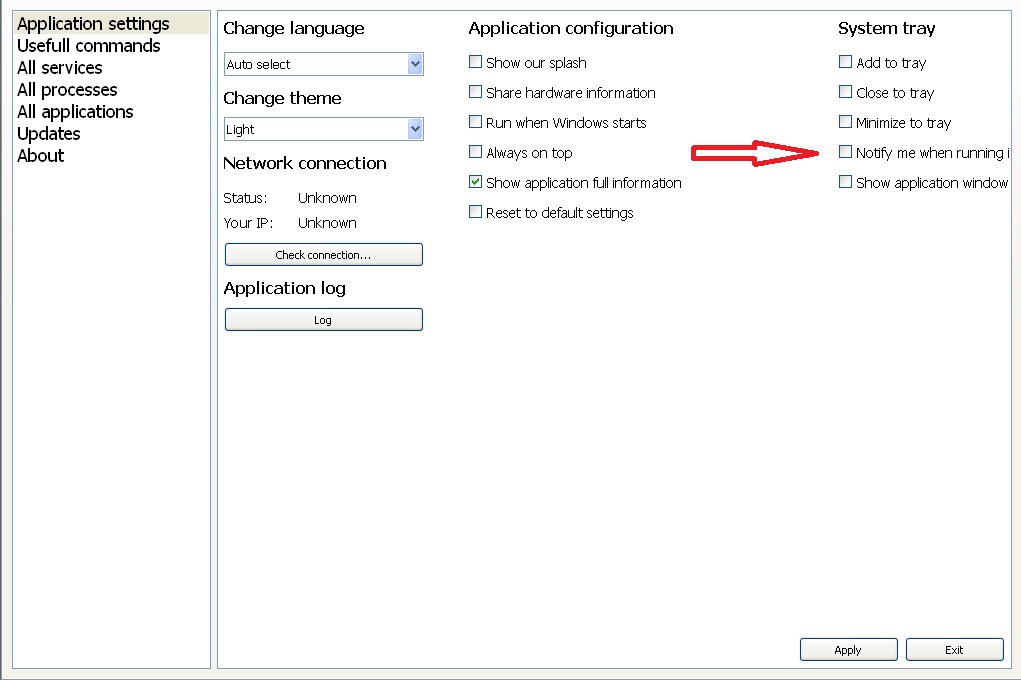
I need to add some layout to display widgets like in the image above. What layout should I use?
-
Thanks for the example code. I have fixed buttons layout issue adding
QSizePolicy testSizePolicy(QSizePolicy::Expanding, QSizePolicy::Fixed);. But the problem with adding layouts to different widgets still present andQGridLayoutis not working well with it. For example:I need to add some layout to display widgets like in the image above. What layout should I use?
@Cobra91151 For that I would use 3 QVBoxLayouts with a QHBoxLayout container.
It would go something like this:
auto vb1 = new QVBoxLayout();
vb1->addWidget(new QLabel("Change Language"));
// ... add other widets
vb1->addWidget(new QPushButton("Log"));
vb1->addStretch(1);

auto vb2 = new QVBoxLayout();
vb2->addWidget(new QLabel("Application Configuration"));
// .. add other widgets
vb2->addWidget(new QCheckBox("Reset to default settings"));
vb2->addStretch(1);

auto vb3 = new QVBoxLayout();
vb3->addWidget(new QLabel("System Tray"));
// .. add other widgets
vb3->addWidget(new QCheckBox("Show application window"));
vb3->addStretch(1);

auto layout = new QHBoxLayout();
layout->addLayout(vb1);
layout->addLayout(vb2);
layout->addLayout(vb3);
layout->addStretch(1);

yourWidget->setLayout(layout);
That was untested code I just typed for this post, so typos may be there, but you should get the idea. ;)
My L-GPL'd C++ Logger github.com/ambershark-mike/sharklog
-
@Cobra91151 For that I would use 3 QVBoxLayouts with a QHBoxLayout container.
It would go something like this:
auto vb1 = new QVBoxLayout();
vb1->addWidget(new QLabel("Change Language"));
// ... add other widets
vb1->addWidget(new QPushButton("Log"));
vb1->addStretch(1);

auto vb2 = new QVBoxLayout();
vb2->addWidget(new QLabel("Application Configuration"));
// .. add other widgets
vb2->addWidget(new QCheckBox("Reset to default settings"));
vb2->addStretch(1);

auto vb3 = new QVBoxLayout();
vb3->addWidget(new QLabel("System Tray"));
// .. add other widgets
vb3->addWidget(new QCheckBox("Show application window"));
vb3->addStretch(1);

auto layout = new QHBoxLayout();
layout->addLayout(vb1);
layout->addLayout(vb2);
layout->addLayout(vb3);
layout->addStretch(1);

yourWidget->setLayout(layout);
That was untested code I just typed for this post, so typos may be there, but you should get the idea. ;)
Thanks for the code. I have some small issues:
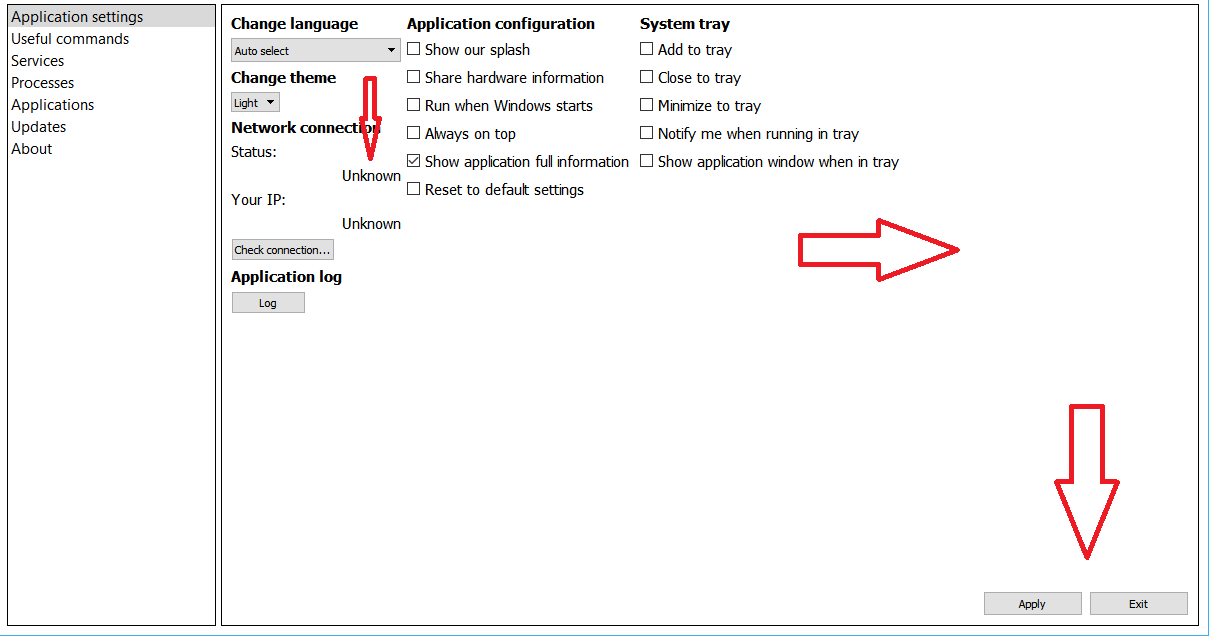
Code:
 QVBoxLayout *vBoxLayout1 = new QVBoxLayout();
 vBoxLayout1->addWidget(changeLanguageLabel);
 vBoxLayout1->addWidget(changeLanguageComboBox);
 vBoxLayout1->addWidget(changeThemeLabel);
 vBoxLayout1->addWidget(changeThemeComboBox);
 vBoxLayout1->addWidget(networkConnectionLabel);
 vBoxLayout1->addWidget(networkStatusTitleLabel);
 vBoxLayout1->addWidget(networkStatusLabel, 1, Qt::AlignRight);
 vBoxLayout1->addWidget(networkIPTitleLabel);
 vBoxLayout1->addWidget(networkIPLabel, 1, Qt::AlignRight);
 vBoxLayout1->addWidget(checkConnectionButton);
 vBoxLayout1->addWidget(appLogLabel);
 vBoxLayout1->addWidget(applicationLogButton);
 vBoxLayout1->addStretch(1);

 QVBoxLayout *vBoxLayout2 = new QVBoxLayout();
 vBoxLayout2->addWidget(appConfigLabel);
 vBoxLayout2->addWidget(showOurSplashCheckBox);
 vBoxLayout2->addWidget(shareHardwareInfoCheckBox);
 vBoxLayout2->addWidget(runWhenWindowsStartsCheckBox);
 vBoxLayout2->addWidget(showAllwaysOnTopCheckBox);
 vBoxLayout2->addWidget(showAppFullInfoCheckBox);
 vBoxLayout2->addWidget(resetToDefaultsCheckBox);
 vBoxLayout2->addStretch(1);

 QVBoxLayout *vBoxLayout3 = new QVBoxLayout();
 vBoxLayout3->addWidget(appSystemTrayLabel);
 vBoxLayout3->addWidget(addToTrayCheckBox);
 vBoxLayout3->addWidget(closeToTrayCheckBox);
 vBoxLayout3->addWidget(minimizeToTrayCheckBox);
 vBoxLayout3->addWidget(notifyWhenInTrayCheckBox);
 vBoxLayout3->addWidget(showAppWindowWhenInTrayCheckBox);
 vBoxLayout3->addStretch(1);

 QHBoxLayout *appSettingsButtonLayout = new QHBoxLayout();
 appSettingsButtonLayout->setAlignment(Qt::AlignBottom | Qt::AlignRight);
 appSettingsButtonLayout->addStretch(1);
 appSettingsButtonLayout->addWidget(appSettingsApplyButton);
 appSettingsButtonLayout->addWidget(appSettingsExitButton);

 QHBoxLayout *appSettingsLayout = new QHBoxLayout();
 appSettingsLayout->addLayout(vBoxLayout1);
 appSettingsLayout->addLayout(vBoxLayout2);
 appSettingsLayout->addLayout(vBoxLayout3);
 appSettingsLayout->addStretch(0);
 appSettingsLayout->addLayout(appSettingsButtonLayout);
 appSettingsTab->setLayout(appSettingsLayout);
Issues:
- "Unknown" labels should be on the same line as "Status" and "Your IP" with some space
- "Apply" and "Exit" buttons layout consume to much space on the right and make all layout aligned to the left
What is your suggestions? Thanks in advance.
-
Thanks for the code. I have some small issues:
Code:
 QVBoxLayout *vBoxLayout1 = new QVBoxLayout();
 vBoxLayout1->addWidget(changeLanguageLabel);
 vBoxLayout1->addWidget(changeLanguageComboBox);
 vBoxLayout1->addWidget(changeThemeLabel);
 vBoxLayout1->addWidget(changeThemeComboBox);
 vBoxLayout1->addWidget(networkConnectionLabel);
 vBoxLayout1->addWidget(networkStatusTitleLabel);
 vBoxLayout1->addWidget(networkStatusLabel, 1, Qt::AlignRight);
 vBoxLayout1->addWidget(networkIPTitleLabel);
 vBoxLayout1->addWidget(networkIPLabel, 1, Qt::AlignRight);
 vBoxLayout1->addWidget(checkConnectionButton);
 vBoxLayout1->addWidget(appLogLabel);
 vBoxLayout1->addWidget(applicationLogButton);
 vBoxLayout1->addStretch(1);

 QVBoxLayout *vBoxLayout2 = new QVBoxLayout();
 vBoxLayout2->addWidget(appConfigLabel);
 vBoxLayout2->addWidget(showOurSplashCheckBox);
 vBoxLayout2->addWidget(shareHardwareInfoCheckBox);
 vBoxLayout2->addWidget(runWhenWindowsStartsCheckBox);
 vBoxLayout2->addWidget(showAllwaysOnTopCheckBox);
 vBoxLayout2->addWidget(showAppFullInfoCheckBox);
 vBoxLayout2->addWidget(resetToDefaultsCheckBox);
 vBoxLayout2->addStretch(1);

 QVBoxLayout *vBoxLayout3 = new QVBoxLayout();
 vBoxLayout3->addWidget(appSystemTrayLabel);
 vBoxLayout3->addWidget(addToTrayCheckBox);
 vBoxLayout3->addWidget(closeToTrayCheckBox);
 vBoxLayout3->addWidget(minimizeToTrayCheckBox);
 vBoxLayout3->addWidget(notifyWhenInTrayCheckBox);
 vBoxLayout3->addWidget(showAppWindowWhenInTrayCheckBox);
 vBoxLayout3->addStretch(1);

 QHBoxLayout *appSettingsButtonLayout = new QHBoxLayout();
 appSettingsButtonLayout->setAlignment(Qt::AlignBottom | Qt::AlignRight);
 appSettingsButtonLayout->addStretch(1);
 appSettingsButtonLayout->addWidget(appSettingsApplyButton);
 appSettingsButtonLayout->addWidget(appSettingsExitButton);

 QHBoxLayout *appSettingsLayout = new QHBoxLayout();
 appSettingsLayout->addLayout(vBoxLayout1);
 appSettingsLayout->addLayout(vBoxLayout2);
 appSettingsLayout->addLayout(vBoxLayout3);
 appSettingsLayout->addStretch(0);
 appSettingsLayout->addLayout(appSettingsButtonLayout);
 appSettingsTab->setLayout(appSettingsLayout);
Issues:
- "Unknown" labels should be on the same line as "Status" and "Your IP" with some space
- "Apply" and "Exit" buttons layout consume to much space on the right and make all layout aligned to the left
What is your suggestions? Thanks in advance.
@Cobra91151 Don't put the Apply and Exit buttons in the same layout. Instead put them into a HBoxLayout and put this HBoxLayout in a VBoxLayout together with appSettingsLayout.
Put status and its label in their own HBoxLayout, same for IP and its label.
-
Thanks for the code. I have some small issues:
Code:
 QVBoxLayout *vBoxLayout1 = new QVBoxLayout();
 vBoxLayout1->addWidget(changeLanguageLabel);
 vBoxLayout1->addWidget(changeLanguageComboBox);
 vBoxLayout1->addWidget(changeThemeLabel);
 vBoxLayout1->addWidget(changeThemeComboBox);
 vBoxLayout1->addWidget(networkConnectionLabel);
 vBoxLayout1->addWidget(networkStatusTitleLabel);
 vBoxLayout1->addWidget(networkStatusLabel, 1, Qt::AlignRight);
 vBoxLayout1->addWidget(networkIPTitleLabel);
 vBoxLayout1->addWidget(networkIPLabel, 1, Qt::AlignRight);
 vBoxLayout1->addWidget(checkConnectionButton);
 vBoxLayout1->addWidget(appLogLabel);
 vBoxLayout1->addWidget(applicationLogButton);
 vBoxLayout1->addStretch(1);

 QVBoxLayout *vBoxLayout2 = new QVBoxLayout();
 vBoxLayout2->addWidget(appConfigLabel);
 vBoxLayout2->addWidget(showOurSplashCheckBox);
 vBoxLayout2->addWidget(shareHardwareInfoCheckBox);
 vBoxLayout2->addWidget(runWhenWindowsStartsCheckBox);
 vBoxLayout2->addWidget(showAllwaysOnTopCheckBox);
 vBoxLayout2->addWidget(showAppFullInfoCheckBox);
 vBoxLayout2->addWidget(resetToDefaultsCheckBox);
 vBoxLayout2->addStretch(1);

 QVBoxLayout *vBoxLayout3 = new QVBoxLayout();
 vBoxLayout3->addWidget(appSystemTrayLabel);
 vBoxLayout3->addWidget(addToTrayCheckBox);
 vBoxLayout3->addWidget(closeToTrayCheckBox);
 vBoxLayout3->addWidget(minimizeToTrayCheckBox);
 vBoxLayout3->addWidget(notifyWhenInTrayCheckBox);
 vBoxLayout3->addWidget(showAppWindowWhenInTrayCheckBox);
 vBoxLayout3->addStretch(1);

 QHBoxLayout *appSettingsButtonLayout = new QHBoxLayout();
 appSettingsButtonLayout->setAlignment(Qt::AlignBottom | Qt::AlignRight);
 appSettingsButtonLayout->addStretch(1);
 appSettingsButtonLayout->addWidget(appSettingsApplyButton);
 appSettingsButtonLayout->addWidget(appSettingsExitButton);

 QHBoxLayout *appSettingsLayout = new QHBoxLayout();
 appSettingsLayout->addLayout(vBoxLayout1);
 appSettingsLayout->addLayout(vBoxLayout2);
 appSettingsLayout->addLayout(vBoxLayout3);
 appSettingsLayout->addStretch(0);
 appSettingsLayout->addLayout(appSettingsButtonLayout);
 appSettingsTab->setLayout(appSettingsLayout);
Issues:
- "Unknown" labels should be on the same line as "Status" and "Your IP" with some space
- "Apply" and "Exit" buttons layout consume to much space on the right and make all layout aligned to the left
What is your suggestions? Thanks in advance.
@Cobra91151 @jsulm said exactly what I would have. A bit more of my thoughts on the labels though.. you can approach this in 2 ways. The HBoxLayout way that @jsulm mentioned, or you can use a single QLabel and set it with
myLabel->setText(QString("Your IP: %1").arg(ip)));. Either way works fine, up to you on preferred style there.If you don't like the extra space on the right, I added that on purpose by adding the stretch to the end of the hboxlayout. You can remove that stretch and your controls will fill the entire window. I find it looks better with the stretch usually, but it's easy to test and see which you like more. Just comment out the
layout->addStretch(1);line and see what you like more.Edit: nevermind I see you added your buttons to the rest of the layout. That is what jsulm meant with take them out of the "same layout".. Definitely do that and don't mess with the stretch. I didn't realize those were in there. Let me know if you need some help with the code for this and I'll show what jsulm means.
My L-GPL'd C++ Logger github.com/ambershark-mike/sharklog
-
@Cobra91151 @jsulm said exactly what I would have. A bit more of my thoughts on the labels though.. you can approach this in 2 ways. The HBoxLayout way that @jsulm mentioned, or you can use a single QLabel and set it with
myLabel->setText(QString("Your IP: %1").arg(ip)));. Either way works fine, up to you on preferred style there.If you don't like the extra space on the right, I added that on purpose by adding the stretch to the end of the hboxlayout. You can remove that stretch and your controls will fill the entire window. I find it looks better with the stretch usually, but it's easy to test and see which you like more. Just comment out the
layout->addStretch(1);line and see what you like more.Edit: nevermind I see you added your buttons to the rest of the layout. That is what jsulm meant with take them out of the "same layout".. Definitely do that and don't mess with the stretch. I didn't realize those were in there. Let me know if you need some help with the code for this and I'll show what jsulm means.
Code:
QVBoxLayout *vBoxLayout1 = new QVBoxLayout();
 vBoxLayout1->setAlignment(Qt::AlignTop | Qt::AlignLeft);
 vBoxLayout1->addWidget(changeLanguageLabel);
 vBoxLayout1->addWidget(changeLanguageComboBox);
 vBoxLayout1->addWidget(changeThemeLabel);
 vBoxLayout1->addWidget(changeThemeComboBox);
 vBoxLayout1->addWidget(networkConnectionLabel);
 vBoxLayout1->addLayout(netStatusConnectionLayout);
 vBoxLayout1->addLayout(netIPConnectionLayout);
 vBoxLayout1->addWidget(checkConnectionButton);
 vBoxLayout1->addWidget(appLogLabel);
 vBoxLayout1->addWidget(applicationLogButton);

 QVBoxLayout *vBoxLayout2 = new QVBoxLayout();
 vBoxLayout2->setAlignment(Qt::AlignTop | Qt::AlignCenter);
 vBoxLayout2->addWidget(appConfigLabel);
 vBoxLayout2->addWidget(showOurSplashCheckBox);
 vBoxLayout2->addWidget(shareHardwareInfoCheckBox);
 vBoxLayout2->addWidget(runWhenWindowsStartsCheckBox);
 vBoxLayout2->addWidget(showAllwaysOnTopCheckBox);
 vBoxLayout2->addWidget(showAppFullInfoCheckBox);
 vBoxLayout2->addWidget(resetToDefaultsCheckBox);

 QVBoxLayout *vBoxLayout3 = new QVBoxLayout();
 vBoxLayout3->setAlignment(Qt::AlignTop | Qt::AlignRight);
 vBoxLayout3->addWidget(appSystemTrayLabel);
 vBoxLayout3->addWidget(addToTrayCheckBox);
 vBoxLayout3->addWidget(closeToTrayCheckBox);
 vBoxLayout3->addWidget(minimizeToTrayCheckBox);
 vBoxLayout3->addWidget(notifyWhenInTrayCheckBox);
 vBoxLayout3->addWidget(showAppWindowWhenInTrayCheckBox);

 QHBoxLayout *appSettingsButtonLayout = new QHBoxLayout();
 appSettingsButtonLayout->setAlignment(Qt::AlignBottom | Qt::AlignRight);
 appSettingsButtonLayout->addStretch(1);
 appSettingsButtonLayout->addWidget(appSettingsApplyButton);
 appSettingsButtonLayout->addWidget(appSettingsExitButton);

 QHBoxLayout *appSettingsLayout = new QHBoxLayout();
 appSettingsLayout->addLayout(vBoxLayout1);
 appSettingsLayout->addStretch(5);
 appSettingsLayout->addLayout(vBoxLayout2);
 appSettingsLayout->addStretch(5);
 appSettingsLayout->addLayout(vBoxLayout3);
 appSettingsLayout->addLayout(appSettingsButtonLayout);
 appSettingsTab->setLayout(appSettingsLayout);
Now it looks:
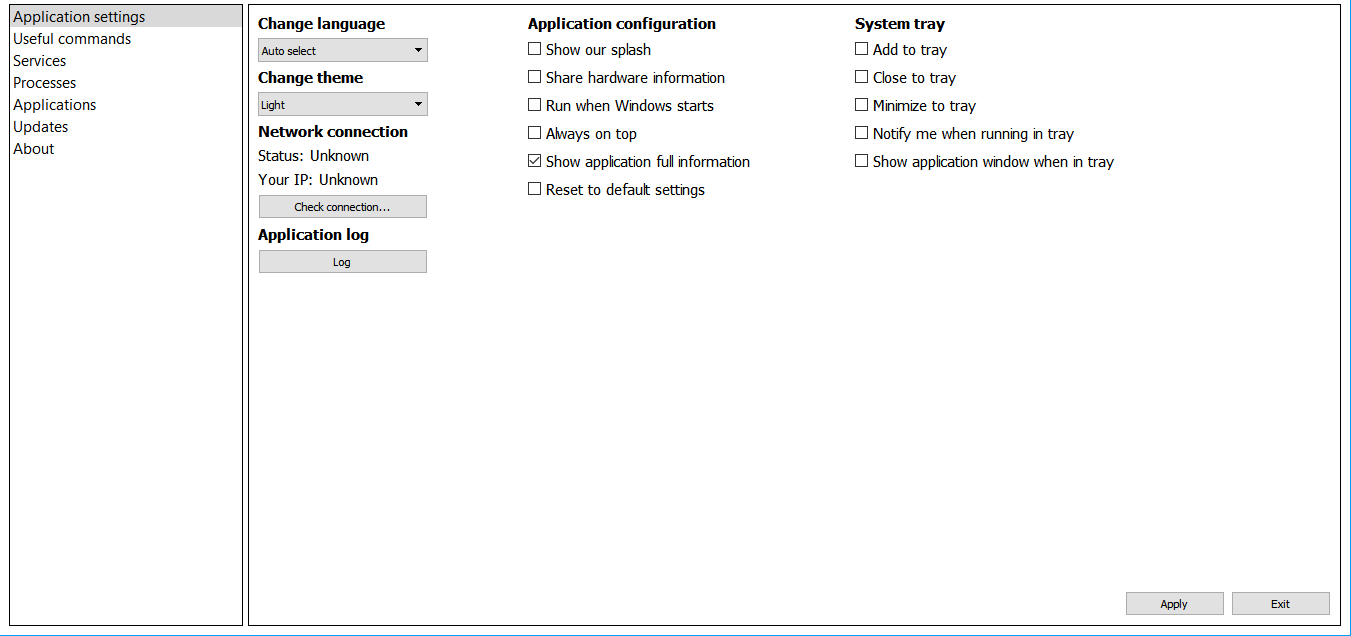
I have set
setAligmentfunctions and expandsetMinimumSize(1350, 670);minimum size of the main window and now it looks normal on Window 10 (1920x1080).The problem is that the space on the right cut some
QCheckBoxtext on small screen resolutions.Win XP (1024x768):
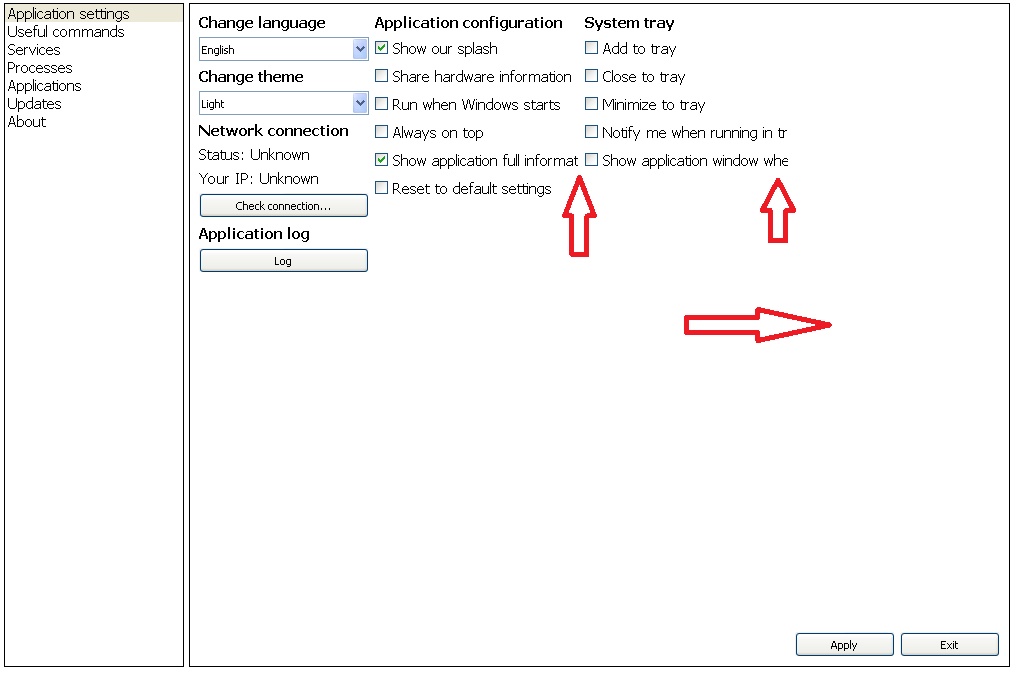
Also the space still exists even I have deleted all
stretchfunctions fromQVBoxLayoutlayouts. I addaddStretch(5);to add more space between columns inQHBoxLayout *appSettingsLayout. I think the right space is because ofQHBoxLayoutin which I placed my two buttons ("Apply" and "Exit") -appSettingsButtonLayout. How to change this layout size? -
Code:
QVBoxLayout *vBoxLayout1 = new QVBoxLayout();
 vBoxLayout1->setAlignment(Qt::AlignTop | Qt::AlignLeft);
 vBoxLayout1->addWidget(changeLanguageLabel);
 vBoxLayout1->addWidget(changeLanguageComboBox);
 vBoxLayout1->addWidget(changeThemeLabel);
 vBoxLayout1->addWidget(changeThemeComboBox);
 vBoxLayout1->addWidget(networkConnectionLabel);
 vBoxLayout1->addLayout(netStatusConnectionLayout);
 vBoxLayout1->addLayout(netIPConnectionLayout);
 vBoxLayout1->addWidget(checkConnectionButton);
 vBoxLayout1->addWidget(appLogLabel);
 vBoxLayout1->addWidget(applicationLogButton);

 QVBoxLayout *vBoxLayout2 = new QVBoxLayout();
 vBoxLayout2->setAlignment(Qt::AlignTop | Qt::AlignCenter);
 vBoxLayout2->addWidget(appConfigLabel);
 vBoxLayout2->addWidget(showOurSplashCheckBox);
 vBoxLayout2->addWidget(shareHardwareInfoCheckBox);
 vBoxLayout2->addWidget(runWhenWindowsStartsCheckBox);
 vBoxLayout2->addWidget(showAllwaysOnTopCheckBox);
 vBoxLayout2->addWidget(showAppFullInfoCheckBox);
 vBoxLayout2->addWidget(resetToDefaultsCheckBox);

 QVBoxLayout *vBoxLayout3 = new QVBoxLayout();
 vBoxLayout3->setAlignment(Qt::AlignTop | Qt::AlignRight);
 vBoxLayout3->addWidget(appSystemTrayLabel);
 vBoxLayout3->addWidget(addToTrayCheckBox);
 vBoxLayout3->addWidget(closeToTrayCheckBox);
 vBoxLayout3->addWidget(minimizeToTrayCheckBox);
 vBoxLayout3->addWidget(notifyWhenInTrayCheckBox);
 vBoxLayout3->addWidget(showAppWindowWhenInTrayCheckBox);

 QHBoxLayout *appSettingsButtonLayout = new QHBoxLayout();
 appSettingsButtonLayout->setAlignment(Qt::AlignBottom | Qt::AlignRight);
 appSettingsButtonLayout->addStretch(1);
 appSettingsButtonLayout->addWidget(appSettingsApplyButton);
 appSettingsButtonLayout->addWidget(appSettingsExitButton);

 QHBoxLayout *appSettingsLayout = new QHBoxLayout();
 appSettingsLayout->addLayout(vBoxLayout1);
 appSettingsLayout->addStretch(5);
 appSettingsLayout->addLayout(vBoxLayout2);
 appSettingsLayout->addStretch(5);
 appSettingsLayout->addLayout(vBoxLayout3);
 appSettingsLayout->addLayout(appSettingsButtonLayout);
 appSettingsTab->setLayout(appSettingsLayout);
Now it looks:
I have set
setAligmentfunctions and expandsetMinimumSize(1350, 670);minimum size of the main window and now it looks normal on Window 10 (1920x1080).The problem is that the space on the right cut some
QCheckBoxtext on small screen resolutions.Win XP (1024x768):
Also the space still exists even I have deleted all
stretchfunctions fromQVBoxLayoutlayouts. I addaddStretch(5);to add more space between columns inQHBoxLayout *appSettingsLayout. I think the right space is because ofQHBoxLayoutin which I placed my two buttons ("Apply" and "Exit") -appSettingsButtonLayout. How to change this layout size?@Cobra91151 you're right, its becaus eof the buttons
To continue with your current solution:
Pack all "Top VBoxLayouts" into a HBoxlayout and add that layout with the
appSettingsButtonLayoutto a VBoxLayout.
Be aware of the Qt Code of Conduct, when posting : https://forum.qt.io/topic/113070/qt-code-of-conduct
Q: What's that?
A: It's blue light.
Q: What does it do?
A: It turns blue.


