Beginner question - Simple "hello world" using QMainWindow and dynamically loaded .ui from Widget Designer
-
Apologies if this is the wrong forum for beginner questions, please let me know where to post.
I thought this would be simple, but web searches seem to turn up lots of non-working hallucinations.
I created a simple Main Window ui in Widgets Designer. One Google suggestion resulted in a small completely empty window. A different code template displays the window, containing the controls, but much too small. It can be drag-expanded to show everything, but I was under the impression that it was supposed to size itself to contain its members.
When I Ctrl+R in Designer the window displays as expected, but not from my Python code, so I know I'm doing something wrong.
Question: Is there a canonical example of how to accomplish this with a Desinger-generated .ui dynamically loaded, and QMainWIndow? Or, is that just the wrong approach?
Designer:
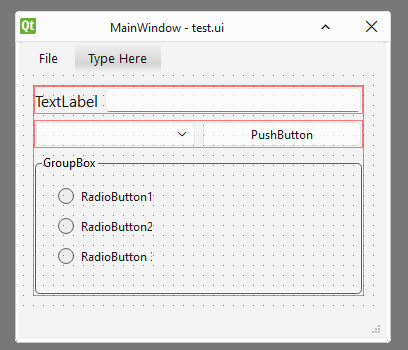
Initial display:
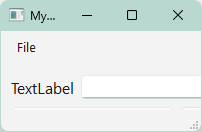
After manual resizing:
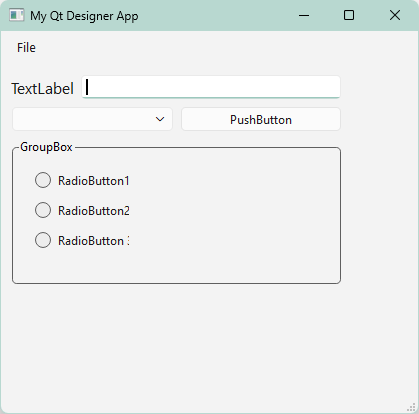
.ui file
<?xml version="1.0" encoding="UTF-8"?>
<ui version="4.0">
 <class>MainWindow</class>
 <widget class="QMainWindow" name="MainWindow">
  <property name="geometry">
   <rect>
    <x>0</x>
    <y>0</y>
    <width>360</width>
    <height>293</height>
   </rect>
  </property>
  <property name="windowTitle">
   <string>MainWindow</string>
  </property>
  <widget class="QWidget" name="centralwidget">
   <widget class="QWidget" name="">
    <property name="geometry">
     <rect>
      <x>10</x>
      <y>10</y>
      <width>331</width>
      <height>211</height>
     </rect>
    </property>
    <layout class="QVBoxLayout" name="verticalLayout">
     <item>
      <layout class="QHBoxLayout" name="horizontalLayout">
       <property name="sizeConstraint">
        <enum>QLayout::SizeConstraint::SetDefaultConstraint</enum>
       </property>
       <item>
        <widget class="QLabel" name="Label1">
         <property name="font">
          <font>
           <pointsize>12</pointsize>
          </font>
         </property>
         <property name="text">
          <string>TextLabel</string>
         </property>
        </widget>
       </item>
       <item>
        <widget class="QLineEdit" name="lineEdit"/>
       </item>
      </layout>
     </item>
     <item>
      <layout class="QHBoxLayout" name="horizontalLayout_2">
       <item>
        <widget class="QComboBox" name="comboBox"/>
       </item>
       <item>
        <widget class="QPushButton" name="pushButton">
         <property name="text">
          <string>PushButton</string>
         </property>
        </widget>
       </item>
      </layout>
     </item>
     <item>
      <widget class="QGroupBox" name="groupBox">
       <property name="sizePolicy">
        <sizepolicy hsizetype="Preferred" vsizetype="Preferred">
         <horstretch>0</horstretch>
         <verstretch>1</verstretch>
        </sizepolicy>
       </property>
       <property name="title">
        <string>GroupBox</string>
       </property>
       <widget class="QRadioButton" name="radioButton">
        <property name="geometry">
         <rect>
          <x>20</x>
          <y>30</y>
          <width>98</width>
          <height>24</height>
         </rect>
        </property>
        <property name="text">
         <string>RadioButton1</string>
        </property>
       </widget>
       <widget class="QRadioButton" name="radioButton_2">
        <property name="geometry">
         <rect>
          <x>20</x>
          <y>60</y>
          <width>98</width>
          <height>24</height>
         </rect>
        </property>
        <property name="text">
         <string>RadioButton2</string>
        </property>
       </widget>
       <widget class="QRadioButton" name="radioButton_3">
        <property name="geometry">
         <rect>
          <x>20</x>
          <y>90</y>
          <width>98</width>
          <height>24</height>
         </rect>
        </property>
        <property name="text">
         <string>RadioButton 3</string>
        </property>
       </widget>
      </widget>
     </item>
    </layout>
   </widget>
  </widget>
  <widget class="QMenuBar" name="menubar">
   <property name="geometry">
    <rect>
     <x>0</x>
     <y>0</y>
     <width>360</width>
     <height>33</height>
    </rect>
   </property>
   <widget class="QMenu" name="menuMain_Window">
    <property name="title">
     <string>File</string>
    </property>
    <addaction name="actionOpen"/>
    <addaction name="actionSave"/>
    <addaction name="actionSave_As"/>
   </widget>
   <addaction name="menuMain_Window"/>
  </widget>
  <widget class="QStatusBar" name="statusbar"/>
  <action name="actionOpen">
   <property name="text">
    <string>Open...</string>
   </property>
  </action>
  <action name="actionSave">
   <property name="text">
    <string>Save</string>
   </property>
  </action>
  <action name="actionSave_As">
   <property name="text">
    <string>Save As</string>
   </property>
  </action>
 </widget>
 <resources/>
 <connections/>
</ui>
Python code
import sys from PySide6.QtCore import QFile from PySide6.QtWidgets import QApplication, QMainWindow, QVBoxLayout, QWidget from PySide6.QtUiTools import QUiLoader class MainWindow(QMainWindow): def __init__(self): super().__init__() # 1. Setup the UI loader and open the UI file loader = QUiLoader() ui_file = QFile("../../../qtTest/test.ui") if not ui_file.open(QFile.ReadOnly): print("Cannot open ui file") sys.exit(-1) # 2. Load the UI layout directly into the window self.ui = loader.load(ui_file, self) ui_file.close() self.setWindowTitle("My Qt Designer App") self.setCentralWidget(self.ui) layout = QVBoxLayout() layout.setContentsMargins(0, 0, 0, 0) layout.addWidget(self.ui) container = QWidget() container.setLayout(layout) self.setCentralWidget(container) # 4. Connect functional code to your UI components # (Assuming you have a button named 'submit_btn' in Qt Designer) self.ui.pushButton.clicked.connect(self.on_submit_clicked) def on_submit_clicked(self): print("The button was clicked!") if __name__ == "__main__": app = QApplication(sys.argv) window = MainWindow() window.show() sys.exit(app.exec()) -
In Designer, activate "Lay Out Vertically" on the centralwidget and the groupBox content (so that there is a real layout instead of a fixed geometry), and at the same time change the root of the .ui from QMainWindow to a regular QWidget and load it with loader.load(ui_file) without an additional container in the code.
-
You can always, always use me.
-
In Designer, activate "Lay Out Vertically" on the centralwidget and the groupBox content (so that there is a real layout instead of a fixed geometry), and at the same time change the root of the .ui from QMainWindow to a regular QWidget and load it with loader.load(ui_file) without an additional container in the code.
Thanks for your quick reply. Sorry, but as a beginner with Qt, I'm not sure I understand your suggestions completely.
- In designer activate "Lay Out Vertically" on the centralwidget
I don't see an option to "lay out vertically" (or just Lay Out) in the context menu nor in the property editor forcentralwidget. There's a "Layout" section at the bottom of the property editor calledverticalLayout_3but it specifies only margins, spacing, stretch and size constraints. - change the root of the .ui from QMainWindow to a regular QWidget
In Designer or in my code? To clarify:- Question: Are you saying my Python
MainWindowclass should inherit fromQWidgetinstead ofQMainWIndow? - Question: Is it the case that since the Designer generates a
QMainWindowin the .ui file, it is redundant to inherit fromQMainWindowin the code?
- Question: Are you saying my Python
Meanwhile, I got it working, but by a different change.
What I actually did was right-click in Designer on the
MainWindowline in the object inspector, selected "Lay Out" and then clicked "Lay Out Vertically" (inMainWindow, not in thecentralwidgetobject, which didn't have a "Lay Out" context menu entry). I then ran my existing code with no changes other than the new .ui file.The result of that was a window containing all the controls, at the minimum possible size for those controls:
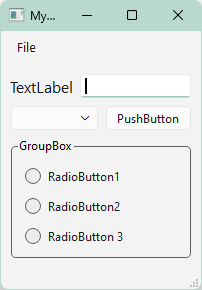
I still have a lot to learn... When I increase the running window height (by dragging the resize handle), the group box resizes and the radio buttons spread out, but at least I can see everything.
I'll be curious to see your answers to my questions above.
- In designer activate "Lay Out Vertically" on the centralwidget
-
Thanks for your quick reply. Sorry, but as a beginner with Qt, I'm not sure I understand your suggestions completely.
- In designer activate "Lay Out Vertically" on the centralwidget
I don't see an option to "lay out vertically" (or just Lay Out) in the context menu nor in the property editor forcentralwidget. There's a "Layout" section at the bottom of the property editor calledverticalLayout_3but it specifies only margins, spacing, stretch and size constraints. - change the root of the .ui from QMainWindow to a regular QWidget
In Designer or in my code? To clarify:- Question: Are you saying my Python
MainWindowclass should inherit fromQWidgetinstead ofQMainWIndow? - Question: Is it the case that since the Designer generates a
QMainWindowin the .ui file, it is redundant to inherit fromQMainWindowin the code?
- Question: Are you saying my Python
Meanwhile, I got it working, but by a different change.
What I actually did was right-click in Designer on the
MainWindowline in the object inspector, selected "Lay Out" and then clicked "Lay Out Vertically" (inMainWindow, not in thecentralwidgetobject, which didn't have a "Lay Out" context menu entry). I then ran my existing code with no changes other than the new .ui file.The result of that was a window containing all the controls, at the minimum possible size for those controls:
I still have a lot to learn... When I increase the running window height (by dragging the resize handle), the group box resizes and the radio buttons spread out, but at least I can see everything.
I'll be curious to see your answers to my questions above.
@Jim-G
I am a big fan of Qt, having used it for years, but not so much of the Designer part of Qt Creator. It can be arcane. But it is what it is, and if you want to design your UI visually you have to work with it.Unfortunately you picked to start your experience with a
QMainWindow(which many people do) and that does have a wrinkle making it confusing/unintuitive. You would indeed expect to place a layout on thecentralWidgetand that is what you do from code. But for some inexplicable reason Designer forbids that and you are supposed to know/guess you need to do it there on theMainWindowrather than thecentralWidget. Even though it then applies that to thecentralWidget. I only discovered this recently where I was stuck on just this issue. Read through my https://forum.qt.io/topic/164873/creator-cannot-set-layout-on-qmainwindow-centralwidget and you will see! This particular problem only arises on aQMainWindowwith itscentralWidget.A couple of useful tips for Designer:
-
Look at the object hierarchy for "red no-entry" signs. If you see one it means that widget does not have a layout. It will need one, else you won't be able to position/resize properly etc. (Don't be tempted to use absolute coordinates/positioning, unless you have a special case you always want to use layouts.)
-
In general (say starting from a plain
QWidget) you (I at least) would expect to place the widget, then add a layout, then add any child widgets. Common-sense, right? And how you would do it in code. In Designer you have first place at least one child widget on the parent widget, only then can you go back and place a layout (which you need) on the parent widget. You can even delete any child widgets afterwards if you wish and the layout will stay, but you need a child widget to place it initially. -
Don't be afraid to look at the generated
.uifile. It is XML and you can understand fairly intuitively where it puts what relating to your design. (Don't edit it though as it will get overwritten). For example, in your case of having to place the layout on theQMainWindowyou would see that it actually places it on thecentralWidgetin the.uifile!
Question: Is there a canonical example of how to accomplish this with a Desinger-generated .ui dynamically loaded, and QMainWIndow? Or, is that just the wrong approach?
loader = QUiLoader()
ui_file = QFile("../../../qtTest/test.ui")
self.ui = loader.load(ui_file, self)My strongest recommendation would be NOT to do it this way. Being able to load the
.uiat runtime is really only useful in specific, unusual circumstances. C++ does have this approach too, but it is even harder to use than from Python.# (Assuming you have a button named 'submit_btn' in Qt Designer) self.ui.pushButton.clicked.connect(self.on_submit_clicked)Correct me if I am wrong, but when you type that line into your Python editor IDE you get no "help" at all on the
self.ui.pushButton, right? The editor does not know about it, cannot offer you completion and it would error at runtime if it turns out your.uifile does not have a push button namedpushButton. This is because at design-/edit-time it has no idea that you are loading a file intouinor what that file contains.Read (again?) through https://doc.qt.io/qtforpython-6/tutorials/basictutorial/uifiles.html. You have taken approach Option B: Loading it directly. Don't :) Get yourself working with Option A: Generating a Python class there. That does mean you will need to run something like
pyside6-uic mainwindow.ui -o ui_mainwindow.pyeach time you change the.uifile but I think you can have that done automatically from Creator for Python, you certainly do for C++. Once you have a class for each.uifile you can work with it and its members/widgets fully at edit time. You also do not need to distribute/have in existence your.uifiles at runtime. (You can also examine the generatedui_....pyfiles and see/learn how the.uicontent is turned into Python/PySide2 code which can be helpful.)When I increase the running window height (by dragging the resize handle), the group box resizes and the radio buttons spread out, but at least I can see everything.
That means a
QGroupBoxis set by default to grow when the window/parent grows. If you don't want this behaviour do something like set it to have a fixed size. - In designer activate "Lay Out Vertically" on the centralwidget
-
@Jim-G
I am a big fan of Qt, having used it for years, but not so much of the Designer part of Qt Creator. It can be arcane. But it is what it is, and if you want to design your UI visually you have to work with it.Unfortunately you picked to start your experience with a
QMainWindow(which many people do) and that does have a wrinkle making it confusing/unintuitive. You would indeed expect to place a layout on thecentralWidgetand that is what you do from code. But for some inexplicable reason Designer forbids that and you are supposed to know/guess you need to do it there on theMainWindowrather than thecentralWidget. Even though it then applies that to thecentralWidget. I only discovered this recently where I was stuck on just this issue. Read through my https://forum.qt.io/topic/164873/creator-cannot-set-layout-on-qmainwindow-centralwidget and you will see! This particular problem only arises on aQMainWindowwith itscentralWidget.A couple of useful tips for Designer:
-
Look at the object hierarchy for "red no-entry" signs. If you see one it means that widget does not have a layout. It will need one, else you won't be able to position/resize properly etc. (Don't be tempted to use absolute coordinates/positioning, unless you have a special case you always want to use layouts.)
-
In general (say starting from a plain
QWidget) you (I at least) would expect to place the widget, then add a layout, then add any child widgets. Common-sense, right? And how you would do it in code. In Designer you have first place at least one child widget on the parent widget, only then can you go back and place a layout (which you need) on the parent widget. You can even delete any child widgets afterwards if you wish and the layout will stay, but you need a child widget to place it initially. -
Don't be afraid to look at the generated
.uifile. It is XML and you can understand fairly intuitively where it puts what relating to your design. (Don't edit it though as it will get overwritten). For example, in your case of having to place the layout on theQMainWindowyou would see that it actually places it on thecentralWidgetin the.uifile!
Question: Is there a canonical example of how to accomplish this with a Desinger-generated .ui dynamically loaded, and QMainWIndow? Or, is that just the wrong approach?
loader = QUiLoader()
ui_file = QFile("../../../qtTest/test.ui")
self.ui = loader.load(ui_file, self)My strongest recommendation would be NOT to do it this way. Being able to load the
.uiat runtime is really only useful in specific, unusual circumstances. C++ does have this approach too, but it is even harder to use than from Python.# (Assuming you have a button named 'submit_btn' in Qt Designer) self.ui.pushButton.clicked.connect(self.on_submit_clicked)Correct me if I am wrong, but when you type that line into your Python editor IDE you get no "help" at all on the
self.ui.pushButton, right? The editor does not know about it, cannot offer you completion and it would error at runtime if it turns out your.uifile does not have a push button namedpushButton. This is because at design-/edit-time it has no idea that you are loading a file intouinor what that file contains.Read (again?) through https://doc.qt.io/qtforpython-6/tutorials/basictutorial/uifiles.html. You have taken approach Option B: Loading it directly. Don't :) Get yourself working with Option A: Generating a Python class there. That does mean you will need to run something like
pyside6-uic mainwindow.ui -o ui_mainwindow.pyeach time you change the.uifile but I think you can have that done automatically from Creator for Python, you certainly do for C++. Once you have a class for each.uifile you can work with it and its members/widgets fully at edit time. You also do not need to distribute/have in existence your.uifiles at runtime. (You can also examine the generatedui_....pyfiles and see/learn how the.uicontent is turned into Python/PySide2 code which can be helpful.)When I increase the running window height (by dragging the resize handle), the group box resizes and the radio buttons spread out, but at least I can see everything.
That means a
QGroupBoxis set by default to grow when the window/parent grows. If you don't want this behaviour do something like set it to have a fixed size.@JonB Thanks for the detailed response.
I'm using the .ui file approach only while I learn Qt and prototype my application, and will switch to generating code once the user interface is stable.
There's a lot to digest in your response and I'll follow up on your reading suggestions.
Clearly there's still a lot wrong in my mental model of how things work. For example, since my last post I have whittled things down to this:
    def __init__(self):
        super().__init__()

        loader = QUiLoader()
        ui_file = QFile("../../../qtTest/test.ui")
        if not ui_file.open(QFile.ReadOnly):
            print("Cannot open ui file")
            sys.exit(-1)

        self.ui = loader.load(ui_file)
        ui_file.close()

        layout = QVBoxLayout()
        layout.setContentsMargins(0, 0, 0, 0)
        layout.addWidget(self.ui)
        self.setLayout(layout)
        self.setWindowTitle("My Qt Designer App")
This works and produces the minimum-size window from my previous post. Notice however
self.ui = loader.load(ui_file), where don't specify the parent widget. If I change the code toself.ui = loader.load(ui_file, self)then the code hangs atapp.exec()with no window displayed. -
-
@JonB Thanks for the detailed response.
I'm using the .ui file approach only while I learn Qt and prototype my application, and will switch to generating code once the user interface is stable.
There's a lot to digest in your response and I'll follow up on your reading suggestions.
Clearly there's still a lot wrong in my mental model of how things work. For example, since my last post I have whittled things down to this:
    def __init__(self):
        super().__init__()

        loader = QUiLoader()
        ui_file = QFile("../../../qtTest/test.ui")
        if not ui_file.open(QFile.ReadOnly):
            print("Cannot open ui file")
            sys.exit(-1)

        self.ui = loader.load(ui_file)
        ui_file.close()

        layout = QVBoxLayout()
        layout.setContentsMargins(0, 0, 0, 0)
        layout.addWidget(self.ui)
        self.setLayout(layout)
        self.setWindowTitle("My Qt Designer App")
This works and produces the minimum-size window from my previous post. Notice however
self.ui = loader.load(ui_file), where don't specify the parent widget. If I change the code toself.ui = loader.load(ui_file, self)then the code hangs atapp.exec()with no window displayed.@Jim-G
I don't know where you are really at now, because I do not get the same results as you do. FWIW I am using Ubuntu 26.04, Qt 6.10.2, PySide 6.11.1. But I am not expecting any difference for you from different versions or platform (e.g. Windows if that is what you are using).-
If I copy and paste your original code I get a visual window. It is a main window. It opens "small", but I can drag-resize it and it looks similar to what you showed in both screenshots. But note this whole code is quite wrong: you end up with two
QMainWindows, one is yourMainWindowand the other is aQMainWindowfrom your.uifile which has been set as the central widget viaself.setCentralWidget(self.ui). You do not want aQMainWindowas the type of the central widget of aQMainWindow! -
If I replace just
MainWindow'sdef __init(self)per your last post I get an emptyMainWindow--- your title but no content. And the same whetherloader.load(ui_file, self)hasselfas parameter or not. No "hang", no "no window displayed".
So if you really want to use, or have people investigate, you attempted use of
QUiLoader(), I suggest you paste a new complete but minimal example of your code as it is, as I am guessing it is not just as you show/I have copied.(I still don't think the new code can be right:
selfis yourMainWindow, which is aQMainWindow, and when your__init()goesself.setLayout(layout)that sets the whole layout of aQMainWindowwhich you would never want to do. The point of aQMainWindowis that it already has its own layout with various widgets to produce menus and status bars. It has one area in the "middle" which is the "central widget" and you should only be setting that and its layout and content.)(Also, if
self.ui = loader.load(ui_file)or similar is used to create and load aQMainWindow, you would never want to callself.ui = loader.load(ui_file, something), whethersomethingisselfor any otherQWidget. That would be a parent widget for the created widget, and you should only use aQMainWindowas a top-level widget/window, it would never have a parent.)Personally I do not think you will gain much by persisting with
QUiLoader()/loader.load(ui_file)since I don't think that is the best way to use Qt/Designer back-end code. As I have said I would abandon that approach and use the class-generation one instead. I have never usedQUiLoader()so don't have much experience, but will look again at your code (if made to work) if you wish to continue with that. -
-
@JonB Thanks for the detailed response.
I'm using the .ui file approach only while I learn Qt and prototype my application, and will switch to generating code once the user interface is stable.
There's a lot to digest in your response and I'll follow up on your reading suggestions.
Clearly there's still a lot wrong in my mental model of how things work. For example, since my last post I have whittled things down to this:
    def __init__(self):
        super().__init__()

        loader = QUiLoader()
        ui_file = QFile("../../../qtTest/test.ui")
        if not ui_file.open(QFile.ReadOnly):
            print("Cannot open ui file")
            sys.exit(-1)

        self.ui = loader.load(ui_file)
        ui_file.close()

        layout = QVBoxLayout()
        layout.setContentsMargins(0, 0, 0, 0)
        layout.addWidget(self.ui)
        self.setLayout(layout)
        self.setWindowTitle("My Qt Designer App")
This works and produces the minimum-size window from my previous post. Notice however
self.ui = loader.load(ui_file), where don't specify the parent widget. If I change the code toself.ui = loader.load(ui_file, self)then the code hangs atapp.exec()with no window displayed.@Jim-G
Revisiting what you are trying to do withQUiLoader(). You should be following the example from Option B: Loading it directly.Note that there the
mainwindow.uifile --- same as yourtest.uiin that it has<class>MainWindow</class> <widget class="QMainWindow" name="MainWindow">--- is the only occurrence of any
QMainWindowin that code. It does not have anotherQMainWindowwhere you do and goself.ui = loader.load("test.ui"). PySide6QUiLoader().load("test.ui")creates and returns a complete, newMainWindow/QMainWindowwidget. So you won't want to create your own, separateMainWindow/QMainWindow.If you want to persist with this, I suggest you start from the linked code and modify as desired from there.
-
This post is deleted!
-
Apologies if this is the wrong forum for beginner questions, please let me know where to post.
I thought this would be simple, but web searches seem to turn up lots of non-working hallucinations.
I created a simple Main Window ui in Widgets Designer. One Google suggestion resulted in a small completely empty window. A different code template displays the window, containing the controls, but much too small. It can be drag-expanded to show everything, but I was under the impression that it was supposed to size itself to contain its members.
When I Ctrl+R in Designer the window displays as expected, but not from my Python code, so I know I'm doing something wrong.
Question: Is there a canonical example of how to accomplish this with a Desinger-generated .ui dynamically loaded, and QMainWIndow? Or, is that just the wrong approach?
Designer:
Initial display:
After manual resizing:
.ui file
<?xml version="1.0" encoding="UTF-8"?>
<ui version="4.0">
 <class>MainWindow</class>
 <widget class="QMainWindow" name="MainWindow">
  <property name="geometry">
   <rect>
    <x>0</x>
    <y>0</y>
    <width>360</width>
    <height>293</height>
   </rect>
  </property>
  <property name="windowTitle">
   <string>MainWindow</string>
  </property>
  <widget class="QWidget" name="centralwidget">
   <widget class="QWidget" name="">
    <property name="geometry">
     <rect>
      <x>10</x>
      <y>10</y>
      <width>331</width>
      <height>211</height>
     </rect>
    </property>
    <layout class="QVBoxLayout" name="verticalLayout">
     <item>
      <layout class="QHBoxLayout" name="horizontalLayout">
       <property name="sizeConstraint">
        <enum>QLayout::SizeConstraint::SetDefaultConstraint</enum>
       </property>
       <item>
        <widget class="QLabel" name="Label1">
         <property name="font">
          <font>
           <pointsize>12</pointsize>
          </font>
         </property>
         <property name="text">
          <string>TextLabel</string>
         </property>
        </widget>
       </item>
       <item>
        <widget class="QLineEdit" name="lineEdit"/>
       </item>
      </layout>
     </item>
     <item>
      <layout class="QHBoxLayout" name="horizontalLayout_2">
       <item>
        <widget class="QComboBox" name="comboBox"/>
       </item>
       <item>
        <widget class="QPushButton" name="pushButton">
         <property name="text">
          <string>PushButton</string>
         </property>
        </widget>
       </item>
      </layout>
     </item>
     <item>
      <widget class="QGroupBox" name="groupBox">
       <property name="sizePolicy">
        <sizepolicy hsizetype="Preferred" vsizetype="Preferred">
         <horstretch>0</horstretch>
         <verstretch>1</verstretch>
        </sizepolicy>
       </property>
       <property name="title">
        <string>GroupBox</string>
       </property>
       <widget class="QRadioButton" name="radioButton">
        <property name="geometry">
         <rect>
          <x>20</x>
          <y>30</y>
          <width>98</width>
          <height>24</height>
         </rect>
        </property>
        <property name="text">
         <string>RadioButton1</string>
        </property>
       </widget>
       <widget class="QRadioButton" name="radioButton_2">
        <property name="geometry">
         <rect>
          <x>20</x>
          <y>60</y>
          <width>98</width>
          <height>24</height>
         </rect>
        </property>
        <property name="text">
         <string>RadioButton2</string>
        </property>
       </widget>
       <widget class="QRadioButton" name="radioButton_3">
        <property name="geometry">
         <rect>
          <x>20</x>
          <y>90</y>
          <width>98</width>
          <height>24</height>
         </rect>
        </property>
        <property name="text">
         <string>RadioButton 3</string>
        </property>
       </widget>
      </widget>
     </item>
    </layout>
   </widget>
  </widget>
  <widget class="QMenuBar" name="menubar">
   <property name="geometry">
    <rect>
     <x>0</x>
     <y>0</y>
     <width>360</width>
     <height>33</height>
    </rect>
   </property>
   <widget class="QMenu" name="menuMain_Window">
    <property name="title">
     <string>File</string>
    </property>
    <addaction name="actionOpen"/>
    <addaction name="actionSave"/>
    <addaction name="actionSave_As"/>
   </widget>
   <addaction name="menuMain_Window"/>
  </widget>
  <widget class="QStatusBar" name="statusbar"/>
  <action name="actionOpen">
   <property name="text">
    <string>Open...</string>
   </property>
  </action>
  <action name="actionSave">
   <property name="text">
    <string>Save</string>
   </property>
  </action>
  <action name="actionSave_As">
   <property name="text">
    <string>Save As</string>
   </property>
  </action>
 </widget>
 <resources/>
 <connections/>
</ui>
Python code
import sys from PySide6.QtCore import QFile from PySide6.QtWidgets import QApplication, QMainWindow, QVBoxLayout, QWidget from PySide6.QtUiTools import QUiLoader class MainWindow(QMainWindow): def __init__(self): super().__init__() # 1. Setup the UI loader and open the UI file loader = QUiLoader() ui_file = QFile("../../../qtTest/test.ui") if not ui_file.open(QFile.ReadOnly): print("Cannot open ui file") sys.exit(-1) # 2. Load the UI layout directly into the window self.ui = loader.load(ui_file, self) ui_file.close() self.setWindowTitle("My Qt Designer App") self.setCentralWidget(self.ui) layout = QVBoxLayout() layout.setContentsMargins(0, 0, 0, 0) layout.addWidget(self.ui) container = QWidget() container.setLayout(layout) self.setCentralWidget(container) # 4. Connect functional code to your UI components # (Assuming you have a button named 'submit_btn' in Qt Designer) self.ui.pushButton.clicked.connect(self.on_submit_clicked) def on_submit_clicked(self): print("The button was clicked!") if __name__ == "__main__": app = QApplication(sys.argv) window = MainWindow() window.show() sys.exit(app.exec())@Jim-G Hi, Kindly check this Qt Designer Tutorials from my channel, it is suitable for beginners like you https://www.youtube.com/watch?v=_31LgDG_HDE&list=PLKvmdGUvITo1QlVWF5eDlye7VZaodvwFg
-
@Jim-G
Revisiting what you are trying to do withQUiLoader(). You should be following the example from Option B: Loading it directly.Note that there the
mainwindow.uifile --- same as yourtest.uiin that it has<class>MainWindow</class> <widget class="QMainWindow" name="MainWindow">--- is the only occurrence of any
QMainWindowin that code. It does not have anotherQMainWindowwhere you do and goself.ui = loader.load("test.ui"). PySide6QUiLoader().load("test.ui")creates and returns a complete, newMainWindow/QMainWindowwidget. So you won't want to create your own, separateMainWindow/QMainWindow.If you want to persist with this, I suggest you start from the linked code and modify as desired from there.
@JonB You are correct, my original post is very outdated, I have moved on significantly and no longer have two QMainWindow instances. Things are working and I think my mental model is getting more aligned with Qt reality.
Since my original post no longer applies, should I delete it? What's the protocol here?
I have other questions so I'll post them in new threads.
Thanks for the help.