
TableLayout in the centralwindow
-
@Swati777999
In place ofQPushButtonjust use eitherQTableVieworQTableWidgetand edit the positions of rows and columns inaddWidget(widget, Row, Column)
Widget can be anything like table , button , label anything. So you can create instance of it and just put it in place of widget something liketableLayout->addWidget(firstTable,0,0); tableLayout->addWidget(secondTable,2,0); tableLayout->addWidget(thirdTable,0,2);where
firstTablesecondTableandthirdTableare your tablesJust One tip:
If you are working with simple data then choosingQTableWidgetwould be easier and if you are working with some big data and want to use model then go forQTableViewhttps://doc.qt.io/qt-5/qtablewidget.html
https://doc.qt.io/qt-5/qtableview.htmlThanks, it helped me for creating a basic layout.
I am now trying for the view of the table; like resizing and making division for creating rows and columns.
-
@Swati777999
In place ofQPushButtonjust use eitherQTableVieworQTableWidgetand edit the positions of rows and columns inaddWidget(widget, Row, Column)
Widget can be anything like table , button , label anything. So you can create instance of it and just put it in place of widget something liketableLayout->addWidget(firstTable,0,0); tableLayout->addWidget(secondTable,2,0); tableLayout->addWidget(thirdTable,0,2);where
firstTablesecondTableandthirdTableare your tablesJust One tip:
If you are working with simple data then choosingQTableWidgetwould be easier and if you are working with some big data and want to use model then go forQTableViewhttps://doc.qt.io/qt-5/qtablewidget.html
https://doc.qt.io/qt-5/qtableview.htmlfor making the size of the table to fit to the size of the widget, I used the following
myWidget->adjustSize();but it does not produce the result
“ In order to be irreplaceable, one must always be different” – Coco Chanel
-
for making the size of the table to fit to the size of the widget, I used the following
myWidget->adjustSize();but it does not produce the result
@Swati777999 Did you put myWidget in a layout?
-
@Swati777999 Did you put myWidget in a layout?
-
@jsulm No
I have used QMainWindow::setCentralWidget(myWidget);This is final output you are gonna see
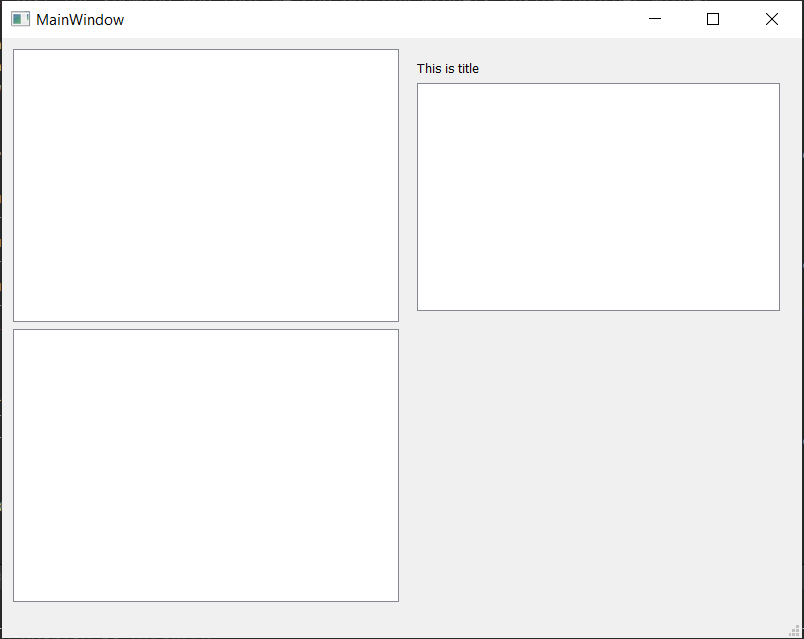
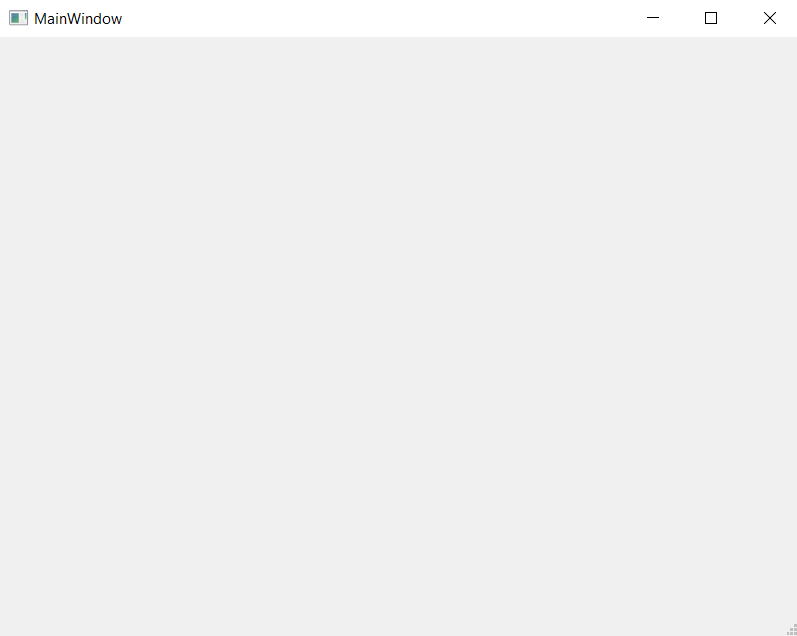
mainwindow.h#ifndef MAINWINDOW_H #define MAINWINDOW_H #include <QMainWindow> #include<QTableWidget> #include<QGridLayout> #include<QVBoxLayout> #include<QLabel> QT_BEGIN_NAMESPACE namespace Ui { class MainWindow; } QT_END_NAMESPACE class MainWindow : public QMainWindow { Q_OBJECT public: MainWindow(QWidget *parent = nullptr); ~MainWindow(); private: Ui::MainWindow *ui; QWidget *myWidget; QGridLayout *tableLayout; QTableWidget *firstTable, *secondTable,*thirdTable; QWidget *compoundWidget; QVBoxLayout *compoundLayout; QLabel *titleOfCompound; }; #endif // MAINWINDOW_Hmainwindow.cpp#include "mainwindow.h" #include "ui_mainwindow.h" MainWindow::MainWindow(QWidget *parent) : QMainWindow(parent) , ui(new Ui::MainWindow) { ui->setupUi(this); myWidget = new QWidget(); // this is our main widget which we will set as central widget tableLayout = new QGridLayout(); // this is layout for our myWidget which is like grid as it's name suggests firstTable = new QTableWidget(); secondTable = new QTableWidget(); thirdTable = new QTableWidget(); // these are just basic tables which are also widgets. compoundWidget = new QWidget(); // compoundWidget is also a widget but we will add more widgets inside it. In this case we are inserting table and label compoundLayout = new QVBoxLayout(compoundWidget); // This is layout for compoundWidget titleOfCompound = new QLabel("This is title"); // this is just for showing you that we can put any widgets inside another widget compoundLayout->addWidget(titleOfCompound); compoundLayout->addWidget(thirdTable); // this puts table and title to compoundWidget compoundWidget->setLayout(compoundLayout); // this sets compoundLayout to compoundWidget : Remember we have added two widgets in compoundLayout so they will be shown tableLayout->addWidget(firstTable,0,0); // we want first table to be at first so row = 0 ; column =0; tableLayout->addWidget(secondTable,2,0); // we want second table to be at left bottom so row = 2; column =0; // we can use any number. If there aren't widgets in middle it will adapt tableLayout->addWidget(compoundWidget,0,2); // we want compoundWidget consisting (label and table) binded by compound Layout to be at right so row = 0; column = 2; myWidget->setLayout(tableLayout); //setting main layout to our myWidget setCentralWidget(myWidget); // now setting that myWidget as our central or main widget // if we remove this line nothing will show up which means we are telling QMainWindow to set this as centralWidget // You will not be able to see anything if you forget to add layout because we have added all our widget to layout } MainWindow::~MainWindow() { delete ui; }If you remove to set centralwidget then it will result in this
I haven't touched main.cpp
See this image

If this couldn't help you understand I can't
Let's make QT free or It will go forever
TRUE AND FALSE <3
-
This is final output you are gonna see
mainwindow.h#ifndef MAINWINDOW_H #define MAINWINDOW_H #include <QMainWindow> #include<QTableWidget> #include<QGridLayout> #include<QVBoxLayout> #include<QLabel> QT_BEGIN_NAMESPACE namespace Ui { class MainWindow; } QT_END_NAMESPACE class MainWindow : public QMainWindow { Q_OBJECT public: MainWindow(QWidget *parent = nullptr); ~MainWindow(); private: Ui::MainWindow *ui; QWidget *myWidget; QGridLayout *tableLayout; QTableWidget *firstTable, *secondTable,*thirdTable; QWidget *compoundWidget; QVBoxLayout *compoundLayout; QLabel *titleOfCompound; }; #endif // MAINWINDOW_Hmainwindow.cpp#include "mainwindow.h" #include "ui_mainwindow.h" MainWindow::MainWindow(QWidget *parent) : QMainWindow(parent) , ui(new Ui::MainWindow) { ui->setupUi(this); myWidget = new QWidget(); // this is our main widget which we will set as central widget tableLayout = new QGridLayout(); // this is layout for our myWidget which is like grid as it's name suggests firstTable = new QTableWidget(); secondTable = new QTableWidget(); thirdTable = new QTableWidget(); // these are just basic tables which are also widgets. compoundWidget = new QWidget(); // compoundWidget is also a widget but we will add more widgets inside it. In this case we are inserting table and label compoundLayout = new QVBoxLayout(compoundWidget); // This is layout for compoundWidget titleOfCompound = new QLabel("This is title"); // this is just for showing you that we can put any widgets inside another widget compoundLayout->addWidget(titleOfCompound); compoundLayout->addWidget(thirdTable); // this puts table and title to compoundWidget compoundWidget->setLayout(compoundLayout); // this sets compoundLayout to compoundWidget : Remember we have added two widgets in compoundLayout so they will be shown tableLayout->addWidget(firstTable,0,0); // we want first table to be at first so row = 0 ; column =0; tableLayout->addWidget(secondTable,2,0); // we want second table to be at left bottom so row = 2; column =0; // we can use any number. If there aren't widgets in middle it will adapt tableLayout->addWidget(compoundWidget,0,2); // we want compoundWidget consisting (label and table) binded by compound Layout to be at right so row = 0; column = 2; myWidget->setLayout(tableLayout); //setting main layout to our myWidget setCentralWidget(myWidget); // now setting that myWidget as our central or main widget // if we remove this line nothing will show up which means we are telling QMainWindow to set this as centralWidget // You will not be able to see anything if you forget to add layout because we have added all our widget to layout } MainWindow::~MainWindow() { delete ui; }If you remove to set centralwidget then it will result in this
I haven't touched main.cpp
See this image
If this couldn't help you understand I can't
Thank you so much. such an elaborate explanation!! I appreciate your efforts in explaining the concept.
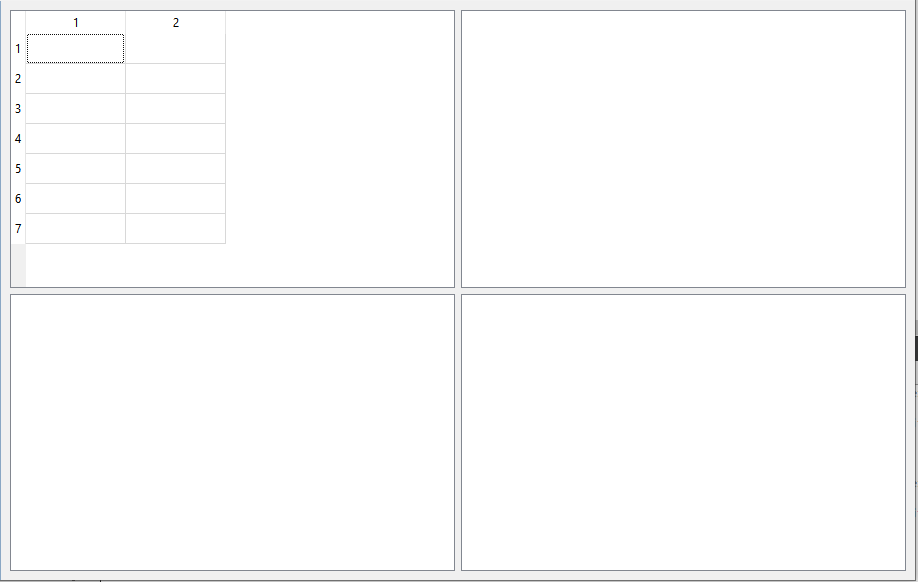
I reached up to this by following your logic. Now, I've to resize the table inside the widget at (0,0) to its size and I've used QTableWidget to draw the table, so can't use resizeColumnToContents(int column) for resizing. Any suggestion for this change?
“ In order to be irreplaceable, one must always be different” – Coco Chanel
-
Thank you so much. such an elaborate explanation!! I appreciate your efforts in explaining the concept.
I reached up to this by following your logic. Now, I've to resize the table inside the widget at (0,0) to its size and I've used QTableWidget to draw the table, so can't use resizeColumnToContents(int column) for resizing. Any suggestion for this change?
@Swati777999 said in TableLayout in the centralwindow:
so can't use resizeColumnToContents(int column) for resizing.
Why? QTableWidget derives from QTableView: https://doc.qt.io/qt-5/qtableview.html#resizeColumnToContents
Qt Online Installer direct download: https://download.qt.io/official_releases/online_installers/
Visit the Qt Academy at https://academy.qt.io/catalog -
Thank you so much. such an elaborate explanation!! I appreciate your efforts in explaining the concept.
I reached up to this by following your logic. Now, I've to resize the table inside the widget at (0,0) to its size and I've used QTableWidget to draw the table, so can't use resizeColumnToContents(int column) for resizing. Any suggestion for this change?
https://forum.qt.io/topic/26799/qtablewidget-shrink-to-fit/10
I guess you will get your answer here.
Don't use TableWidget for big datas. Just use it for learning purpose. It's so much functionality in tableview -
@Swati777999 said in TableLayout in the centralwindow:
so can't use resizeColumnToContents(int column) for resizing.
Why? QTableWidget derives from QTableView: https://doc.qt.io/qt-5/qtableview.html#resizeColumnToContents
@Christian-Ehrlicher I don't know, it gives an error in my code when I use it for QTableWidget.
“ In order to be irreplaceable, one must always be different” – Coco Chanel
-
@Christian-Ehrlicher I don't know, it gives an error in my code when I use it for QTableWidget.
@Swati777999 said in TableLayout in the centralwindow:
it gives an error
Post the error and code causing it...
-
@Christian-Ehrlicher I don't know, it gives an error in my code when I use it for QTableWidget.
@Swati777999
If that is not fully related to the original question posting another question would be helpful to newcomers.I use it for QTableWidget.
QTableWidget or QTableView


