
Layout issues
-
Thanks for the code. I have some small issues:
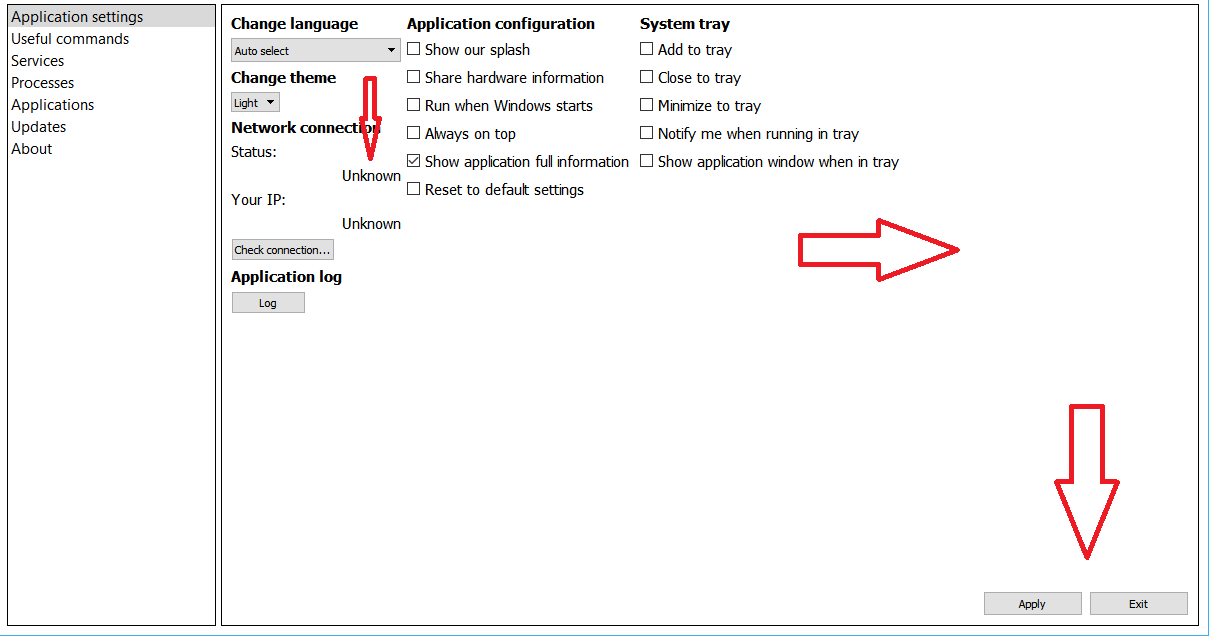
Code:
 QVBoxLayout *vBoxLayout1 = new QVBoxLayout();
 vBoxLayout1->addWidget(changeLanguageLabel);
 vBoxLayout1->addWidget(changeLanguageComboBox);
 vBoxLayout1->addWidget(changeThemeLabel);
 vBoxLayout1->addWidget(changeThemeComboBox);
 vBoxLayout1->addWidget(networkConnectionLabel);
 vBoxLayout1->addWidget(networkStatusTitleLabel);
 vBoxLayout1->addWidget(networkStatusLabel, 1, Qt::AlignRight);
 vBoxLayout1->addWidget(networkIPTitleLabel);
 vBoxLayout1->addWidget(networkIPLabel, 1, Qt::AlignRight);
 vBoxLayout1->addWidget(checkConnectionButton);
 vBoxLayout1->addWidget(appLogLabel);
 vBoxLayout1->addWidget(applicationLogButton);
 vBoxLayout1->addStretch(1);

 QVBoxLayout *vBoxLayout2 = new QVBoxLayout();
 vBoxLayout2->addWidget(appConfigLabel);
 vBoxLayout2->addWidget(showOurSplashCheckBox);
 vBoxLayout2->addWidget(shareHardwareInfoCheckBox);
 vBoxLayout2->addWidget(runWhenWindowsStartsCheckBox);
 vBoxLayout2->addWidget(showAllwaysOnTopCheckBox);
 vBoxLayout2->addWidget(showAppFullInfoCheckBox);
 vBoxLayout2->addWidget(resetToDefaultsCheckBox);
 vBoxLayout2->addStretch(1);

 QVBoxLayout *vBoxLayout3 = new QVBoxLayout();
 vBoxLayout3->addWidget(appSystemTrayLabel);
 vBoxLayout3->addWidget(addToTrayCheckBox);
 vBoxLayout3->addWidget(closeToTrayCheckBox);
 vBoxLayout3->addWidget(minimizeToTrayCheckBox);
 vBoxLayout3->addWidget(notifyWhenInTrayCheckBox);
 vBoxLayout3->addWidget(showAppWindowWhenInTrayCheckBox);
 vBoxLayout3->addStretch(1);

 QHBoxLayout *appSettingsButtonLayout = new QHBoxLayout();
 appSettingsButtonLayout->setAlignment(Qt::AlignBottom | Qt::AlignRight);
 appSettingsButtonLayout->addStretch(1);
 appSettingsButtonLayout->addWidget(appSettingsApplyButton);
 appSettingsButtonLayout->addWidget(appSettingsExitButton);

 QHBoxLayout *appSettingsLayout = new QHBoxLayout();
 appSettingsLayout->addLayout(vBoxLayout1);
 appSettingsLayout->addLayout(vBoxLayout2);
 appSettingsLayout->addLayout(vBoxLayout3);
 appSettingsLayout->addStretch(0);
 appSettingsLayout->addLayout(appSettingsButtonLayout);
 appSettingsTab->setLayout(appSettingsLayout);
Issues:
- "Unknown" labels should be on the same line as "Status" and "Your IP" with some space
- "Apply" and "Exit" buttons layout consume to much space on the right and make all layout aligned to the left
What is your suggestions? Thanks in advance.
@Cobra91151 Don't put the Apply and Exit buttons in the same layout. Instead put them into a HBoxLayout and put this HBoxLayout in a VBoxLayout together with appSettingsLayout.
Put status and its label in their own HBoxLayout, same for IP and its label.
-
Thanks for the code. I have some small issues:
Code:
 QVBoxLayout *vBoxLayout1 = new QVBoxLayout();
 vBoxLayout1->addWidget(changeLanguageLabel);
 vBoxLayout1->addWidget(changeLanguageComboBox);
 vBoxLayout1->addWidget(changeThemeLabel);
 vBoxLayout1->addWidget(changeThemeComboBox);
 vBoxLayout1->addWidget(networkConnectionLabel);
 vBoxLayout1->addWidget(networkStatusTitleLabel);
 vBoxLayout1->addWidget(networkStatusLabel, 1, Qt::AlignRight);
 vBoxLayout1->addWidget(networkIPTitleLabel);
 vBoxLayout1->addWidget(networkIPLabel, 1, Qt::AlignRight);
 vBoxLayout1->addWidget(checkConnectionButton);
 vBoxLayout1->addWidget(appLogLabel);
 vBoxLayout1->addWidget(applicationLogButton);
 vBoxLayout1->addStretch(1);

 QVBoxLayout *vBoxLayout2 = new QVBoxLayout();
 vBoxLayout2->addWidget(appConfigLabel);
 vBoxLayout2->addWidget(showOurSplashCheckBox);
 vBoxLayout2->addWidget(shareHardwareInfoCheckBox);
 vBoxLayout2->addWidget(runWhenWindowsStartsCheckBox);
 vBoxLayout2->addWidget(showAllwaysOnTopCheckBox);
 vBoxLayout2->addWidget(showAppFullInfoCheckBox);
 vBoxLayout2->addWidget(resetToDefaultsCheckBox);
 vBoxLayout2->addStretch(1);

 QVBoxLayout *vBoxLayout3 = new QVBoxLayout();
 vBoxLayout3->addWidget(appSystemTrayLabel);
 vBoxLayout3->addWidget(addToTrayCheckBox);
 vBoxLayout3->addWidget(closeToTrayCheckBox);
 vBoxLayout3->addWidget(minimizeToTrayCheckBox);
 vBoxLayout3->addWidget(notifyWhenInTrayCheckBox);
 vBoxLayout3->addWidget(showAppWindowWhenInTrayCheckBox);
 vBoxLayout3->addStretch(1);

 QHBoxLayout *appSettingsButtonLayout = new QHBoxLayout();
 appSettingsButtonLayout->setAlignment(Qt::AlignBottom | Qt::AlignRight);
 appSettingsButtonLayout->addStretch(1);
 appSettingsButtonLayout->addWidget(appSettingsApplyButton);
 appSettingsButtonLayout->addWidget(appSettingsExitButton);

 QHBoxLayout *appSettingsLayout = new QHBoxLayout();
 appSettingsLayout->addLayout(vBoxLayout1);
 appSettingsLayout->addLayout(vBoxLayout2);
 appSettingsLayout->addLayout(vBoxLayout3);
 appSettingsLayout->addStretch(0);
 appSettingsLayout->addLayout(appSettingsButtonLayout);
 appSettingsTab->setLayout(appSettingsLayout);
Issues:
- "Unknown" labels should be on the same line as "Status" and "Your IP" with some space
- "Apply" and "Exit" buttons layout consume to much space on the right and make all layout aligned to the left
What is your suggestions? Thanks in advance.
@Cobra91151 @jsulm said exactly what I would have. A bit more of my thoughts on the labels though.. you can approach this in 2 ways. The HBoxLayout way that @jsulm mentioned, or you can use a single QLabel and set it with
myLabel->setText(QString("Your IP: %1").arg(ip)));. Either way works fine, up to you on preferred style there.If you don't like the extra space on the right, I added that on purpose by adding the stretch to the end of the hboxlayout. You can remove that stretch and your controls will fill the entire window. I find it looks better with the stretch usually, but it's easy to test and see which you like more. Just comment out the
layout->addStretch(1);line and see what you like more.Edit: nevermind I see you added your buttons to the rest of the layout. That is what jsulm meant with take them out of the "same layout".. Definitely do that and don't mess with the stretch. I didn't realize those were in there. Let me know if you need some help with the code for this and I'll show what jsulm means.
My L-GPL'd C++ Logger github.com/ambershark-mike/sharklog
-
@Cobra91151 @jsulm said exactly what I would have. A bit more of my thoughts on the labels though.. you can approach this in 2 ways. The HBoxLayout way that @jsulm mentioned, or you can use a single QLabel and set it with
myLabel->setText(QString("Your IP: %1").arg(ip)));. Either way works fine, up to you on preferred style there.If you don't like the extra space on the right, I added that on purpose by adding the stretch to the end of the hboxlayout. You can remove that stretch and your controls will fill the entire window. I find it looks better with the stretch usually, but it's easy to test and see which you like more. Just comment out the
layout->addStretch(1);line and see what you like more.Edit: nevermind I see you added your buttons to the rest of the layout. That is what jsulm meant with take them out of the "same layout".. Definitely do that and don't mess with the stretch. I didn't realize those were in there. Let me know if you need some help with the code for this and I'll show what jsulm means.
Code:
QVBoxLayout *vBoxLayout1 = new QVBoxLayout();
 vBoxLayout1->setAlignment(Qt::AlignTop | Qt::AlignLeft);
 vBoxLayout1->addWidget(changeLanguageLabel);
 vBoxLayout1->addWidget(changeLanguageComboBox);
 vBoxLayout1->addWidget(changeThemeLabel);
 vBoxLayout1->addWidget(changeThemeComboBox);
 vBoxLayout1->addWidget(networkConnectionLabel);
 vBoxLayout1->addLayout(netStatusConnectionLayout);
 vBoxLayout1->addLayout(netIPConnectionLayout);
 vBoxLayout1->addWidget(checkConnectionButton);
 vBoxLayout1->addWidget(appLogLabel);
 vBoxLayout1->addWidget(applicationLogButton);

 QVBoxLayout *vBoxLayout2 = new QVBoxLayout();
 vBoxLayout2->setAlignment(Qt::AlignTop | Qt::AlignCenter);
 vBoxLayout2->addWidget(appConfigLabel);
 vBoxLayout2->addWidget(showOurSplashCheckBox);
 vBoxLayout2->addWidget(shareHardwareInfoCheckBox);
 vBoxLayout2->addWidget(runWhenWindowsStartsCheckBox);
 vBoxLayout2->addWidget(showAllwaysOnTopCheckBox);
 vBoxLayout2->addWidget(showAppFullInfoCheckBox);
 vBoxLayout2->addWidget(resetToDefaultsCheckBox);

 QVBoxLayout *vBoxLayout3 = new QVBoxLayout();
 vBoxLayout3->setAlignment(Qt::AlignTop | Qt::AlignRight);
 vBoxLayout3->addWidget(appSystemTrayLabel);
 vBoxLayout3->addWidget(addToTrayCheckBox);
 vBoxLayout3->addWidget(closeToTrayCheckBox);
 vBoxLayout3->addWidget(minimizeToTrayCheckBox);
 vBoxLayout3->addWidget(notifyWhenInTrayCheckBox);
 vBoxLayout3->addWidget(showAppWindowWhenInTrayCheckBox);

 QHBoxLayout *appSettingsButtonLayout = new QHBoxLayout();
 appSettingsButtonLayout->setAlignment(Qt::AlignBottom | Qt::AlignRight);
 appSettingsButtonLayout->addStretch(1);
 appSettingsButtonLayout->addWidget(appSettingsApplyButton);
 appSettingsButtonLayout->addWidget(appSettingsExitButton);

 QHBoxLayout *appSettingsLayout = new QHBoxLayout();
 appSettingsLayout->addLayout(vBoxLayout1);
 appSettingsLayout->addStretch(5);
 appSettingsLayout->addLayout(vBoxLayout2);
 appSettingsLayout->addStretch(5);
 appSettingsLayout->addLayout(vBoxLayout3);
 appSettingsLayout->addLayout(appSettingsButtonLayout);
 appSettingsTab->setLayout(appSettingsLayout);
Now it looks:
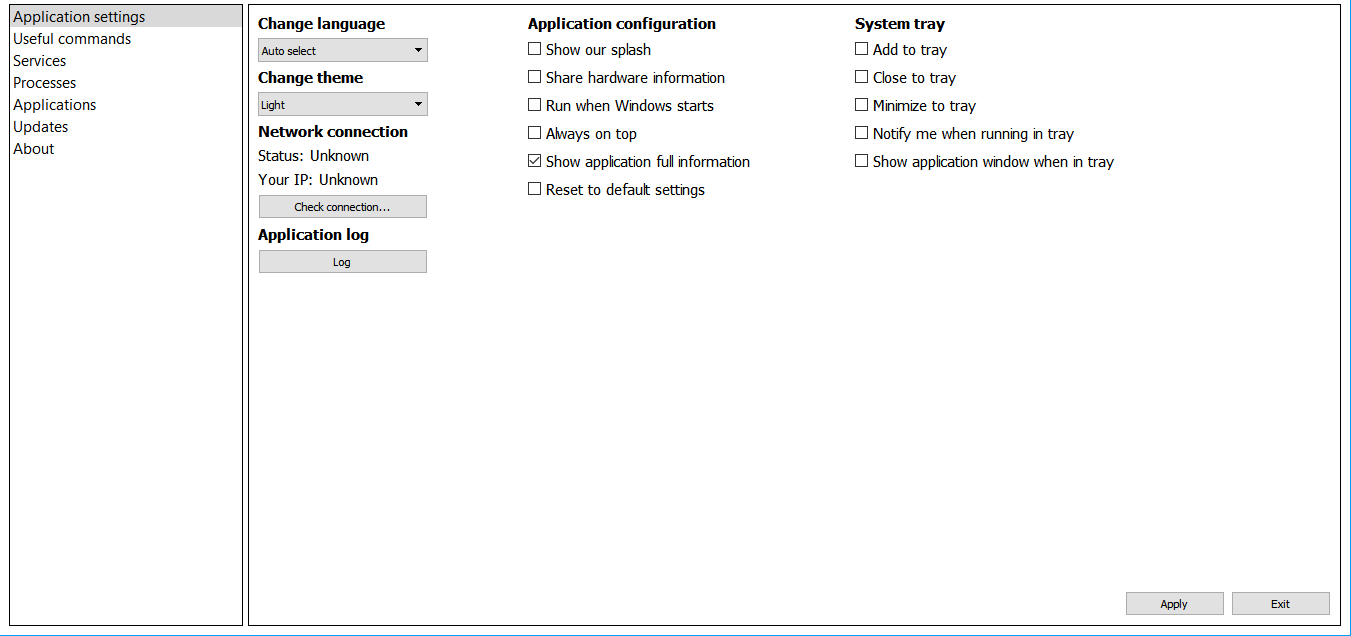
I have set
setAligmentfunctions and expandsetMinimumSize(1350, 670);minimum size of the main window and now it looks normal on Window 10 (1920x1080).The problem is that the space on the right cut some
QCheckBoxtext on small screen resolutions.Win XP (1024x768):
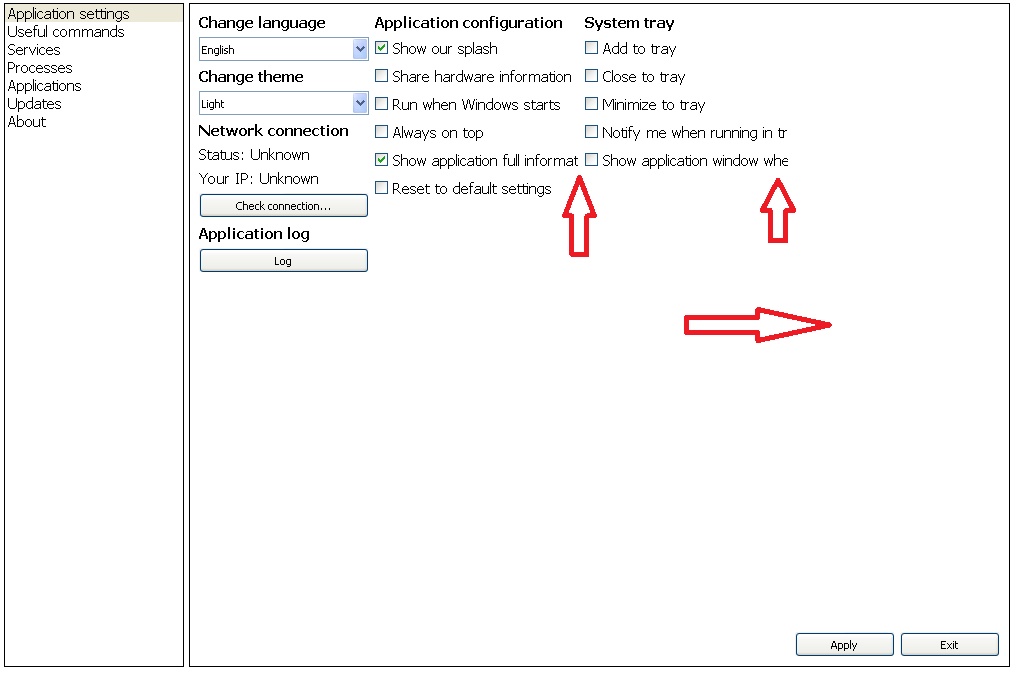
Also the space still exists even I have deleted all
stretchfunctions fromQVBoxLayoutlayouts. I addaddStretch(5);to add more space between columns inQHBoxLayout *appSettingsLayout. I think the right space is because ofQHBoxLayoutin which I placed my two buttons ("Apply" and "Exit") -appSettingsButtonLayout. How to change this layout size? -
Code:
QVBoxLayout *vBoxLayout1 = new QVBoxLayout();
 vBoxLayout1->setAlignment(Qt::AlignTop | Qt::AlignLeft);
 vBoxLayout1->addWidget(changeLanguageLabel);
 vBoxLayout1->addWidget(changeLanguageComboBox);
 vBoxLayout1->addWidget(changeThemeLabel);
 vBoxLayout1->addWidget(changeThemeComboBox);
 vBoxLayout1->addWidget(networkConnectionLabel);
 vBoxLayout1->addLayout(netStatusConnectionLayout);
 vBoxLayout1->addLayout(netIPConnectionLayout);
 vBoxLayout1->addWidget(checkConnectionButton);
 vBoxLayout1->addWidget(appLogLabel);
 vBoxLayout1->addWidget(applicationLogButton);

 QVBoxLayout *vBoxLayout2 = new QVBoxLayout();
 vBoxLayout2->setAlignment(Qt::AlignTop | Qt::AlignCenter);
 vBoxLayout2->addWidget(appConfigLabel);
 vBoxLayout2->addWidget(showOurSplashCheckBox);
 vBoxLayout2->addWidget(shareHardwareInfoCheckBox);
 vBoxLayout2->addWidget(runWhenWindowsStartsCheckBox);
 vBoxLayout2->addWidget(showAllwaysOnTopCheckBox);
 vBoxLayout2->addWidget(showAppFullInfoCheckBox);
 vBoxLayout2->addWidget(resetToDefaultsCheckBox);

 QVBoxLayout *vBoxLayout3 = new QVBoxLayout();
 vBoxLayout3->setAlignment(Qt::AlignTop | Qt::AlignRight);
 vBoxLayout3->addWidget(appSystemTrayLabel);
 vBoxLayout3->addWidget(addToTrayCheckBox);
 vBoxLayout3->addWidget(closeToTrayCheckBox);
 vBoxLayout3->addWidget(minimizeToTrayCheckBox);
 vBoxLayout3->addWidget(notifyWhenInTrayCheckBox);
 vBoxLayout3->addWidget(showAppWindowWhenInTrayCheckBox);

 QHBoxLayout *appSettingsButtonLayout = new QHBoxLayout();
 appSettingsButtonLayout->setAlignment(Qt::AlignBottom | Qt::AlignRight);
 appSettingsButtonLayout->addStretch(1);
 appSettingsButtonLayout->addWidget(appSettingsApplyButton);
 appSettingsButtonLayout->addWidget(appSettingsExitButton);

 QHBoxLayout *appSettingsLayout = new QHBoxLayout();
 appSettingsLayout->addLayout(vBoxLayout1);
 appSettingsLayout->addStretch(5);
 appSettingsLayout->addLayout(vBoxLayout2);
 appSettingsLayout->addStretch(5);
 appSettingsLayout->addLayout(vBoxLayout3);
 appSettingsLayout->addLayout(appSettingsButtonLayout);
 appSettingsTab->setLayout(appSettingsLayout);
Now it looks:
I have set
setAligmentfunctions and expandsetMinimumSize(1350, 670);minimum size of the main window and now it looks normal on Window 10 (1920x1080).The problem is that the space on the right cut some
QCheckBoxtext on small screen resolutions.Win XP (1024x768):
Also the space still exists even I have deleted all
stretchfunctions fromQVBoxLayoutlayouts. I addaddStretch(5);to add more space between columns inQHBoxLayout *appSettingsLayout. I think the right space is because ofQHBoxLayoutin which I placed my two buttons ("Apply" and "Exit") -appSettingsButtonLayout. How to change this layout size?@Cobra91151 you're right, its becaus eof the buttons
To continue with your current solution:
Pack all "Top VBoxLayouts" into a HBoxlayout and add that layout with the
appSettingsButtonLayoutto a VBoxLayout.
Be aware of the Qt Code of Conduct, when posting : https://forum.qt.io/topic/113070/qt-code-of-conduct
Q: What's that?
A: It's blue light.
Q: What does it do?
A: It turns blue. -
@Cobra91151 you're right, its becaus eof the buttons
To continue with your current solution:
Pack all "Top VBoxLayouts" into a HBoxlayout and add that layout with the
appSettingsButtonLayoutto a VBoxLayout.Thank you very much. One more bug:
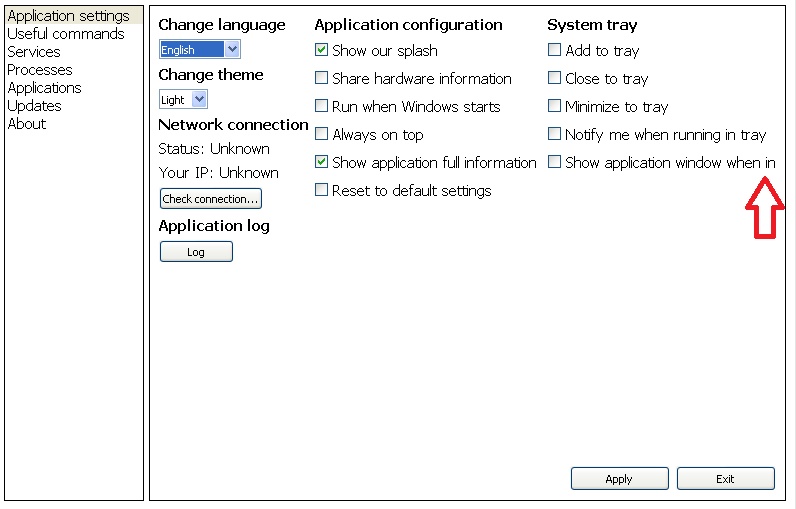
These issues is also when changing languages.
Current font:
I use default font -MS Shell Dlg 2withsetPixelSize(15);Maybe I need to set another font? What font is suitable for windows app development?
-
Thank you very much. One more bug:
These issues is also when changing languages.
Current font:
I use default font -MS Shell Dlg 2withsetPixelSize(15);Maybe I need to set another font? What font is suitable for windows app development?
@Cobra91151 I would say this isn't a bug - there is just not enough space for this long check box text. You should use two columns instead of three.
-
@Cobra91151 I would say this isn't a bug - there is just not enough space for this long check box text. You should use two columns instead of three.
This is not an option. I need three columns.
-
This is not an option. I need three columns.
@Cobra91151 Then you need more space, or smaller font, or shorter text...
-
@Cobra91151 Then you need more space, or smaller font, or shorter text...
Ok. So what font family do you suggest to be suitable for windows app development?
-
Ok. So what font family do you suggest to be suitable for windows app development?
@Cobra91151 Instead of lowering your font, why don't use just use your space better?
You can use 1 column for instance with separators or group boxes to denote different sections. You could use 2 columns.
One of the easiest changes that would solve your problems is getting rid of the listbox on the left and making those tabs on the top. Same effect, literally saves 25% of your horizontal space.
Also I noticed you are using addStretch now in places where I think you meant to use addSpacing. Stretch are growable blocks with a minimum size of the number you pass in. So 1 is usually plenty for a stretch, even 0 is fine (the default). If you want controllable spacing you want to use addSpacing().
-
Ok. So what font family do you suggest to be suitable for windows app development?
@Cobra91151 I will not suggest any fonts. You should use the default. You should really consider to change your layout instead of hacking around with fonts until it somehow fits.
-
This is not an option. I need three columns.
Personally, when I'm in a situation like you are, I go with a clipped Text and an info tooltip.
Here an example for a QLabel:
void setTextToLabel(QLabel *label, const QString text)
    {
        QFontMetrics metrix(label->font());
        int width = label->width() - 2;
        QString clippedText = metrix.elidedText(text, Qt::ElideRight, width);
        label->setText(clippedText);

       if(text == clippedText)
          label->setToolTip("");
       else
          label->setToolTip(text);
    }
Be aware of the Qt Code of Conduct, when posting : https://forum.qt.io/topic/113070/qt-code-of-conduct
Q: What's that?
A: It's blue light.
Q: What does it do?
A: It turns blue. -
Personally, when I'm in a situation like you are, I go with a clipped Text and an info tooltip.
Here an example for a QLabel:
void setTextToLabel(QLabel *label, const QString text) { QFontMetrics metrix(label->font()); int width = label->width() - 2; QString clippedText = metrix.elidedText(text, Qt::ElideRight, width); label->setText(clippedText); if(text == clippedText) label->setToolTip(""); else label->setToolTip(text); }Thanks for the suggestion. I will try it and reply.
-
Personally, when I'm in a situation like you are, I go with a clipped Text and an info tooltip.
Here an example for a QLabel:
void setTextToLabel(QLabel *label, const QString text) { QFontMetrics metrix(label->font()); int width = label->width() - 2; QString clippedText = metrix.elidedText(text, Qt::ElideRight, width); label->setText(clippedText); if(text == clippedText) label->setToolTip(""); else label->setToolTip(text); }Thanks. I have modified your function to get not only
QLabelbut allQWidgets. I post it here so others can find a solution.Code:
QString clipWidgetText(QWidget *widget, const QString widgetText, int subtractPixelSize)
{
    QFontMetrics fontMetrics(widget->font());
    int widgetWidth = widget->width() - subtractPixelSize;
    QString clippedText = fontMetrics.elidedText(widgetText, Qt::ElideRight, widgetWidth);
    return clippedText;
}
Usage:
QCheckBox *checkBox1 = new QCheckBox("Some long text", this)
checkBox1->setText(clipWidgetText(checkBox1, checkBox1->text(), 5);
Thanks to all. I have fixed all layout issues.


