
Unable to delete "MinGW 13.1 64-bit" from "Build Tools"
-
Hello, guys!
It looks like a bug. I want to delete
MinGW 13.1 64-bitfromBuild Tools: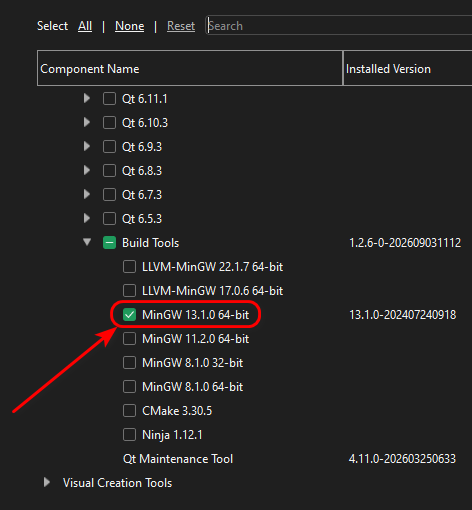
I should uncheck that option to delete. But when I uncheck it try to delete whole Qt:
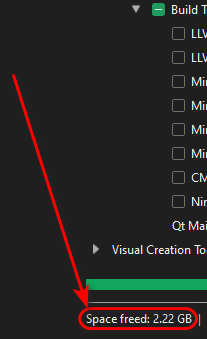
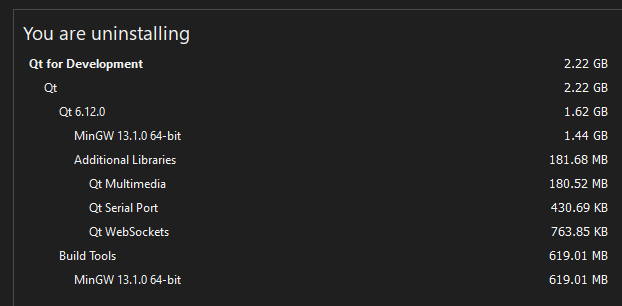
It is easy to test it on your computer. Please, confirm you see this problem or explain what I make wrong.
P.S. I want to delete
MinGW 13.1 64-bitbecause I recognized that I can use MinGW GCC 16.2 from https://winlibs.com/ with Qt because I have built a lot of libraries with GCC 16.2 and I do not want to rebuild them with GCC 13.1
P.S.S. Yes, I can just reinstall whole Qt, but maybe it is a bug and I can help to point it to solve. -
But when I uncheck
Build Tools->MinGW 13.1 64-bitit try to delete whole Qt: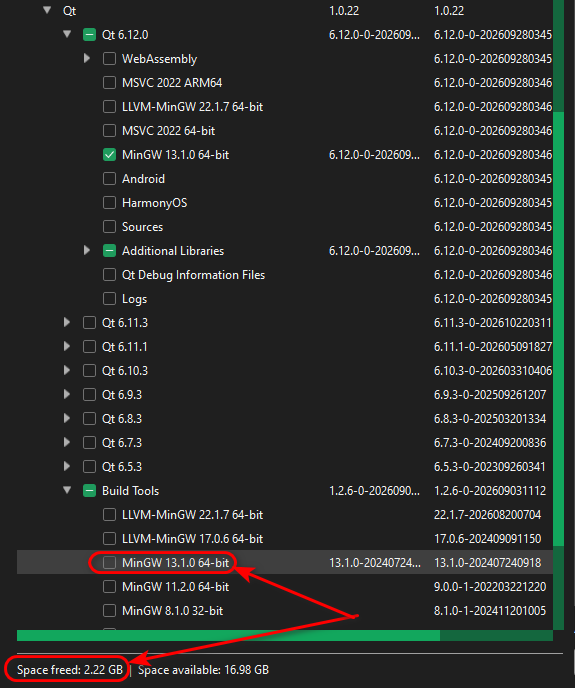
@8Observer8 said in Unable to delete "MinGW 13.1 64-bit" from "Build Tools":
But when I uncheck
Build Tools->MinGW 13.1 64-bitit try to delete whole Qt:According to the Qt Online Installer's package manager,
"Qt 6.12.0" > "MinGW 13.1.0 64-bit"depends on"Build Tools" > "MinGW 13.1.0 64-bit". So if you uninstall the compiler, it will also uninstall the libraries.This is not a bug. It also works the other way round: When someone tries to install
"Qt 6.12.0" > "MinGW 13.1.0 64-bit", the installer will automatically install"Build Tools" > "MinGW 13.1.0 64-bit"too.P.S. I want to delete MinGW 13.1 64-bit because I recognized that I can use MinGW GCC 16.2 from https://winlibs.com/ with Qt because I have built a lot of libraries with GCC 16.2 and I do not want to rebuild them with GCC 13.1
You can use your MinGW 16.2 toolchain to build Qt from source: https://doc.qt.io/qt-6/windows-building.html This will have no dependency on MinGW 13.1.
Qt Doc Search for browsers: forum.qt.io/topic/35616/web-browser-extension-for-improved-doc-searches
-
After deletion did you manually delete the folder on the disc?
-
No, I did not delete anything. I have stopped on the stage on the screenshot above. What to try on the next step?
-
So, I have installed Qt with
Build Tools->MinGW 13.1 64-bit. I want to deleteMinGW 13.1 64-bitto free 600 MB: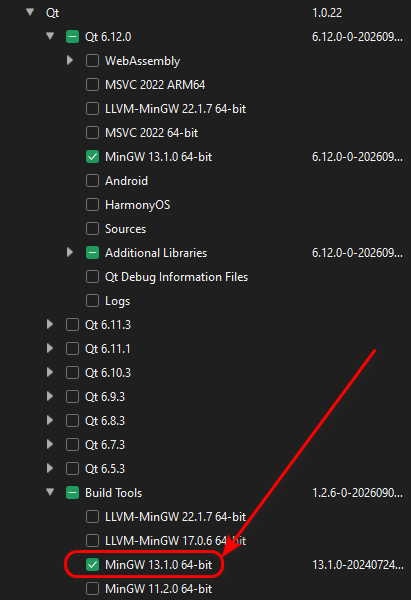
-
I've recorded a short video to demonstrate the problem: https://streamable.com/w5yjn8
-
But when I uncheck
Build Tools->MinGW 13.1 64-bitit try to delete whole Qt:@8Observer8 said in Unable to delete "MinGW 13.1 64-bit" from "Build Tools":
But when I uncheck
Build Tools->MinGW 13.1 64-bitit try to delete whole Qt:According to the Qt Online Installer's package manager,
"Qt 6.12.0" > "MinGW 13.1.0 64-bit"depends on"Build Tools" > "MinGW 13.1.0 64-bit". So if you uninstall the compiler, it will also uninstall the libraries.This is not a bug. It also works the other way round: When someone tries to install
"Qt 6.12.0" > "MinGW 13.1.0 64-bit", the installer will automatically install"Build Tools" > "MinGW 13.1.0 64-bit"too.P.S. I want to delete MinGW 13.1 64-bit because I recognized that I can use MinGW GCC 16.2 from https://winlibs.com/ with Qt because I have built a lot of libraries with GCC 16.2 and I do not want to rebuild them with GCC 13.1
You can use your MinGW 16.2 toolchain to build Qt from source: https://doc.qt.io/qt-6/windows-building.html This will have no dependency on MinGW 13.1.
Qt Doc Search for browsers: forum.qt.io/topic/35616/web-browser-extension-for-improved-doc-searches
-
@8Observer8 said in Unable to delete "MinGW 13.1 64-bit" from "Build Tools":
But when I uncheck
Build Tools->MinGW 13.1 64-bitit try to delete whole Qt:According to the Qt Online Installer's package manager,
"Qt 6.12.0" > "MinGW 13.1.0 64-bit"depends on"Build Tools" > "MinGW 13.1.0 64-bit". So if you uninstall the compiler, it will also uninstall the libraries.This is not a bug. It also works the other way round: When someone tries to install
"Qt 6.12.0" > "MinGW 13.1.0 64-bit", the installer will automatically install"Build Tools" > "MinGW 13.1.0 64-bit"too.P.S. I want to delete MinGW 13.1 64-bit because I recognized that I can use MinGW GCC 16.2 from https://winlibs.com/ with Qt because I have built a lot of libraries with GCC 16.2 and I do not want to rebuild them with GCC 13.1
You can use your MinGW 16.2 toolchain to build Qt from source: https://doc.qt.io/qt-6/windows-building.html This will have no dependency on MinGW 13.1.
@JKSH said in Unable to delete "MinGW 13.1 64-bit" from "Build Tools":
When someone tries to install "Qt 6.12.0" > "MinGW 13.1.0 64-bit", the installer will automatically install "Build Tools" > "MinGW 13.1.0 64-bit" too.
I've uninstalled Qt with
Revo Uninstaller Proto delete all files completely to install it again. When I check "Qt 6.12.0" > "MinGW 13.1.0 64-bit" the installer does not check "Build Tools" > "MinGW 13.1.0 64-bit" automatically: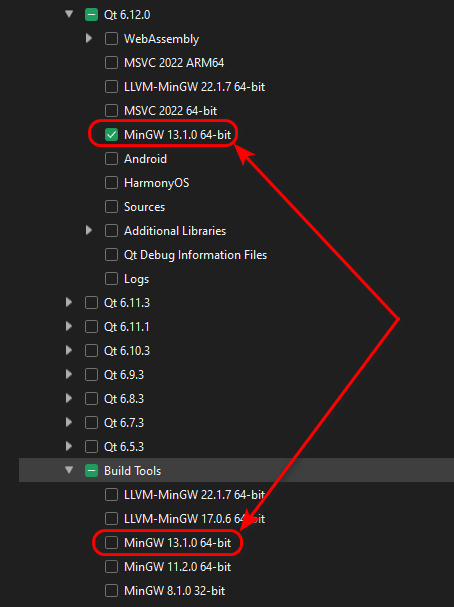
So it seems that it is possible to install Qt without "Build Tools" > "MinGW 13.1.0 64-bit". But on the end step it includes "Build Tools" > "MinGW 13.1.0 64-bit":
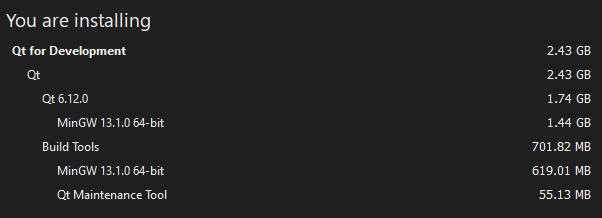
It would make sense if the "Build Tools" > "MinGW 13.1.0 64-bit" checkbox were automatically selected when the "Qt 6.12.0" > "MinGW 13.1.0 64-bit" checkbox appeared. Otherwise, it seems that the "Build Tools" > "MinGW 13.1.0 64-bit" option is independent of the "Qt 6.12.0" > "MinGW 13.1.0 64-bit" option. We can only find out about this at the final step.
-
@8Observer8 said in Unable to delete "MinGW 13.1 64-bit" from "Build Tools":
But when I uncheck
Build Tools->MinGW 13.1 64-bitit try to delete whole Qt:According to the Qt Online Installer's package manager,
"Qt 6.12.0" > "MinGW 13.1.0 64-bit"depends on"Build Tools" > "MinGW 13.1.0 64-bit". So if you uninstall the compiler, it will also uninstall the libraries.This is not a bug. It also works the other way round: When someone tries to install
"Qt 6.12.0" > "MinGW 13.1.0 64-bit", the installer will automatically install"Build Tools" > "MinGW 13.1.0 64-bit"too.P.S. I want to delete MinGW 13.1 64-bit because I recognized that I can use MinGW GCC 16.2 from https://winlibs.com/ with Qt because I have built a lot of libraries with GCC 16.2 and I do not want to rebuild them with GCC 13.1
You can use your MinGW 16.2 toolchain to build Qt from source: https://doc.qt.io/qt-6/windows-building.html This will have no dependency on MinGW 13.1.
@JKSH said in Unable to delete "MinGW 13.1 64-bit" from "Build Tools":
You can use your MinGW 16.2 toolchain to build Qt from source: https://doc.qt.io/qt-6/windows-building.html This will have no dependency on MinGW 13.1.
It looks I should because of ABI. The free
Gemini 3.8 Flashsays:Benefit: 100% ABI compatibility, matching runtimes, and no mysterious linker or runtime crashes.Thus, mixing Qt MinGW 13.1 with MinGW 16.2 (build tools) may be the cause of crashes. -
@8Observer8 said in Unable to delete "MinGW 13.1 64-bit" from "Build Tools":
But when I uncheck
Build Tools->MinGW 13.1 64-bitit try to delete whole Qt:According to the Qt Online Installer's package manager,
"Qt 6.12.0" > "MinGW 13.1.0 64-bit"depends on"Build Tools" > "MinGW 13.1.0 64-bit". So if you uninstall the compiler, it will also uninstall the libraries.This is not a bug. It also works the other way round: When someone tries to install
"Qt 6.12.0" > "MinGW 13.1.0 64-bit", the installer will automatically install"Build Tools" > "MinGW 13.1.0 64-bit"too.P.S. I want to delete MinGW 13.1 64-bit because I recognized that I can use MinGW GCC 16.2 from https://winlibs.com/ with Qt because I have built a lot of libraries with GCC 16.2 and I do not want to rebuild them with GCC 13.1
You can use your MinGW 16.2 toolchain to build Qt from source: https://doc.qt.io/qt-6/windows-building.html This will have no dependency on MinGW 13.1.
@JKSH said in Unable to delete "MinGW 13.1 64-bit" from "Build Tools":
You can use your MinGW 16.2 toolchain to build Qt from source: https://doc.qt.io/qt-6/windows-building.html This will have no dependency on MinGW 13.1.
Thank you very much! It is the best solution for my main goal! The main goal was to use Qt with MinGW GCC 16.2.0 from WinLibs.
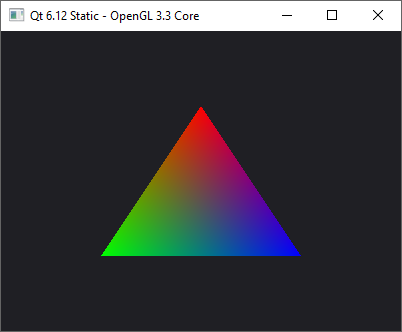
I've saved my result here because it can be useful for someone or for me in the Future. I've built Qt 6.12.0 statically for Windows 10 with MinGW 16.2 for OpenGL and Desktop only. The instruction below was made by free Gemini 3.8 Flash but I have tested it.
The result:
- C:\Qt\6.12.0_static_mingw162 - 496 MB
- 2 minutes to clone source
- 20 minutes to build
- 2 seconds to install
- Released stripped EXE - 30 MB (12 MB in archive) for the OpenGL project: https://github.com/ivan-enzhaev/OpenGLTestQt6
I have downloaded Qt Creator here: https://github.com/qt-creator/qt-creator/releases
The step-by-step guide:
- Download and unzip MinGW GCC 16.2.0: https://winlibs.com/ (add the
C:\mingw64_16.2\binpath toEnvironment Variables - Download and install CMake: https://cmake.org/download/
- Download and install Ninja (WinLibs is included it)
The following guide was generated by free Gemini 3.8 Flash (in Google AI Studio) but they were tested by me:
Because you only need Desktop OpenGL, QWindow, and QtWidgets, you do not even need the umbrella Qt repository or Perl. Everything you need is inside
qtbase!Cloning only
qtbaseis faster, uses very little disk space, and takes only ~15 to 25 minutes to build on your i7-7700.
Step 1: Clone only
qtbaseOpen a command prompt (make sure
git,cmake,ninja, and WinLibs GCCbinare in yourPATH):mkdir C:\QtSource cd C:\QtSource :: Clone only qtbase (shallow clone, ~150 MB download) git clone --depth 1 -b v6.12.0 https://code.qt.io/qt/qtbase.git
Step 2: Configure for a Static Build
Create a separate build folder and run
configure.bat:mkdir C:\QtBuild cd C:\QtBuild :: Run configure from qtbase C:\QtSource\qtbase\configure.bat ^ -static ^ -release ^ -prefix C:\Qt\6.12.0_static_mingw162 ^ -opengl desktop ^ -nomake examples ^ -nomake testsWhat these flags do:
-static: Compiles all Qt libraries as static archives (.a) instead of dynamic DLLs (.dll).-release: Compiles optimized release libraries without bulky debug symbols (drastically cuts compile time and disk space).-opengl desktop: Uses native desktop OpenGL (opengl32.lib/ GLES wrapper).-nomake examples -nomake tests: Skips all sample apps and unit tests to save 10+ minutes of build time.
Step 3: Compile and Install
Run
ninja(it will automatically use all 8 threads of your i7-7700):ninja ninja install- Estimated Time: ~15 to 25 minutes.
- Final Installed Size: Only ~450 – 650 MB in
C:\Qt\6.12.0_static_mingw162. - Once
ninja installcompletes, you can deleteC:\QtBuildandC:\QtSourceto reclaim disk space.
Step 4: Register Kit in Qt Creator
- Open Qt Creator.
- Go to Edit → Preferences (or Tools → Options).
- Under Kits → Qt Versions, click Add and choose:
C:\Qt\6.12.0_static_mingw162\bin\qmake.exe - Under Kits → Compilers, verify your WinLibs GCC 16.2 (C and C++) is detected.
- Under Kits → Debuggers, click Add:
- Name:
GDB (WinLibs MinGW 16.2) - Path: Choose
gdb.exefrom your WinLibs directory (e.g.C:\winlibs-...\bin\gdb.exe).
- Name:
- Under Kits → Kits, click Add:
- Name:
Qt 6.12.0 Static (MinGW 16.2) - Compiler: WinLibs GCC 16.2 (C and C++)
- Debugger:
GDB (WinLibs MinGW 16.2) - Qt version: The static one you just added.
- CMake Generator:
Ninja
- Name:
Step 5: How to use it in your project's
CMakeLists.txtWhen using a static Qt build on Windows, Qt's CMake macros automatically link the static platform plugin (
qwindows.lib/libqwindows.a).To make your application a single, 100% standalone
.exewith no external DLLs needed, add-staticto your target link options:cmake_minimum_required(VERSION 3.21) project(OpenGLTestQt6 LANGUAGES CXX) set(CMAKE_CXX_STANDARD 20) set(CMAKE_CXX_STANDARD_REQUIRED ON) set(CMAKE_AUTOMOC ON) set(CMAKE_AUTOUIC ON) find_package(Qt6 COMPONENTS Widgets OpenGLWidgets REQUIRED) add_executable(OpenGLTest WIN32 main.cpp mainwindow.cpp mainwindow.h mainwindow.ui ) target_link_libraries(OpenGLTest PRIVATE Qt6::Widgets Qt6::OpenGLWidgets opengl32 ) if(MINGW) target_link_options(OpenGLTest PRIVATE -static $<$<CONFIG:Release>:-s> ) endif()Your resulting
.exewill launch independently on any Windows machine with zero DLL dependencies. -
8 8Observer8 has marked this topic as solved
-
Don't forget about this:
If you distribute a statically built Qt
.exeunder the free LGPLv3 license, you must choose one of two options:- Make your project open source and share your full source code.
- Keep your source code private, but provide your compiled
.objfiles so users can relink the application with their own Qt library.
-
Don't forget about this:
If you distribute a statically built Qt
.exeunder the free LGPLv3 license, you must choose one of two options:- Make your project open source and share your full source code.
- Keep your source code private, but provide your compiled
.objfiles so users can relink the application with their own Qt library.
@8Observer8 Hi,
Would rather formulate it as: if you want to keep you application code private, you have to provide the build artifacts that allows your users to relink the application with their own Qt library.
-
@JKSH said in Unable to delete "MinGW 13.1 64-bit" from "Build Tools":
When someone tries to install "Qt 6.12.0" > "MinGW 13.1.0 64-bit", the installer will automatically install "Build Tools" > "MinGW 13.1.0 64-bit" too.
I've uninstalled Qt with
Revo Uninstaller Proto delete all files completely to install it again. When I check "Qt 6.12.0" > "MinGW 13.1.0 64-bit" the installer does not check "Build Tools" > "MinGW 13.1.0 64-bit" automatically:So it seems that it is possible to install Qt without "Build Tools" > "MinGW 13.1.0 64-bit". But on the end step it includes "Build Tools" > "MinGW 13.1.0 64-bit":
It would make sense if the "Build Tools" > "MinGW 13.1.0 64-bit" checkbox were automatically selected when the "Qt 6.12.0" > "MinGW 13.1.0 64-bit" checkbox appeared. Otherwise, it seems that the "Build Tools" > "MinGW 13.1.0 64-bit" option is independent of the "Qt 6.12.0" > "MinGW 13.1.0 64-bit" option. We can only find out about this at the final step.
@8Observer8 said in Unable to delete "MinGW 13.1 64-bit" from "Build Tools":
It would make sense if the "Build Tools" > "MinGW 13.1.0 64-bit" checkbox were automatically selected when the "Qt 6.12.0" > "MinGW 13.1.0 64-bit" checkbox appeared. Otherwise, it seems that the "Build Tools" > "MinGW 13.1.0 64-bit" option is independent of the "Qt 6.12.0" > "MinGW 13.1.0 64-bit" option. We can only find out about this at the final step.
I agree.
Would you be willing to submit a change request to https://qt-project.atlassian.net/ ?
@8Observer8 said in Unable to delete "MinGW 13.1 64-bit" from "Build Tools":
@JKSH said in Unable to delete "MinGW 13.1 64-bit" from "Build Tools":
You can use your MinGW 16.2 toolchain to build Qt from source: https://doc.qt.io/qt-6/windows-building.html This will have no dependency on MinGW 13.1.
It looks I should because of ABI.
Indeed.
Thank you for sharing your findings/solutions.
-
Compiling Qt yourself for the right compiler version is the right way to go. One simple workaround is to rename the folder of the Qt installation, then uninstall MinGW. Even if it tries to uninstall Qt as well, it will not find the folder. After that you can (and really should) rename the Qt folder back to its original name (some tools have their path baked into the executable).


