
Skip to content
  • Categories
  • Recent
  • Tags
  • Popular
  • Users
  • Groups
  • Search
  • Get Qt Extensions
  • Unsolved
Collapse
Brand Logo
  1. Home
  2. Qt Development
  3. General and Desktop
  4. How to create simply virtual LED indicator?

How to create simply virtual LED indicator?

Scheduled Pinned Locked Moved Solved General and Desktop
9 Posts 5 Posters 16.3k Views 2 Watching
  • Oldest to Newest
  • Newest to Oldest
  • Most Votes
Reply
  • Reply as topic
Log in to reply
This topic has been deleted. Only users with topic management privileges can see it.
  • Y Offline
    Y Offline
    YtreioJ
    wrote on last edited by
    #1

    Hi,

    I want to create something like led lamp as a part of main window (it should to be built in), with two-three colors depending on the conditions. I should to create maybe a circle object with styles change?

    Gojir4G 2 Replies Last reply
    0
    • Y YtreioJ

      Hi,

      I want to create something like led lamp as a part of main window (it should to be built in), with two-three colors depending on the conditions. I should to create maybe a circle object with styles change?

      Gojir4G Offline
      Gojir4G Offline
      Gojir4
      wrote on last edited by
      #2

      @YtreioJ Hi,

      Here is one possible solution using stylesheet:

      .h

      #ifndef QLEDLABEL_H
      #define QLEDLABEL_H
      
      #include <QLabel>
      
      class QLedLabel : public QLabel
      {
          Q_OBJECT
      public:
          explicit QLedLabel(QWidget *parent = 0);
      
          enum State{
              StateOk,
              StateOkBlue,
              StateWarning,
              StateError
          };
      
          
      signals:
          
      public slots:
          void setState(State state);
          void setState(bool state);
      };
      
      #endif // QLEDLABEL_H


      .cpp

      #include "qledlabel.h"
      #include <QDebug>
      
      static const int SIZE = 20;
      static const QString greenSS = QString("color: white;border-radius: %1;background-color: qlineargradient(spread:pad, x1:0.145, y1:0.16, x2:1, y2:1, stop:0 rgba(20, 252, 7, 255), stop:1 rgba(25, 134, 5, 255));").arg(SIZE/2);
      static const QString redSS = QString("color: white;border-radius: %1;background-color: qlineargradient(spread:pad, x1:0.145, y1:0.16, x2:0.92, y2:0.988636, stop:0 rgba(255, 12, 12, 255), stop:0.869347 rgba(103, 0, 0, 255));").arg(SIZE/2);
      static const QString orangeSS = QString("color: white;border-radius: %1;background-color: qlineargradient(spread:pad, x1:0.232, y1:0.272, x2:0.98, y2:0.959773, stop:0 rgba(255, 113, 4, 255), stop:1 rgba(91, 41, 7, 255))").arg(SIZE/2);
      static const QString blueSS = QString("color: white;border-radius: %1;background-color: qlineargradient(spread:pad, x1:0.04, y1:0.0565909, x2:0.799, y2:0.795, stop:0 rgba(203, 220, 255, 255), stop:0.41206 rgba(0, 115, 255, 255), stop:1 rgba(0, 49, 109, 255));").arg(SIZE/2);
      
      QLedLabel::QLedLabel(QWidget *parent) :
          QLabel(parent)
      {
          //Set to ok by default
          setState(StateOkBlue);
          setFixedSize(SIZE, SIZE);
      }
      
      void QLedLabel::setState(State state)
      {
          qDebug() << "setState" << state;
          switch(state){
              case StateOk:
                  setStyleSheet(greenSS);
              break;
              case StateWarning:
                  setStyleSheet(orangeSS);
              break;
              case StateError:
                  setStyleSheet(redSS);
              break;
              case StateOkBlue:
              default:
                  setStyleSheet(blueSS);
              break;
          }
      }
      
      void QLedLabel::setState(bool state)
      {
          setState(state ? StateOk : StateError);
      }


      K 1 Reply Last reply
      3
      • Y YtreioJ

        Hi,

        I want to create something like led lamp as a part of main window (it should to be built in), with two-three colors depending on the conditions. I should to create maybe a circle object with styles change?

        Gojir4G Offline
        Gojir4G Offline
        Gojir4
        wrote on last edited by Gojir4
        #3

        @YtreioJ Another example using paintEvent(): https://github.com/melanholly/qt5-led-indicator-widget. But be care with this version, it uses QWidget::repaint(). So if you take inspiration from this one, I recommend to change all of them to QWidget::update() instead.

        You could also use an image.

        Y 1 Reply Last reply
        4
        • Y Offline
          Y Offline
          YtreioJ
          wrote on last edited by
          #4
          This post is deleted!
          1 Reply Last reply
          0
          • Gojir4G Gojir4

            @YtreioJ Another example using paintEvent(): https://github.com/melanholly/qt5-led-indicator-widget. But be care with this version, it uses QWidget::repaint(). So if you take inspiration from this one, I recommend to change all of them to QWidget::update() instead.

            You could also use an image.

            Y Offline
            Y Offline
            YtreioJ
            wrote on last edited by
            #5

            @Gojir4 And how to add this as a custom widget in mainwindow or in qtdesigner?

            1 Reply Last reply
            0
            • mrjjM Offline
              mrjjM Offline
              mrjj
              Lifetime Qt Champion
              wrote on last edited by mrjj
              #6

              Hi
              The easiest way is to use the promotion feature.
              https://doc.qt.io/qt-5/designer-using-custom-widgets.html
              So you place a QLabel where you want the Led.
              Then right click it and select Promote.
              Then give class name (QLedLabel)
              and the .h file. ( most likely QLedLabel.h)
              Press Add, then press promote.
              Then Designer will use your QLedLabel.
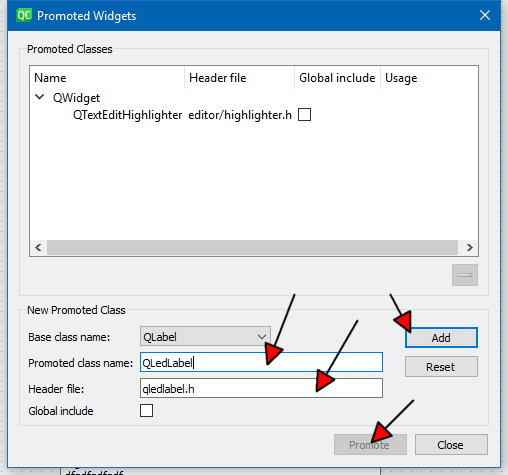
              alt text

              Y 1 Reply Last reply
              5
              • mrjjM mrjj

                Hi
                The easiest way is to use the promotion feature.
                https://doc.qt.io/qt-5/designer-using-custom-widgets.html
                So you place a QLabel where you want the Led.
                Then right click it and select Promote.
                Then give class name (QLedLabel)
                and the .h file. ( most likely QLedLabel.h)
                Press Add, then press promote.
                Then Designer will use your QLedLabel.

                alt text

                Y Offline
                Y Offline
                YtreioJ
                wrote on last edited by
                #7

                @mrjj thank you

                1 Reply Last reply
                1
                • Gojir4G Gojir4

                  @YtreioJ Hi,

                  Here is one possible solution using stylesheet:

                  .h

                  #ifndef QLEDLABEL_H
                  #define QLEDLABEL_H
                  
                  #include <QLabel>
                  
                  class QLedLabel : public QLabel
                  {
                      Q_OBJECT
                  public:
                      explicit QLedLabel(QWidget *parent = 0);
                  
                      enum State{
                          StateOk,
                          StateOkBlue,
                          StateWarning,
                          StateError
                      };
                  
                      
                  signals:
                      
                  public slots:
                      void setState(State state);
                      void setState(bool state);
                  };
                  
                  #endif // QLEDLABEL_H


                  .cpp

                  #include "qledlabel.h"
                  #include <QDebug>
                  
                  static const int SIZE = 20;
                  static const QString greenSS = QString("color: white;border-radius: %1;background-color: qlineargradient(spread:pad, x1:0.145, y1:0.16, x2:1, y2:1, stop:0 rgba(20, 252, 7, 255), stop:1 rgba(25, 134, 5, 255));").arg(SIZE/2);
                  static const QString redSS = QString("color: white;border-radius: %1;background-color: qlineargradient(spread:pad, x1:0.145, y1:0.16, x2:0.92, y2:0.988636, stop:0 rgba(255, 12, 12, 255), stop:0.869347 rgba(103, 0, 0, 255));").arg(SIZE/2);
                  static const QString orangeSS = QString("color: white;border-radius: %1;background-color: qlineargradient(spread:pad, x1:0.232, y1:0.272, x2:0.98, y2:0.959773, stop:0 rgba(255, 113, 4, 255), stop:1 rgba(91, 41, 7, 255))").arg(SIZE/2);
                  static const QString blueSS = QString("color: white;border-radius: %1;background-color: qlineargradient(spread:pad, x1:0.04, y1:0.0565909, x2:0.799, y2:0.795, stop:0 rgba(203, 220, 255, 255), stop:0.41206 rgba(0, 115, 255, 255), stop:1 rgba(0, 49, 109, 255));").arg(SIZE/2);
                  
                  QLedLabel::QLedLabel(QWidget *parent) :
                      QLabel(parent)
                  {
                      //Set to ok by default
                      setState(StateOkBlue);
                      setFixedSize(SIZE, SIZE);
                  }
                  
                  void QLedLabel::setState(State state)
                  {
                      qDebug() << "setState" << state;
                      switch(state){
                          case StateOk:
                              setStyleSheet(greenSS);
                          break;
                          case StateWarning:
                              setStyleSheet(orangeSS);
                          break;
                          case StateError:
                              setStyleSheet(redSS);
                          break;
                          case StateOkBlue:
                          default:
                              setStyleSheet(blueSS);
                          break;
                      }
                  }
                  
                  void QLedLabel::setState(bool state)
                  {
                      setState(state ? StateOk : StateError);
                  }


                  K Offline
                  K Offline
                  KarazQ
                  wrote on last edited by
                  #8

                  @Gojir4 How would you take this and add it to a project?

                  1 Reply Last reply
                  0
                  • SGaistS Offline
                    SGaistS Offline
                    SGaist
                    Lifetime Qt Champion
                    wrote on last edited by
                    #9

                    Hi @KarazQ a quick and easy way with Qt Creator is to add a new widget to your project and replace the content of the generated files with the code @Gojir4 provided.

                    Interested in AI ? www.idiap.ch
                    Please read the Qt Code of Conduct - https://forum.qt.io/topic/113070/qt-code-of-conduct

                    1 Reply Last reply
                    3

                    • Login

                    • Login or register to search.
                    • First post
                      Last post
                    0
                    • Categories
                    • Recent
                    • Tags
                    • Popular
                    • Users
                    • Groups
                    • Search
                    • Get Qt Extensions
                    • Unsolved