Have the main UI remain fixed when expanding
-
@Ronel_qtmaster said in Have the main UI remain fixed when expanding:
@Pl45m4 it is simple. As you are using a MainWindow, do
Me? Not my topic :)
ui->CentralWidget->setLayout(ui->your_layout);
then the layout should contain your label@Rangerguy128 has probably multiple layouts (at least one more containing the buttons). So just setting one layout as central layout might not be the best solution.
Both/all layouts have to get connected first. Then you can set the top-most as central layout
If debugging is the process of removing software bugs, then programming must be the process of putting them in.
~E. W. Dijkstra
-
@Ronel_qtmaster said in Have the main UI remain fixed when expanding:
@Pl45m4 it is simple. As you are using a MainWindow, do
Me? Not my topic :)
ui->CentralWidget->setLayout(ui->your_layout);
then the layout should contain your label@Rangerguy128 has probably multiple layouts (at least one more containing the buttons). So just setting one layout as central layout might not be the best solution.
Both/all layouts have to get connected first. Then you can set the top-most as central layout@Pl45m4 THANKS.I said the layout which has the label for image because it is the one he asked for
-
@Ronel_qtmaster said in Have the main UI remain fixed when expanding:
@Pl45m4 it is simple. As you are using a MainWindow, do
Me? Not my topic :)
ui->CentralWidget->setLayout(ui->your_layout);
then the layout should contain your label@Rangerguy128 has probably multiple layouts (at least one more containing the buttons). So just setting one layout as central layout might not be the best solution.
Both/all layouts have to get connected first. Then you can set the top-most as central layout@Pl45m4 I see, so should I use one layout where I can throw in all of my widgets, labels, etc.? Or can I use multiple layouts and place them beside eachother? For example, placing a vertical layout on the left of the window, and a grid layout on the right. For clarirication, as seen on my window, the only layoyt I used there was the vertical to contain both the "Parameter" label and the QPushbuttons. Neither the top black label nor the map image are contained in a layout.
-
@Pl45m4 I see, so should I use one layout where I can throw in all of my widgets, labels, etc.? Or can I use multiple layouts and place them beside eachother? For example, placing a vertical layout on the left of the window, and a grid layout on the right. For clarirication, as seen on my window, the only layoyt I used there was the vertical to contain both the "Parameter" label and the QPushbuttons. Neither the top black label nor the map image are contained in a layout.
@Rangerguy128 said in Have the main UI remain fixed when expanding:
Or can I use multiple layouts and place them beside eachother?
Use a HLayout as root, then add 2 VLayouts to it, one for your buttons and another for your image and label.
-
@Pl45m4 I see, so should I use one layout where I can throw in all of my widgets, labels, etc.? Or can I use multiple layouts and place them beside eachother? For example, placing a vertical layout on the left of the window, and a grid layout on the right. For clarirication, as seen on my window, the only layoyt I used there was the vertical to contain both the "Parameter" label and the QPushbuttons. Neither the top black label nor the map image are contained in a layout.
@Rangerguy128 said in Have the main UI remain fixed when expanding:
Or can I use multiple layouts and place them beside eachother?
Yes, cascading layouts.
How you set them up depends on how your elements should behave and how your GUI should look like.
To get what you illustrate above, I would group your buttons in a vertical layout, put the vertical layout in a horizontal layout. And then move the label and the other label, which holds your map to the right of our button layout. So that they are also included in the horizontal layout
At last set the horizontal layout as layout forcentralWidgetTo do this in Designer you might have to remove the current layout and start to order your widgets from scratch.
Select all your buttons, right click, pick "Lay out vertically". Right click on the empty area, select "Lay out horizonal" (this should apply aQHBoxLayouttocentralWidget) and then you drag the label (or layout with your labels) to your position in the layout.Neither the top black label nor the map image are contained in a layout.
That is the reason why the map does not scale or move with your window.
-
@Ronel_qtmaster Where can I find those options on QT Designer? My apologies if I'm blind but I can't find them. One guy on the internet suggested on right clicking the main window but no luck. Do you mind showing them with a screenshot?
-
@Ronel_qtmaster Where can I find those options on QT Designer? My apologies if I'm blind but I can't find them. One guy on the internet suggested on right clicking the main window but no luck. Do you mind showing them with a screenshot?
-
@Rangerguy128 said in Have the main UI remain fixed when expanding:
Or can I use multiple layouts and place them beside eachother?
Use a HLayout as root, then add 2 VLayouts to it, one for your buttons and another for your image and label.
@mpergand How do I add thwo vertical layouts in one horizontal layout? I did what you say but for some reason, neither of thw two are seperated, as if both were on top of another.
-
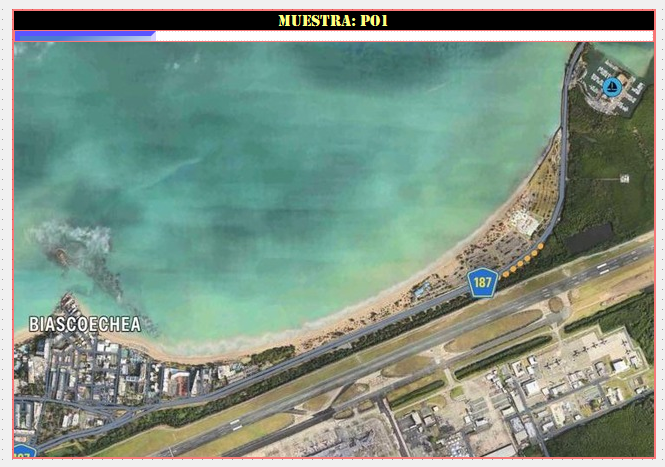
Did another way by having two vertical layouts with their own contents (on that has the qpushbuttons and the other that had the map and the top black label), and this is what I'm getting:
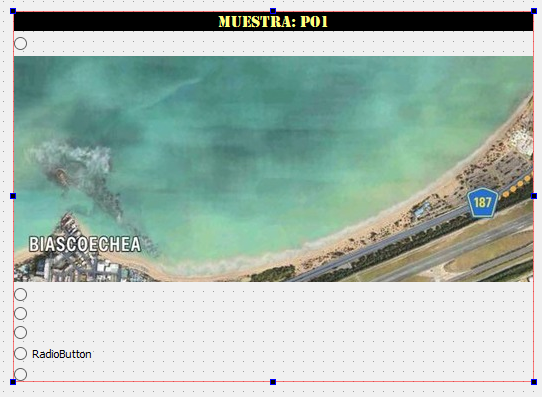
Also, when, I tried to add radio buttons to the map (already placed in the vertical layout), this happens:
I'm still new with QT designer so I really don't know what I'm supposed to do. Even with youtube videos, I can't seem to find an answer.
Oh, and forgot to mention that for the vertical layout with the pushbuttons, it has a widget intergrated so I could place the buttons and the top blue label in order.
-
Did another way by having two vertical layouts with their own contents (on that has the qpushbuttons and the other that had the map and the top black label), and this is what I'm getting:
Also, when, I tried to add radio buttons to the map (already placed in the vertical layout), this happens:
I'm still new with QT designer so I really don't know what I'm supposed to do. Even with youtube videos, I can't seem to find an answer.
Oh, and forgot to mention that for the vertical layout with the pushbuttons, it has a widget intergrated so I could place the buttons and the top blue label in order.
Can you show the Object Inspector please? So we can see what your current setup is
-
Can you show the Object Inspector please? So we can see what your current setup is
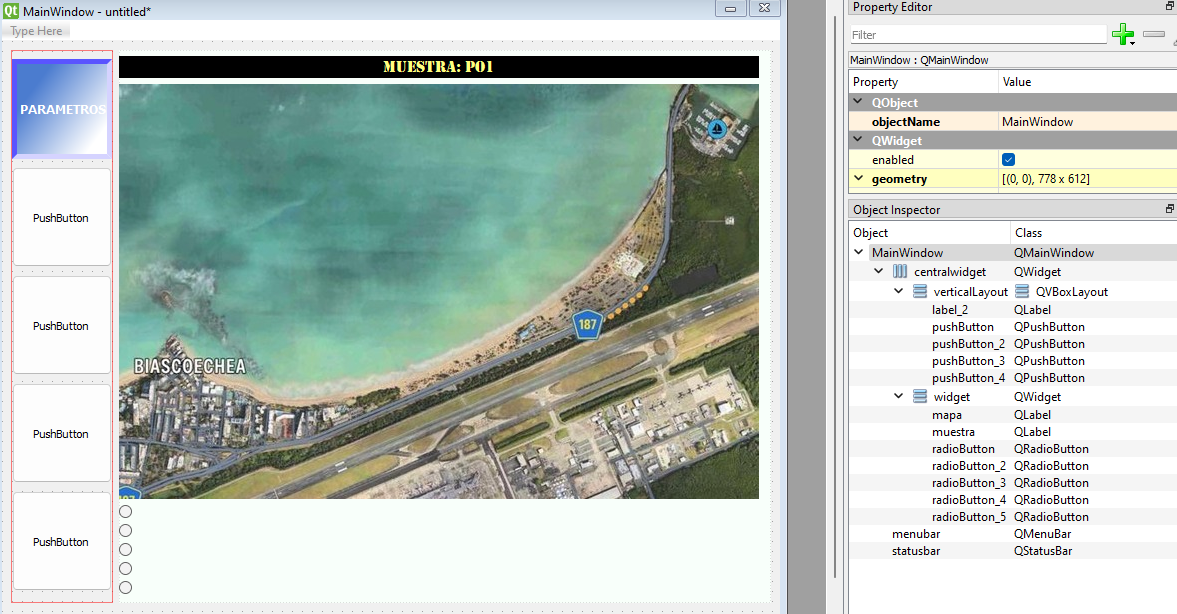
@Pl45m4 Here it is:
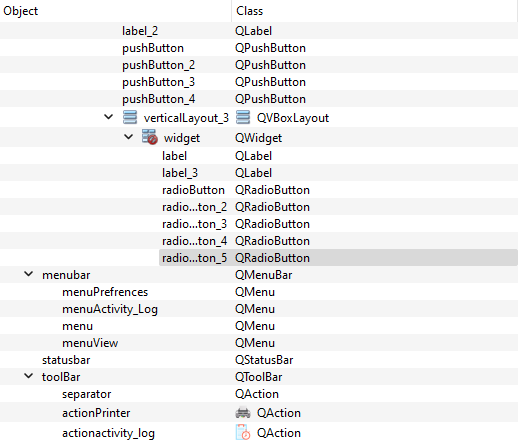
Also, had to include widgets to the layouts just so I could add in the radio buttons.
-
@Pl45m4 Here it is:
Also, had to include widgets to the layouts just so I could add in the radio buttons.
@Rangerguy128
You should start by setting a layout on thewidgetthere which has a red "no-entry" symbol on it. -
@Pl45m4 Here it is:
Also, had to include widgets to the layouts just so I could add in the radio buttons.
It's not that hard. As I told you, start with the inner layouts, then group them in layouts together until you have your desired design.
Start like this:
I created 4 buttons and organized them in a verticalLayout. Next I created two labels, representing your map (in my case yellow area) and your text above your map.
After that I created an emptyQWidget(blue) and placed it somewhere on themainWindow. As you can see, myQWidget widgetandcentralWidgetalso have no layout like yours.
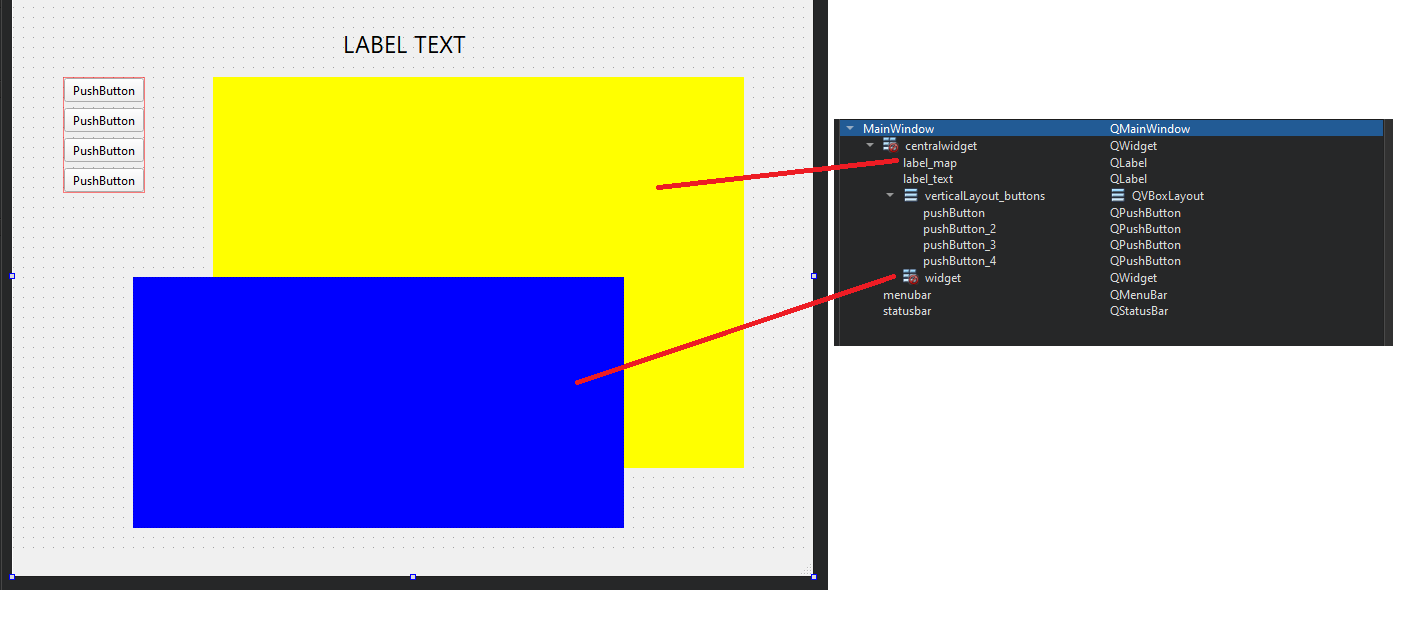
In the next steps you can add more widgets like your
QRadioButtons. I grouped them in their own vertical layout.Finally you put all your stuff together:
Order your widgets like this
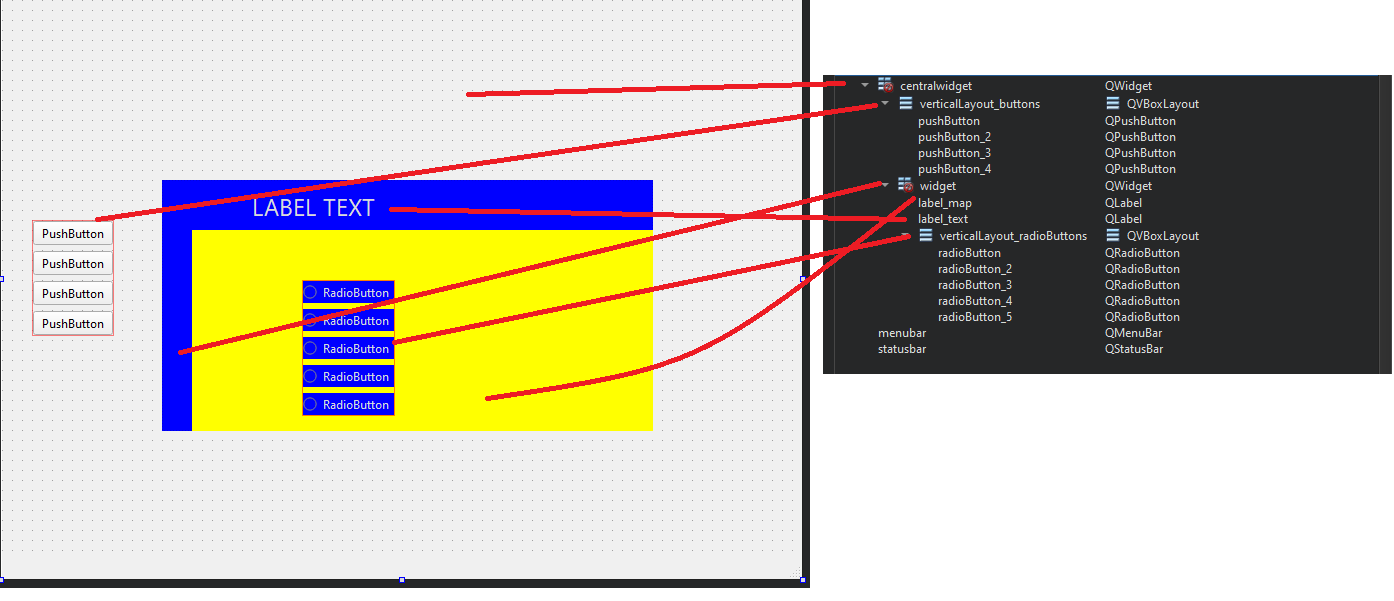
and right-click in object inspector (on the left) on your
QWidget widget, click "Lay out" and "vertical". Then do the same on yourQMainWindowwhere your select "Lay out horizontal"The final result should look like this:
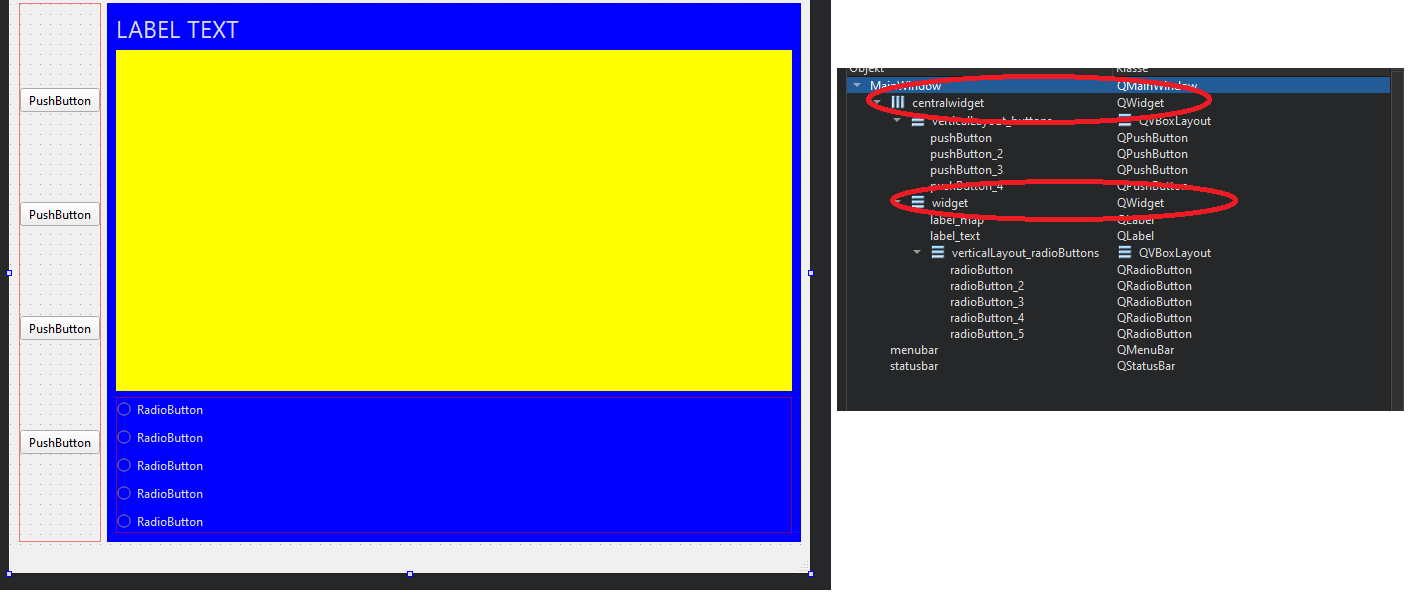
Everything moves with your window now and should resize properly.
Later you can add more buttons or whatever you like to the existing layouts, or you break them, add new layouts or re-arrange them.
You can also see thatwidgetas well ascentralWidgetboth don't have the "no layout"-warning-sign anymore. -
It's not that hard. As I told you, start with the inner layouts, then group them in layouts together until you have your desired design.
Start like this:
I created 4 buttons and organized them in a verticalLayout. Next I created two labels, representing your map (in my case yellow area) and your text above your map.
After that I created an emptyQWidget(blue) and placed it somewhere on themainWindow. As you can see, myQWidget widgetandcentralWidgetalso have no layout like yours.
In the next steps you can add more widgets like your
QRadioButtons. I grouped them in their own vertical layout.Finally you put all your stuff together:
Order your widgets like this
and right-click in object inspector (on the left) on your
QWidget widget, click "Lay out" and "vertical". Then do the same on yourQMainWindowwhere your select "Lay out horizontal"The final result should look like this:
Everything moves with your window now and should resize properly.
Later you can add more buttons or whatever you like to the existing layouts, or you break them, add new layouts or re-arrange them.
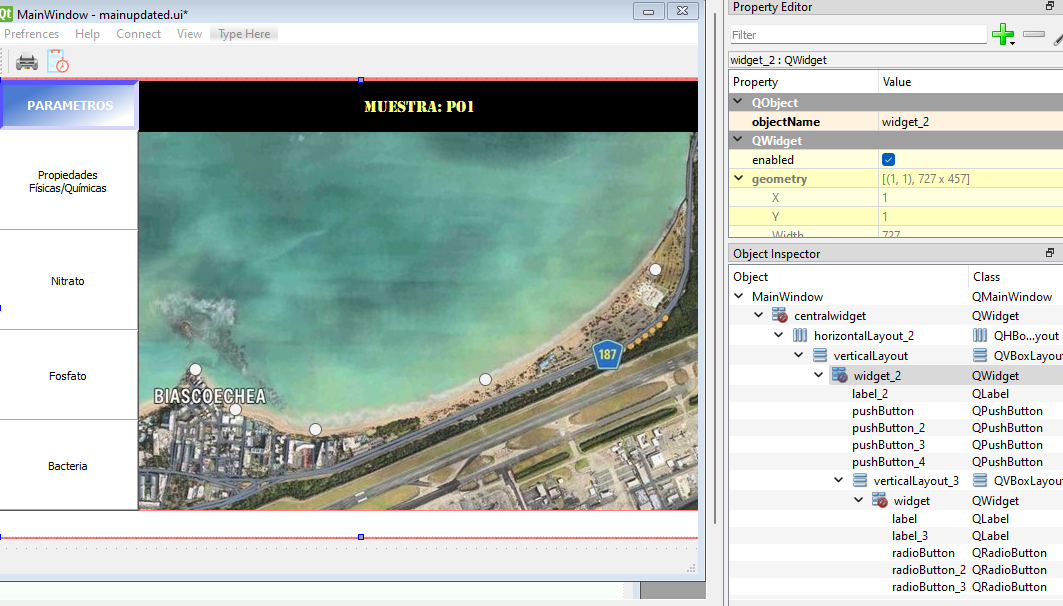
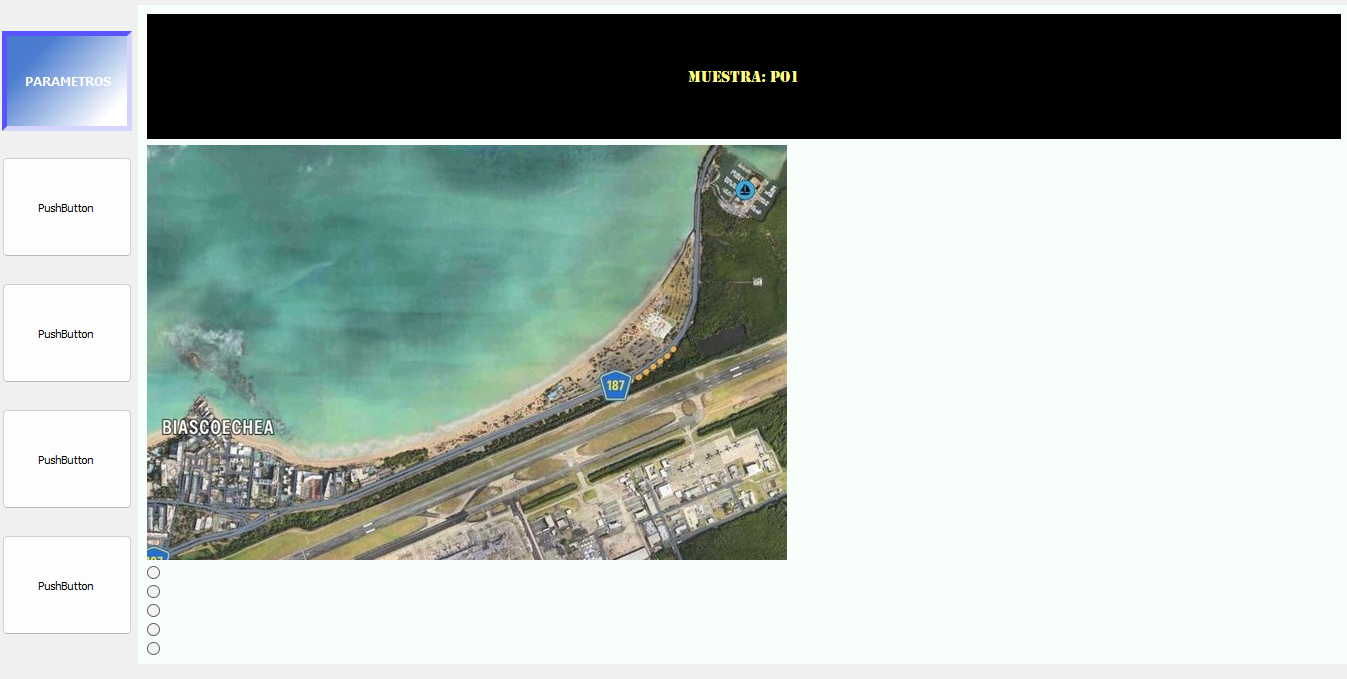
You can also see thatwidgetas well ascentralWidgetboth don't have the "no layout"-warning-sign anymore.@Pl45m4 I did what you told me to do and so far, it works, although I hvae three questions. Why are the pushbuttons and the blue label all spaced out, why doesnt the map image (Changed it for a different one) expand along with the balck label, and how can I place the radio buttons over the map? Here's a screenshot so that you can take a better look:
-
@Pl45m4 I did what you told me to do and so far, it works, although I hvae three questions. Why are the pushbuttons and the blue label all spaced out, why doesnt the map image (Changed it for a different one) expand along with the balck label, and how can I place the radio buttons over the map? Here's a screenshot so that you can take a better look:
@Rangerguy128 said in Have the main UI remain fixed when expanding:
Why are the pushbuttons and the blue label all spaced out,
Because they all take the space equally and don't grow vertically.
QPushButtonshave a fixed vertical size by default. SetsizePolicyof your buttons tovertical: Expanding(you can do it in Designer's property editor).why doesnt the map image (Changed it for a different one) expand along with the balck label
I think it's the same reason as with your buttons. Change the
sizePolicy
Do you really want to stretch the image so the width-height-ratio changes?how can I place the radio buttons over the map?
Then you can't put them in a layout.
What is your goal after all? What do you want to do with this map and these "radio buttons"?
There might be a better way, depending on what you have in mind. -
@Rangerguy128
You should start by setting a layout on thewidgetthere which has a red "no-entry" symbol on it. -
@Rangerguy128 said in Have the main UI remain fixed when expanding:
Why are the pushbuttons and the blue label all spaced out,
Because they all take the space equally and don't grow vertically.
QPushButtonshave a fixed vertical size by default. SetsizePolicyof your buttons tovertical: Expanding(you can do it in Designer's property editor).why doesnt the map image (Changed it for a different one) expand along with the balck label
I think it's the same reason as with your buttons. Change the
sizePolicy
Do you really want to stretch the image so the width-height-ratio changes?how can I place the radio buttons over the map?
Then you can't put them in a layout.
What is your goal after all? What do you want to do with this map and these "radio buttons"?
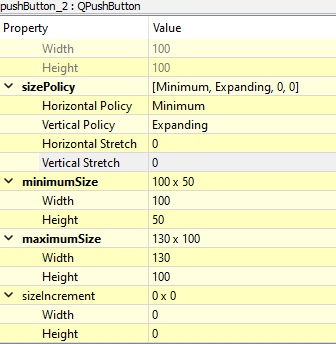
There might be a better way, depending on what you have in mind.@Pl45m4 For the radio buttons, I just want to place them over certain parts of the map to indicate where the samples are taken. Clicking on one of them would change the top label from PO1 (default) to PO5.
Oh, and set the policy like what you said but they still haven't expanded yet:
-
@JonB What layout should I use? Also, my bad but here's the missing top half of the object inspector:
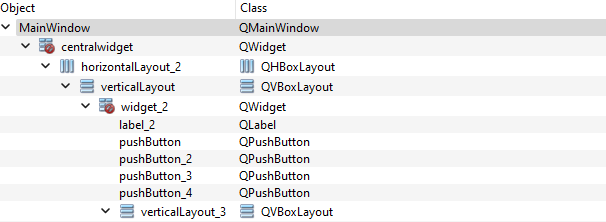
@Rangerguy128 said in Have the main UI remain fixed when expanding:
Also, my bad but here's the missing top half of the object inspector:
From this perspective it doesn't look quite right what you've done.
It looks that you haven't applied the layouts TO your widgets, but added new layouts on top of them. You still have the red-sign that stands for "I have no layout" :)horizontalLayout_2should be the "build-in" layout ofcentralWidget.
Same forverticalLayoutandwidget_2.@Pl45m4 said in Have the main UI remain fixed when expanding:
right-click in object inspector (on the left) on your QWidget widget, click "Lay out" and "vertical". Then do the same on your QMainWindow where your select "Lay out horizontal"
See what I wrote here.
E.g. to set a layout TOcentralWidgetand to make the layout work property with your window, right-click the row in Object Inspector that saysMainWindow(the very first one). There you can select a layout easily, but you have to have content within your widget's bounds... you can't set a layout to an empty widget... Don't ask why... QtDesigner is not the perfect tool :)
Therefore I've said you need to create your inner layouts and content, before you can apply a layout to yourcentralWidgetor your newwidget.Edit:
Since you replied to @JonB , is this screenshot from Object Inspector the current setup or is everything working now? Does it look like my setup? No red signs?!
-
@Rangerguy128 said in Have the main UI remain fixed when expanding:
Also, my bad but here's the missing top half of the object inspector:
From this perspective it doesn't look quite right what you've done.
It looks that you haven't applied the layouts TO your widgets, but added new layouts on top of them. You still have the red-sign that stands for "I have no layout" :)horizontalLayout_2should be the "build-in" layout ofcentralWidget.
Same forverticalLayoutandwidget_2.@Pl45m4 said in Have the main UI remain fixed when expanding:
right-click in object inspector (on the left) on your QWidget widget, click "Lay out" and "vertical". Then do the same on your QMainWindow where your select "Lay out horizontal"
See what I wrote here.
E.g. to set a layout TOcentralWidgetand to make the layout work property with your window, right-click the row in Object Inspector that saysMainWindow(the very first one). There you can select a layout easily, but you have to have content within your widget's bounds... you can't set a layout to an empty widget... Don't ask why... QtDesigner is not the perfect tool :)
Therefore I've said you need to create your inner layouts and content, before you can apply a layout to yourcentralWidgetor your newwidget.Edit:
Since you replied to @JonB , is this screenshot from Object Inspector the current setup or is everything working now? Does it look like my setup? No red signs?!
-
@Rangerguy128 said in Have the main UI remain fixed when expanding:
the map image doesnt expand with the black label.
If the image is restricted by its height, it will not expand to the side. You might be able to fix this by putting the image inside a scroll area.
For the buttons on the left you might want to add a vertical spacer item at the bottom of the layout (which would add a lot of space at the bottom but prevent the buttons from being spread out).