
Qt DrawPie location and rotation issue
-
Hello all,
I would like to make an application which includes rotation widget inside a circle. I started this with the AnalogClock example in qt. I wouldd like to rotate a quarter pie (quarter circle) instead of gauge. My problem is I cannot locate the pie in the center of my circle.
Below picture, I barely locate the pi in the center of circle but I would like to make the pi bigger than below picture.

I realized that all paintings locate inside of rectangle like below.

When I change the drawPie function parameters rectangle's location change and rotates based on on edge point. I can make the ractange bigger but this time drawPie center changes too like the last visual.

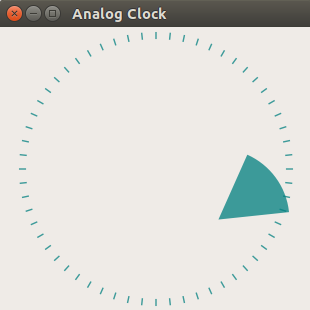
You can check the code below. It is modifed from the AnalogClock example. I would like to draw a quarter pie and make it the rotate endlessly. Any help will be appreciated. If you have a better opinion, I would like hear that too.
AnalogClock::AnalogClock(QWidget *parent) : QWidget(parent), ui(new Ui::AnalogClock) { ui->setupUi(this); QTimer *timer = new QTimer(this); connect(timer, &QTimer::timeout, this, QOverload<>::of(&AnalogClock::update)); timer->start(1000); setWindowTitle(tr("Analog Clock")); resize(200, 200); } void AnalogClock::paintEvent(QPaintEvent *) { QColor minuteColor(0, 127, 127, 191); int side = qMin(width(), height()); QTime time = QTime::currentTime(); QPainter painter(this); painter.setRenderHint(QPainter::Antialiasing); painter.translate(width() / 2, height() / 2); painter.scale(side / 200.0, side / 200.0); painter.setPen(Qt::NoPen); qreal radius=10; qreal startAngle=0; qreal span=60; for (int i = 0; i < 12; ++i) { painter.drawLine(88, 0, 96, 0); painter.rotate(30.0); } painter.setBrush(minuteColor); painter.save(); painter.rotate(6.0 * time.second() ); //painter.drawConvexPolygon(minuteHand, 3); QRect rect( -radius, -radius, radius*10, radius*10); painter.drawPie( rect, startAngle*16, span*16 ); // painter.fillRect(rect,QBrush(Qt::green)); painter.restore(); painter.setPen(minuteColor); for (int j = 0; j < 60; ++j) { painter.drawLine(92, 0, 96, 0); painter.rotate(6.0); } } -
Hi, I think it's easier if you use the QGraphicsView/QGraphicsScene stuff, made a sample program for you:
Start with an empty vanilla widgets app, then change your mainwindow.cpp to look like this:#include "mainwindow.h" #include "ui_mainwindow.h" #include "qgraphicsview.h" #include "qgraphicsscene.h" #include "QGraphicsLineItem" #include "qvector.h" #include "qtimer.h" MainWindow::MainWindow(QWidget *parent) : QMainWindow(parent), ui(new Ui::MainWindow) { ui->setupUi(this); auto graphicsView = new QGraphicsView(this); graphicsView->setGeometry(0,0,width(),height()); auto scene = new QGraphicsScene(this); auto diameter = qMin(graphicsView->width(),graphicsView->height()) / 1.05; auto radius = diameter / 2; auto minuteLineLength = radius / 20; auto minuteLineWidth = 1; auto pieLineLength = radius - minuteLineLength; auto pieLineWidth = 5; auto origo = QPointF(radius, radius); auto timerMilliseconds = 33; // <--- the speed (33 means one rotation takes 2 seconds) // draw the minutes for (int m = 0; (m < 60); ++m) { auto degrees = m * 6 - 90; // start at 12 o'clock (north) auto radians = (degrees / 360.0f) * 2 * 3.141592653; auto point0 = origo + QPointF(pieLineLength * cos(radians),pieLineLength * sin(radians)); auto point1 = origo + QPointF(radius * cos(radians),radius * sin(radians)); scene->addLine(QLineF(point0,point1),QPen(QBrush(Qt::black),minuteLineWidth)); } // store the pie lines here QList<QGraphicsLineItem*> lPieLines; // draw the pie lines for (int p = 0; (p < 360); ++p) { auto degrees = p - 90; // start at 12 o'clock (north) auto radians = (degrees / 360.0f) * 2 * 3.141592653; auto point0 = origo; auto point1 = origo + QPointF(pieLineLength * cos(radians),pieLineLength * sin(radians)); lPieLines.append(scene->addLine(QLineF(point0,point1),QPen(QBrush(Qt::green),pieLineWidth))); lPieLines.constLast()->setVisible(p < 90); } // all lines added, set the scene graphicsView->setScene(scene); // start the party auto timer = new QTimer(this); connect(timer,&QTimer::timeout,this,[lPieLines] { static int degrees = 0; // step clockwise ++degrees; // go thru all of the pie lines for (int l = 0; (l < 360); ++l) lPieLines.at((l + degrees) % 360)->setVisible(l < 90); } ); timer->start(timerMilliseconds); } MainWindow::~MainWindow() { delete ui; }and it should look like this: (and rotate nicely :-)

-
@hskoglund said in Qt DrawPie location and rotation issue:
for (int m = 0; (m < 60); ++m)
{
auto degrees = m * 6 - 90; // start at 12 o'clock (north)
auto radians = (degrees / 360.0f) * 2 * 3.141592653;
auto point0 = origo + QPointF(pieLineLength * cos(radians),pieLineLength * sin(radians));
auto point1 = origo + QPointF(radius * cos(radians),radius * sin(radians));
scene->addLine(QLineF(point0,point1),QPen(QBrush(Qt::black),minuteLineWidth));
}Thank you very much :) Really appreciate it ! Best regards.
-
Glad you liked it, it's a fun little demo.
BTW, I realized the timer code it a bit wasteful, it hides/shows all the 360 pie lines every time, but actually you only need to update the edges (the forward edge: one line needs to be turned on and the line at trailing edge needs to be hidden).
So here is a better optimized "start the party" code:
/ start the party (revised version)
    auto timer = new QTimer(this);
    connect(timer,&QTimer::timeout,this,[lPieLines]
    {
        static int degrees = 0;

        lPieLines.at((0 +  degrees) % 360)->setVisible(false);
        lPieLines.at((90 + degrees) % 360)->setVisible(true);

    // rotate once clockwise
        ++degrees;
    } );

    timer->start(timerMilliseconds);
Also I was wrong stating that a full rotation with a milleseconds setting of 33 takes 2 seconds, of course it should be 12 seconds (i.e. 30 per second for a total of 360 steps).
-
Glad you liked it, it's a fun little demo.
BTW, I realized the timer code it a bit wasteful, it hides/shows all the 360 pie lines every time, but actually you only need to update the edges (the forward edge: one line needs to be turned on and the line at trailing edge needs to be hidden).
So here is a better optimized "start the party" code:
/ start the party (revised version)
    auto timer = new QTimer(this);
    connect(timer,&QTimer::timeout,this,[lPieLines]
    {
        static int degrees = 0;

        lPieLines.at((0 +  degrees) % 360)->setVisible(false);
        lPieLines.at((90 + degrees) % 360)->setVisible(true);

    // rotate once clockwise
        ++degrees;
    } );

    timer->start(timerMilliseconds);
Also I was wrong stating that a full rotation with a milleseconds setting of 33 takes 2 seconds, of course it should be 12 seconds (i.e. 30 per second for a total of 360 steps).
Thank you so much sir. You helped me a lot. Best wishes.
