Unsolved QPainter compositing : how to combine QPainter operations ?
-
Hi !
Is it possible to combine/group multiple QPainter operations so that they are composed (using the defined CompositionMode) at once ?
I'm asking because with the code/screenshots below (it's python, but the same applies in C++), each piece gets drawn independently, so that there is a dark overlap on pieces with the same color. I'd like the overlap to be visible only on pieces of different colors.
I search for something like QPainter->startTransaction() ... QPainter->commit(), but couldn't find anything...
I'm using this in a QGraphicsItem subclass. Using multiple QGraphicItems is not a good workaround, as I'll have a large count of items.
Many thanks !!!
Olivier
def paint(self, painter, option, widget):
    painter.setCompositionMode(QPainter.CompositionMode_Multiply)
    for player in players:
        painter.setPen(player.color)
        # i'd like to group these calls at once
        for piece in player.pieces:
            painter.drawCircle(...)
What I have :
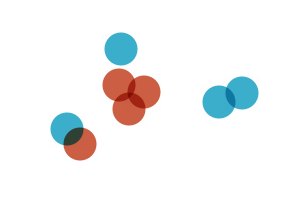
What I want :

-
There's no grouping in painter, but you can group your shapes with QPainterPath. Create one for each color. Set their fill rule to WindingFill, add circles to them and then draw the paths with the painter.
-
Seems to be exactly what I needed for the circles !
Now, I have the same question for other calls (drawPolyline with a thick dashed round QPen). I guess I'll use your technique with QPainterPathStroker first. I'm just worried it may get a bit heavy computationally as it's a lot of vectors to process. But I'll try first and come back if there's actual perfomance issues !
@Chris-Kawa Thanks so much for your help !
-
as an alternative you could first paint all the red stuff on a white background without transparency (just use light red).
Then the same for the blue stuff.
Finally convert white to alpha and overlay the two images..

